
How to Run a Budget vs. Actuals Report by Location in QuickBooks Online
For a business with several sites, regions, or branches, a Budget vs. Actuals report subdivided by location shows which ones are holding to plan. The location split is part of how the budget is built rather than something you switch on in the report. Here is how to run it.
The location split has to be chosen while the budget is being created, under Budget format. See how to create a budget in QuickBooks Online.
Steps
- Find a budget that is subdivided by location
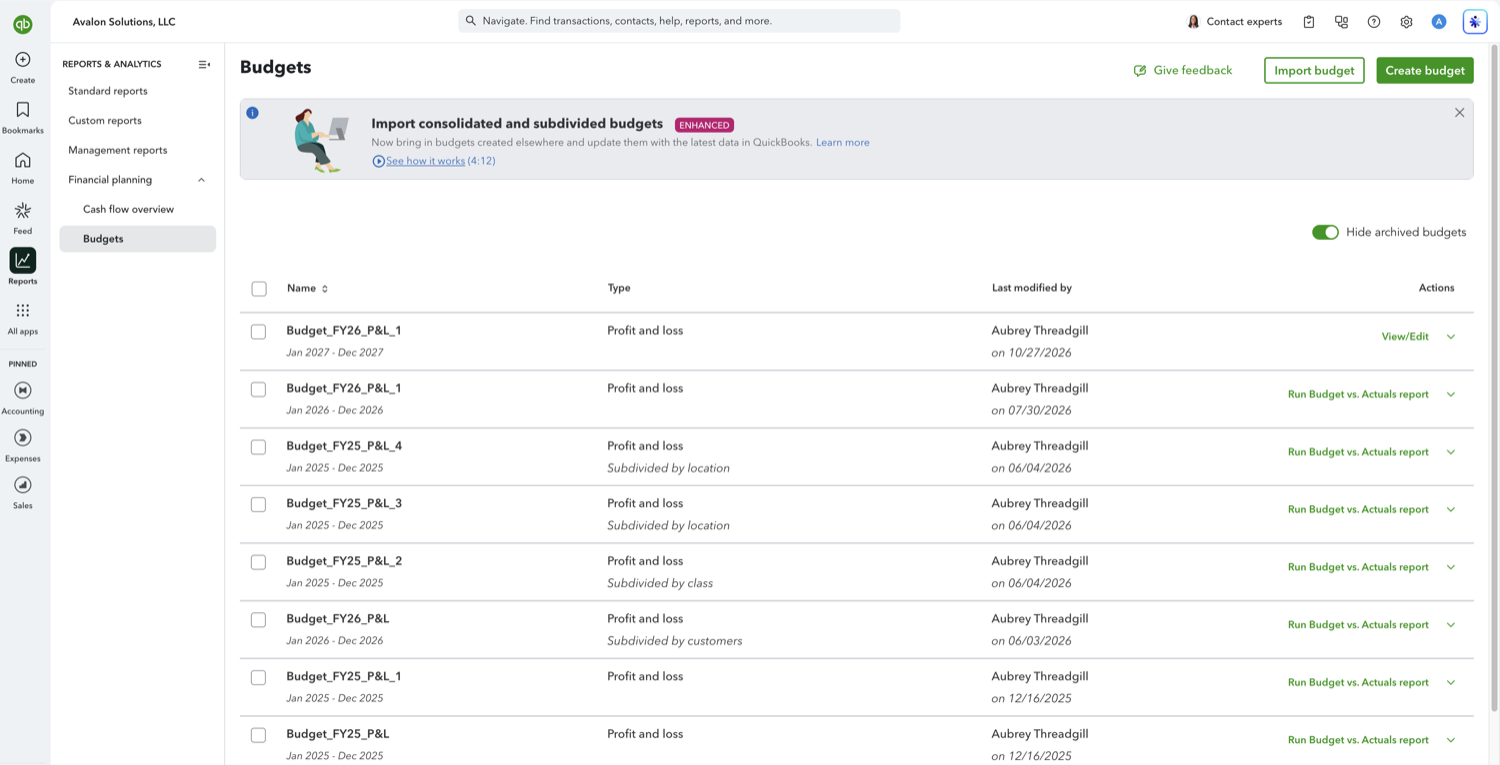
Go to Reports, open Financial planning, and select Budgets. In the Type column a location budget reads "Profit and loss" with "Subdivided by location" underneath. If you do not have one, create a new budget and set Budget format to Subdivided, then pick location. The format is fixed once the budget is saved.
- Run the report and read one column set per location
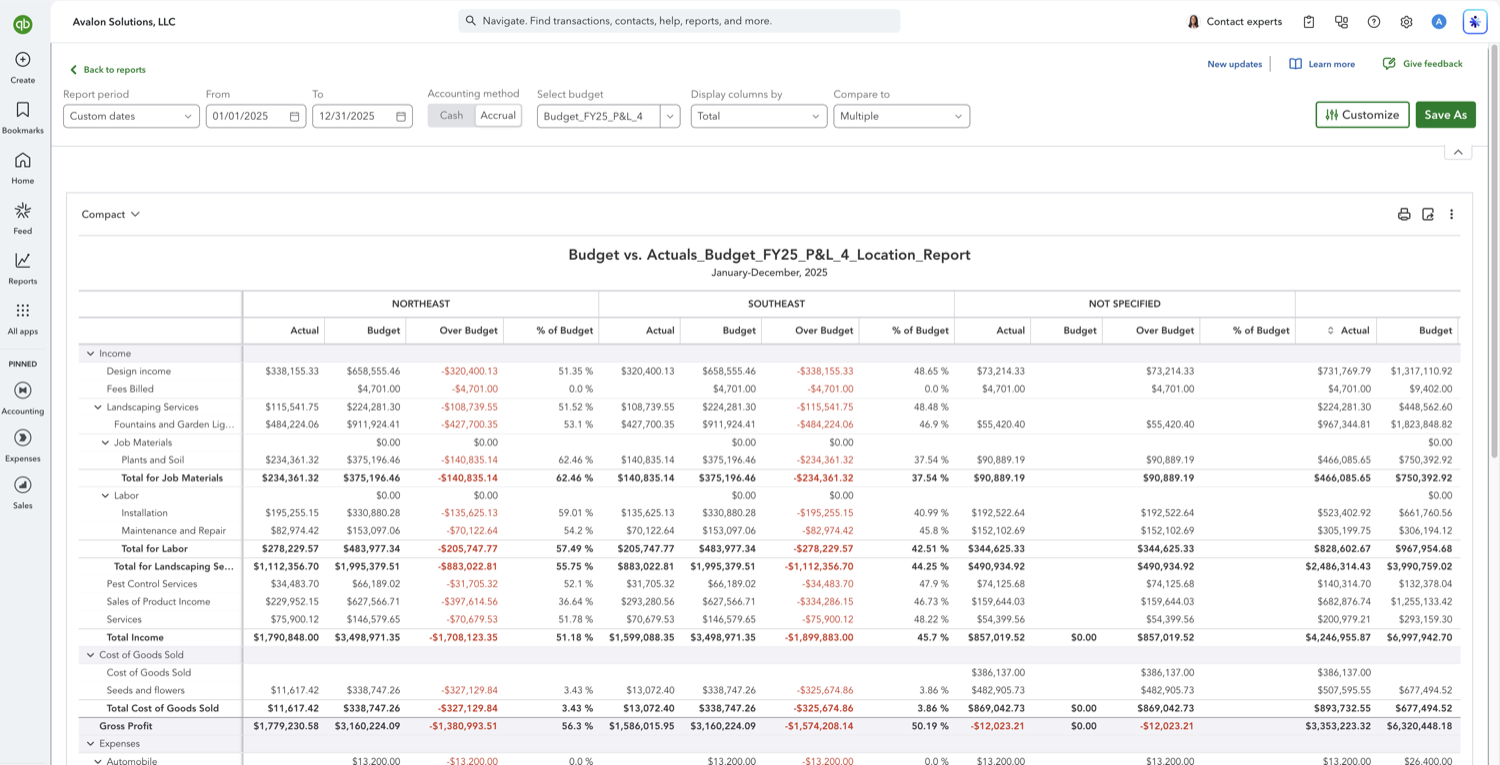
Select "Run Budget vs. Actuals report" on that row. Every location in the budget gets Actual, Budget, Over Budget, and % of Budget, with a total set at the end. Watch for a "Not specified" set: a balance sitting there means transactions were posted without a location, and the per-site numbers are understated until those are tagged. Leave Display columns by on Total. Location is not one of its options, so these columns come from the budget itself rather than from that dropdown, and switching it to anything else replaces them.
- Why there is no Location option, and what to do without one
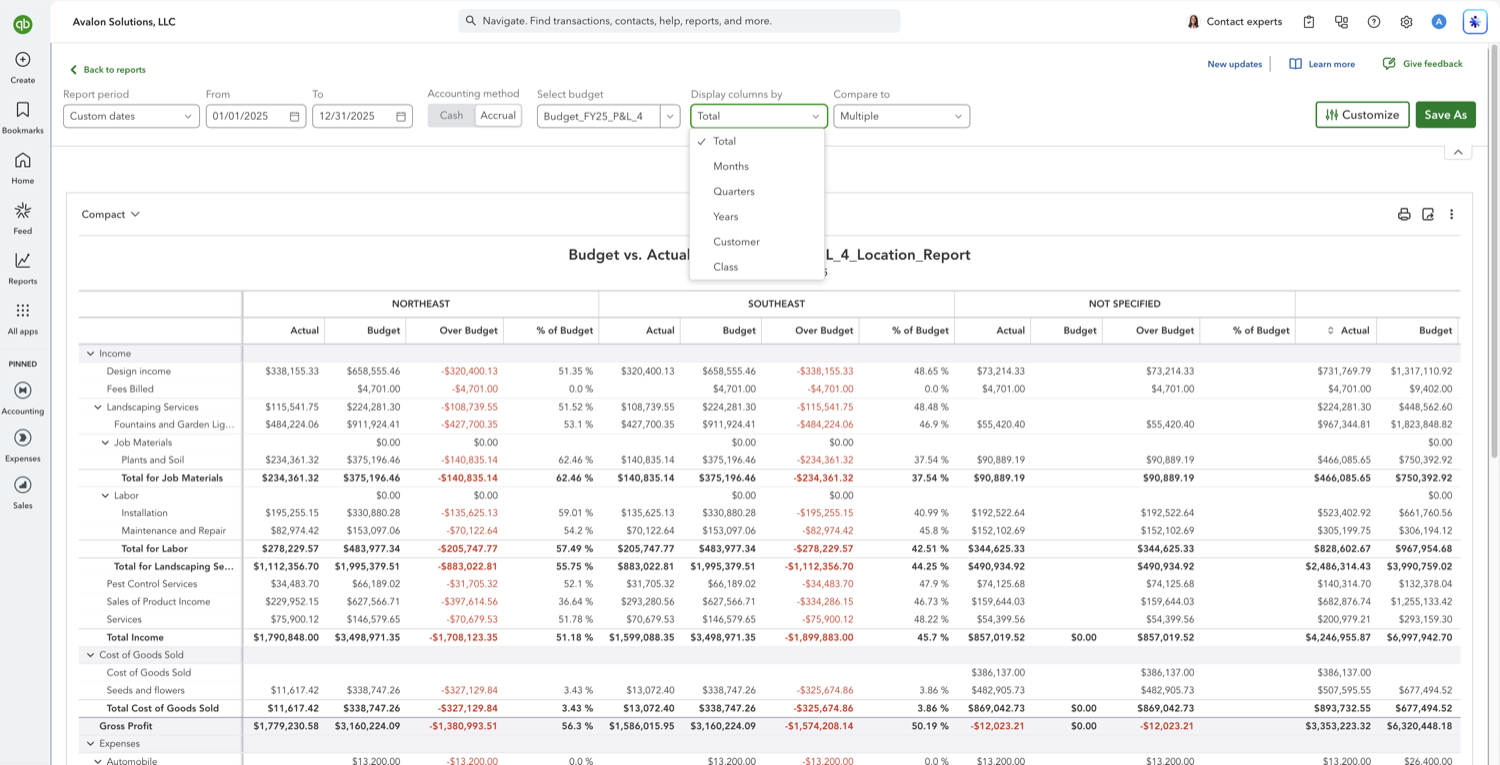
Open Display columns by and the list reads Total, Months, Quarters, Years, Customer, and Class. There is no Location, so no setting on this report will split an ordinary budget by site. The only route to location columns is a budget whose format is Subdivided by location, chosen when the budget is created or imported. If you do not have one, build it: create a budget and pick Subdivided, or import one from the spreadsheet template with the same format set. Picking Class or Customer here instead will not help, because a budget with no location split puts every budgeted dollar in a single Not Specified column.
Other Budget vs. Actuals comparisons
See also
Frequently asked questions
Why is there no "Display columns by" option on this report?
There is a Display columns by dropdown, but it has no Location option: it offers Total, Months, Quarters, Years, Customer, and Class only. Location columns come from running a budget that is subdivided by location, which is why this guide starts at the Budgets page rather than at the report. If you cannot see it, the browser window is too narrow. QuickBooks drops both Display columns by and Compare to below roughly 1,700 pixels of window width, and there is no overflow menu holding them, so they simply are not there. Widen the window or zoom the page out and they come back.
What is the difference between the class and location splits?
Locations usually stand for physical or regional units such as a shop, office, or territory, while classes stand for departments, programs, or business lines. A budget can be subdivided by one of them, not both.
What does a "Not specified" column mean?
It holds amounts posted without a location. A large figure there usually means transactions need tagging before the location numbers can be trusted.
Does this need location tracking turned on?
Yes. Location tracking is switched on in Account and settings under Advanced, and it is available on Plus and Advanced.
Can I put one location per row with months across the top?
Not in the modern view, where Display columns by sets a single axis, so every option replaces the location split rather than nesting inside it. The older classic view can do it: open Quick actions (the three dots beside Select budget), choose Switch to classic view, then Customize, and Show Grid under Rows/Columns offers Location vs. Months alongside the default Accounts vs. Location. Treat it as a fallback. Anything set there is lost as soon as you run the report again from the Budgets page, because the report opens in the modern view each time.
Tired of rebuilding reports? Need more customization?
Retriever pulls QuickBooks Online reports like this one into Google Sheets on a schedule. They refresh on their own, and once the data is in Sheets you can pivot, chart, and customize it far beyond QuickBooks' fixed report layouts.
See how Retriever worksRelated report guides
Questions about this report? Reach out at aubrey@retrieverhq.com.

© 2026 Avalon Innovation Corporation. All rights reserved.
🇺🇸 Built in Orange County, California