
How to Run a Budget Variance Report in QuickBooks Online
Search the QuickBooks Online report list for "variance" and nothing comes back. The variance report exists, it just goes by a different name: Budget vs. Actuals. Its Over Budget column is the dollar variance on every account, and % of Budget is the same gap as a percentage. Here is how to run it and read what it tells you.
Variance only means something once a budget exists to compare against. See how to create a budget in QuickBooks Online.
Steps
- Open the Budgets page and run the report
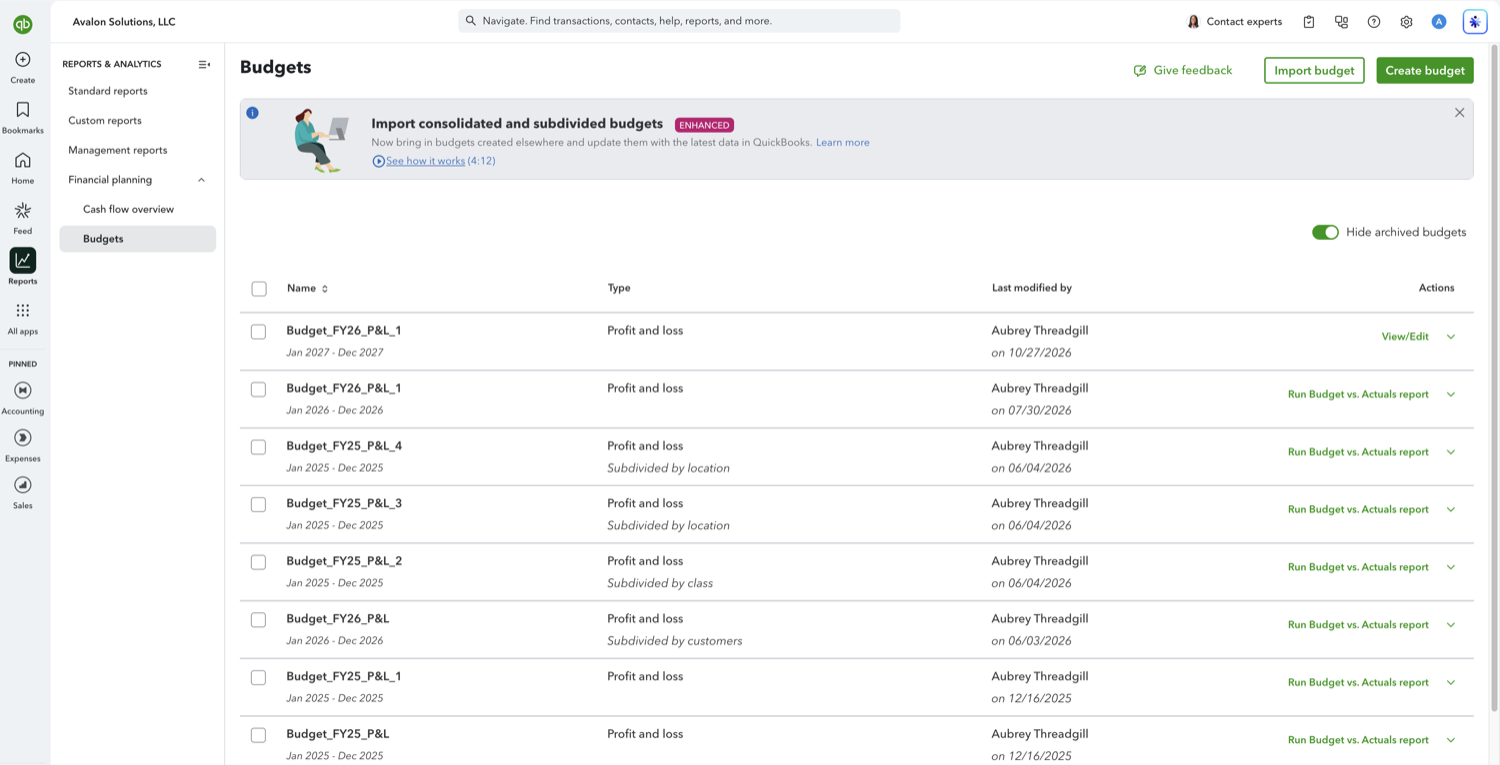
Go to Reports in the left navigation, open Financial planning, and select Budgets. Find the budget you want to measure against and select "Run Budget vs. Actuals report" in the Actions column. Only budgets whose period has already started will offer the report, since a future year has no actuals to compare yet.
- Read the Over Budget and % of Budget columns
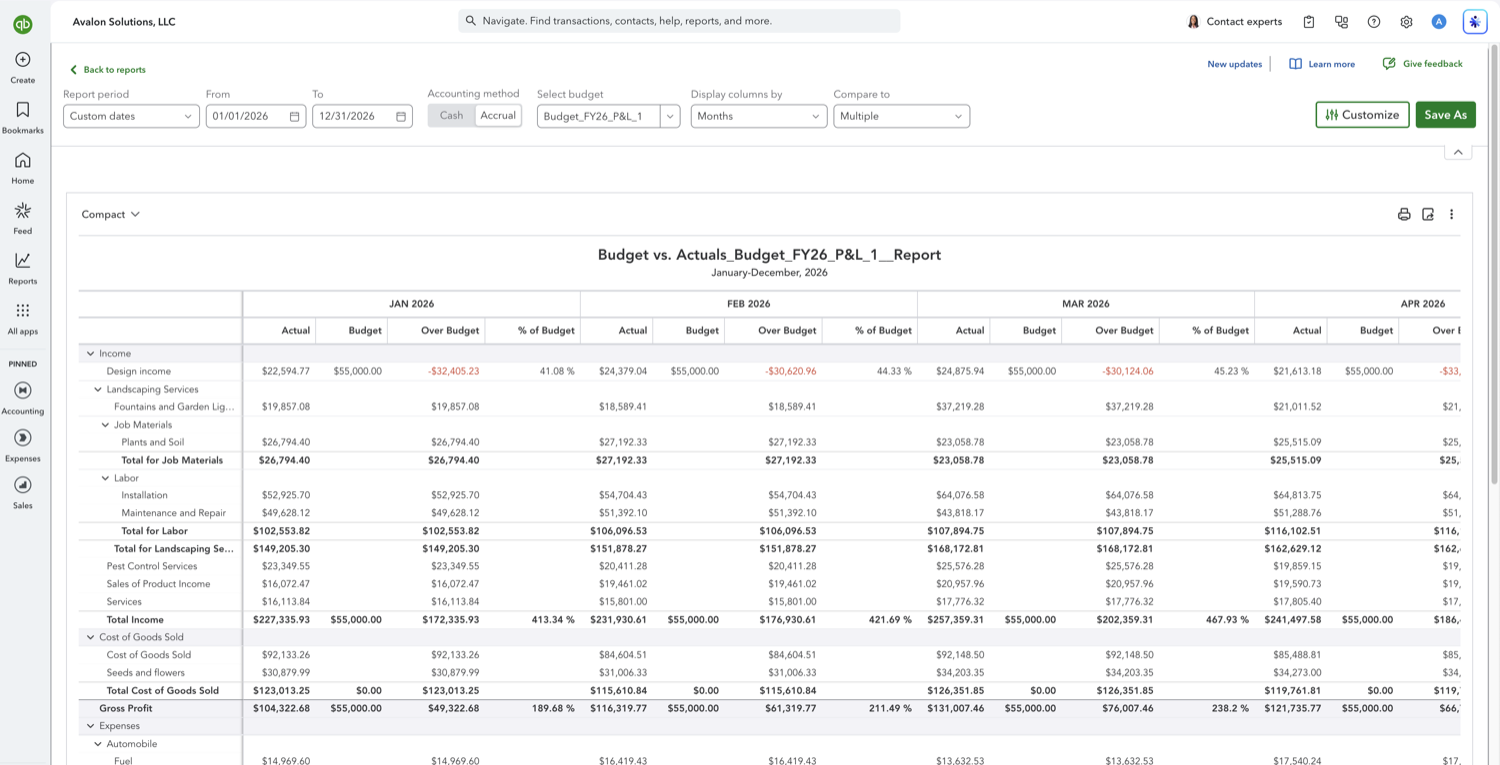
Each period gets four columns: Actual, Budget, Over Budget, and % of Budget. Over Budget is Actual minus Budget, so it is the dollar variance, and QuickBooks prints it in red when it is negative. % of Budget is the actual divided by the budget. Read the sign against the account type rather than treating red as bad: on an expense account a negative Over Budget means you underspent, while on an income account it means you came in short of plan.
- Add the remaining-budget columns
Compare to, just right of Display columns by, is where the variance columns are chosen. It opens on a Variances list with $ Over Budget and % of Budget already ticked, and two more available: $ Remaining and % Remaining. Over Budget and Remaining are the same gap with opposite signs, so pick whichever reads naturally for your audience. Untick one to narrow a report that has grown too wide.
- Customize how the variance reads
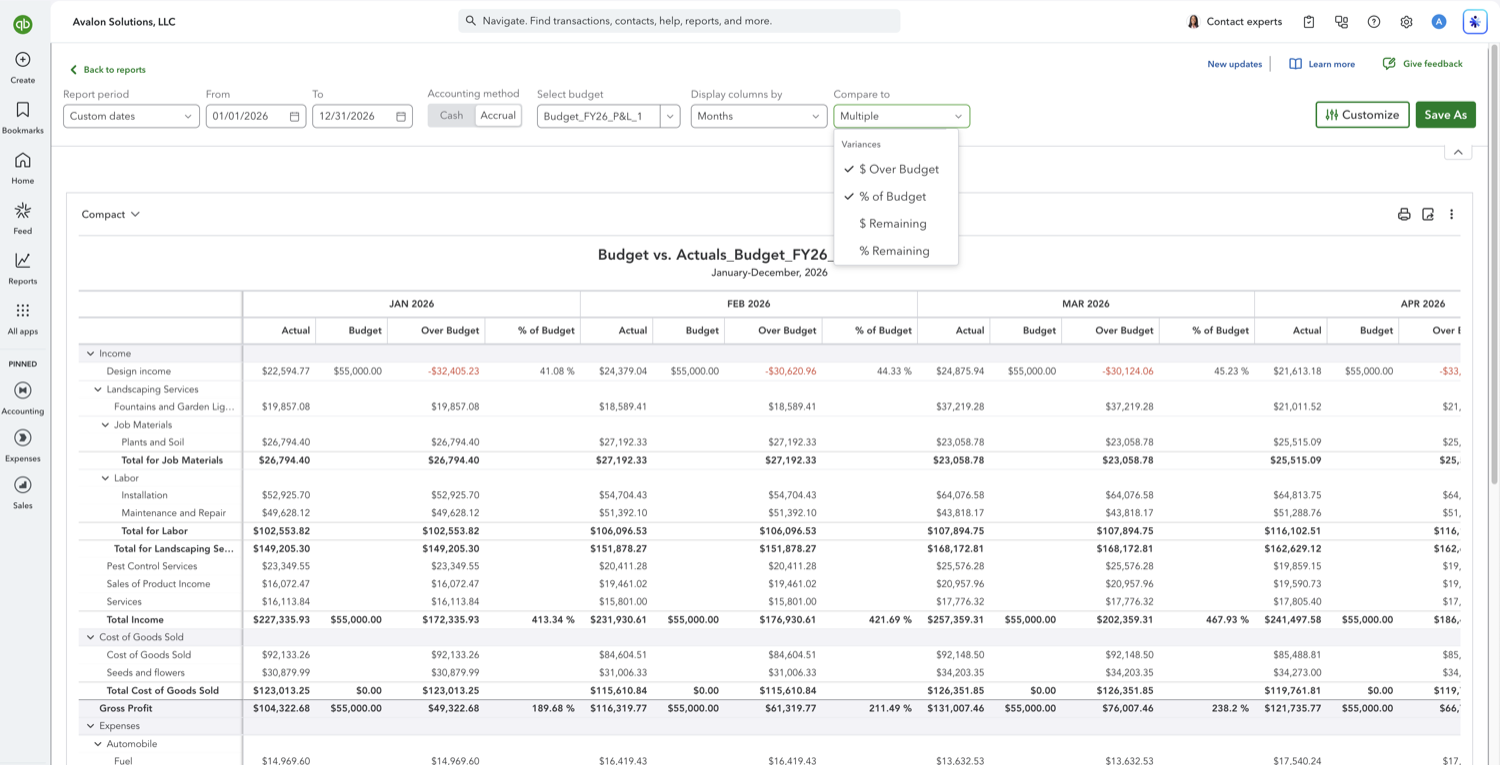
Customize, on the right of the toolbar, opens a panel over the report. Under "Show non-zero or active" you can set rows and columns to Active, All, or Non-zero, which is the fastest way to drop accounts you never budgeted. Number format controls whether negatives show as -100 or (100) and whether they print in red, and it can divide everything by 1000 or round to whole numbers for a cleaner board pack.
See also
Frequently asked questions
Why is there no report called "Budget variance" in QuickBooks Online?
QuickBooks puts the variance inside Budget vs. Actuals rather than giving it a separate report. Over Budget is the dollar variance and % of Budget is the percentage, so running Budget vs. Actuals is running a variance report.
Is a negative number in the Over Budget column good or bad?
It depends on the account. Over Budget is Actual minus Budget, so a negative means the actual came in below plan. On expenses that is usually welcome, and on income it usually is not.
Can I see variance for a class, customer, or location?
Yes, but only if the budget was subdivided when it was created. A consolidated budget reports one set of variance columns for the whole company, while a subdivided budget repeats the four columns for each class, customer, or location.
Can I export the variance report?
Yes. The export and print icons sit above the report table. For a copy that refreshes on a schedule instead of being re-exported by hand, tools like Retriever can pull QuickBooks reports into Google Sheets.
Tired of rebuilding reports? Need more customization?
Retriever pulls QuickBooks Online reports like this one into Google Sheets on a schedule. They refresh on their own, and once the data is in Sheets you can pivot, chart, and customize it far beyond QuickBooks' fixed report layouts.
See how Retriever worksRelated report guides
Questions about this report? Reach out at aubrey@retrieverhq.com.

© 2026 Avalon Innovation Corporation. All rights reserved.
🇺🇸 Built in Orange County, California