
How to Run the Budget Overview Report in QuickBooks Online
The Budget Overview report shows the numbers you planned, your budgeted income and expenses for each account, laid out by period (and by class, customer, or location if your budget is subdivided). Here's how to open and read it in QuickBooks Online.
Budget reports only work once you have a budget set up. See how to create a budget in QuickBooks Online.
Steps
- Open the Budget Overview report
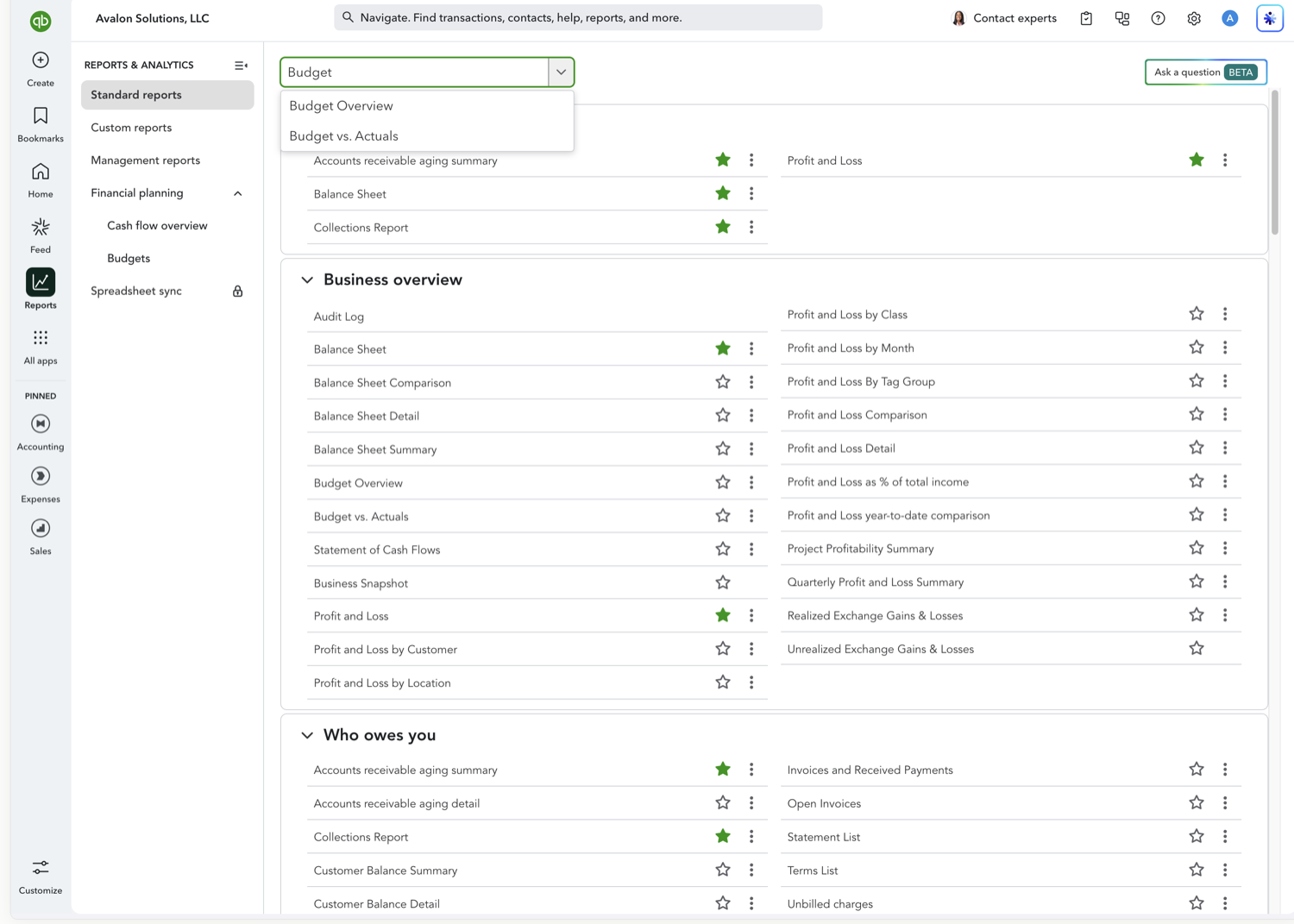
Go to Reports in the left navigation and search for "Budget Overview," or find it under the Business overview group. QuickBooks opens the report on your most recent budget.
- Review your budget by account and period
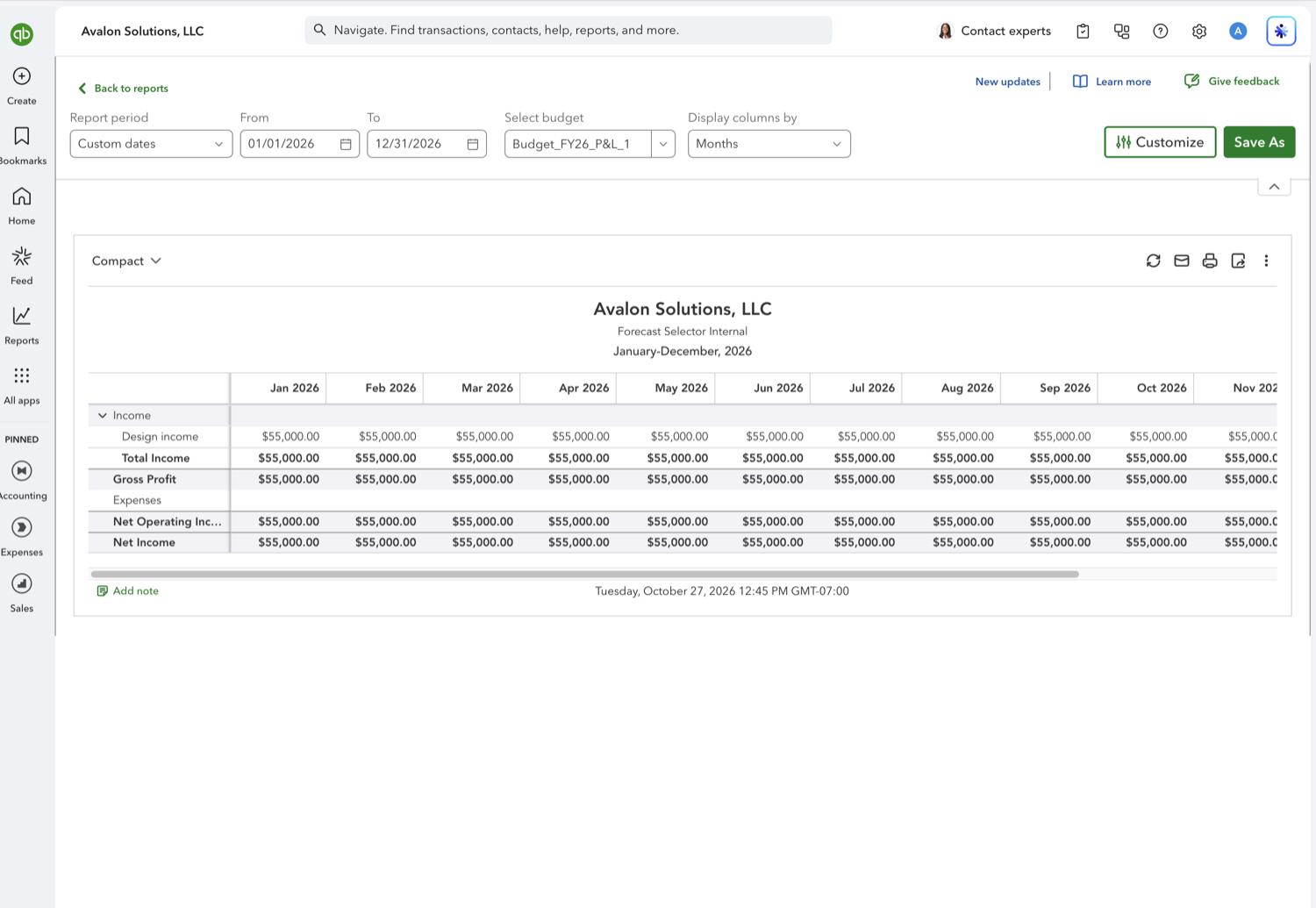
The report lists every budgeted account down the left, with a column for each period and a Total column. If your budget is divided by class, customer, or location, you'll see a column set for each. The toolbar along the top holds Report period, Select budget, and Display columns by, so you can point the report at a different budget or regroup the columns without leaving the page. Customize, on the right, opens the panel for filters and number formatting.
Frequently asked questions
Why is my Budget Overview report empty?
The report needs a saved budget for the fiscal year you're viewing. If nothing shows, confirm a budget exists under Settings > Budgeting and that the report is pointed at the right budget and year.
Does the Budget Overview report compare to actual results?
No. Budget Overview shows only the budgeted amounts. To compare your plan against what actually happened, use the Budget vs. Actuals report instead.
Are the budget reports part of the new modern reporting view?
Yes. Budget Overview and Budget vs. Actuals both open in the modern report builder, with the Report period, Select budget, and Display columns by controls along the top and a Customize panel on the right.
Tired of rebuilding reports? Need more customization?
Retriever pulls QuickBooks Online reports like this one into Google Sheets on a schedule. They refresh on their own, and once the data is in Sheets you can pivot, chart, and customize it far beyond QuickBooks' fixed report layouts.
See how Retriever worksRelated report guides
Questions about this report? Reach out at aubrey@retrieverhq.com.

© 2026 Avalon Innovation Corporation. All rights reserved.
🇺🇸 Built in Orange County, California