
How to Import a Budget into QuickBooks Online
Plenty of budgets get built in a spreadsheet long before anyone opens QuickBooks. Rather than retyping the figures into the budget grid, you can download a template, paste your numbers in, and upload it. Here is the flow.
Steps
- Start the import and set the budget up
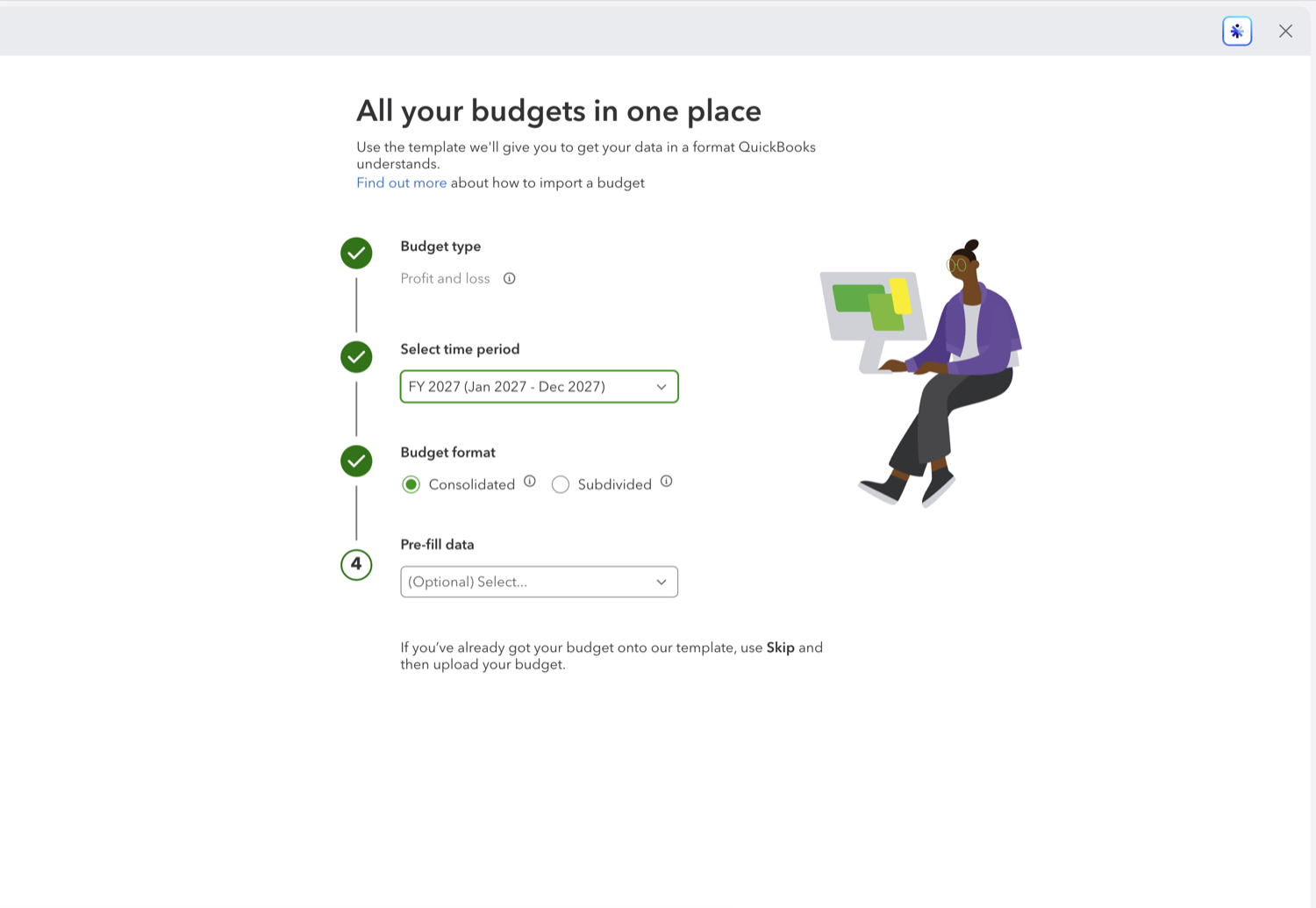
Go to Reports, open Financial planning, and select Budgets, then select Import budget at the top right. QuickBooks asks for the budget type, the fiscal year under Select time period, and the Budget format, either Consolidated or Subdivided. Pre-fill data is optional and lets the template come down with existing figures already in it.
- Download the template, fill it in, and upload it
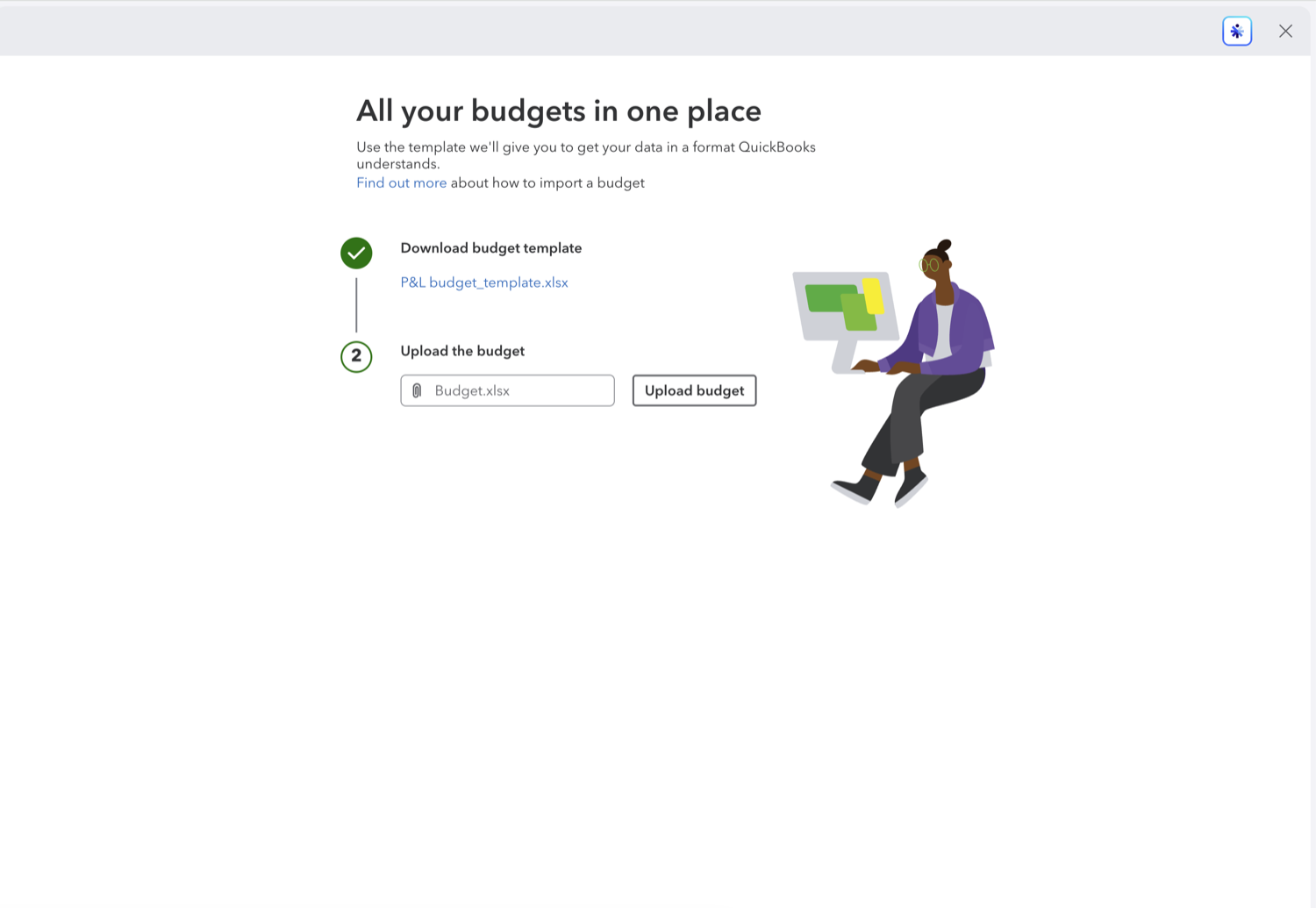
Select Next and QuickBooks offers a template to download, a .xlsx file named for the budget type. Put your figures into that file without changing its layout, since the import matches on the columns it generated. Then choose the file and select Upload budget. If your numbers are already in the template from a previous round, the first screen has a Skip option that takes you straight to the upload.
See also
Frequently asked questions
What file format does the budget import take?
An .xlsx file built from the template QuickBooks gives you in the import flow. Download that template first rather than uploading a spreadsheet of your own, because the import reads the columns it created.
Can I import a budget that is split by class, customer, or location?
Yes. Set Budget format to Subdivided on the first screen of the import, and the template comes down with the right shape for that split.
Can I import over a budget that already exists?
The import flow creates a budget for the period you choose. If you already have one for that year, you will end up with two, so rename or archive the old one to keep the Budgets list readable.
Tired of rebuilding reports? Need more customization?
Retriever pulls QuickBooks Online reports like this one into Google Sheets on a schedule. They refresh on their own, and once the data is in Sheets you can pivot, chart, and customize it far beyond QuickBooks' fixed report layouts.
See how Retriever worksRelated report guides
Questions about this report? Reach out at aubrey@retrieverhq.com.

© 2026 Avalon Innovation Corporation. All rights reserved.
🇺🇸 Built in Orange County, California