
How to Create a Budget in QuickBooks Online
A budget in QuickBooks Online is what powers the Budget Overview and Budget vs. Actuals reports. Setting one up takes a few minutes: name it, pick the fiscal year, and enter the amounts you expect for each account. Here's how.
Steps
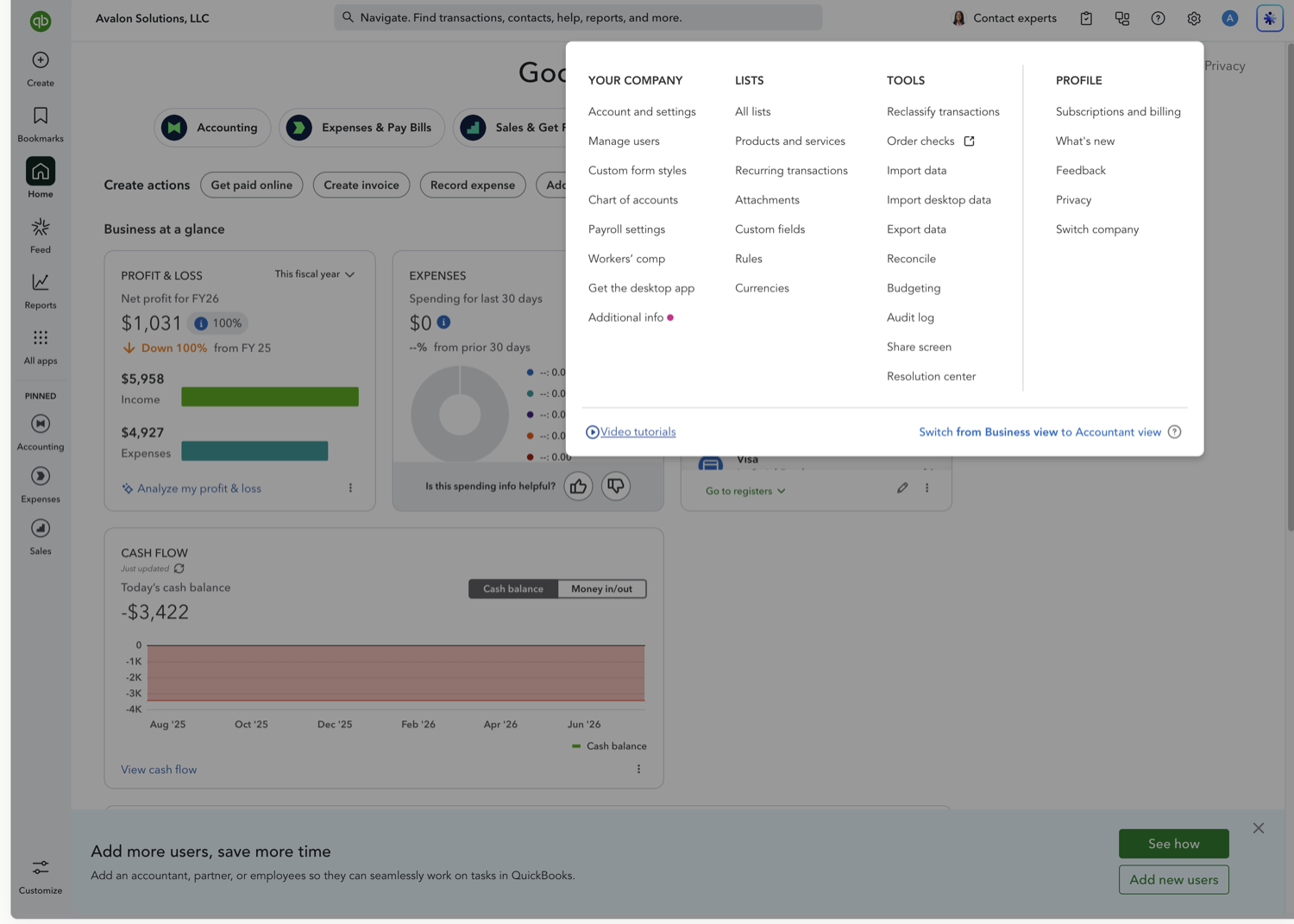
- Open Budgeting and start a new budget
Click the Settings (gear) icon and choose Budgeting under Tools. On the Budgets page, select Create budget. (Budgeting is available on QuickBooks Online Plus and Advanced.)
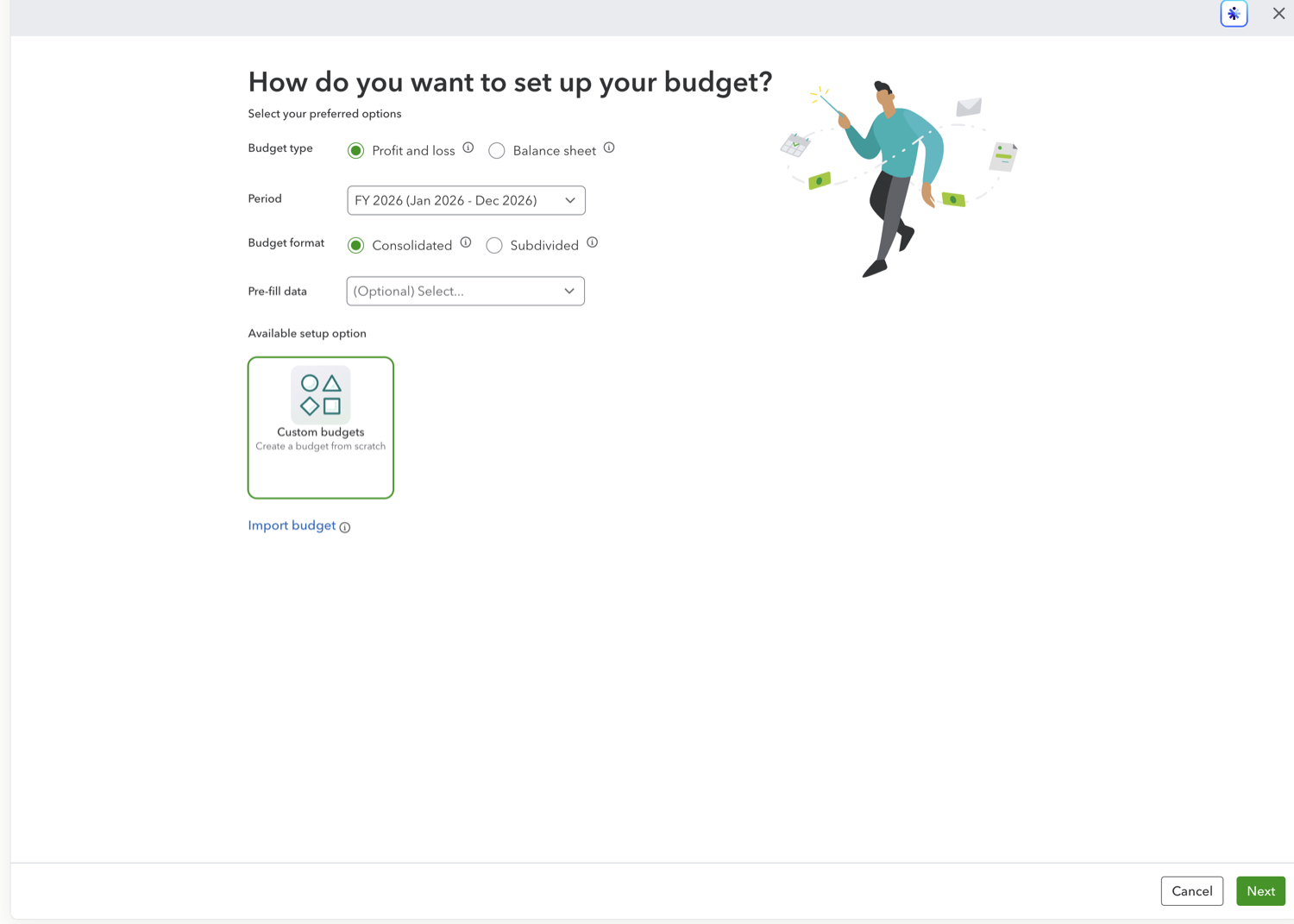
- Choose your budget setup
Pick the budget type (Profit and loss or Balance sheet), the fiscal year under Period, and whether the budget is Consolidated or Subdivided by customer, class, or location.
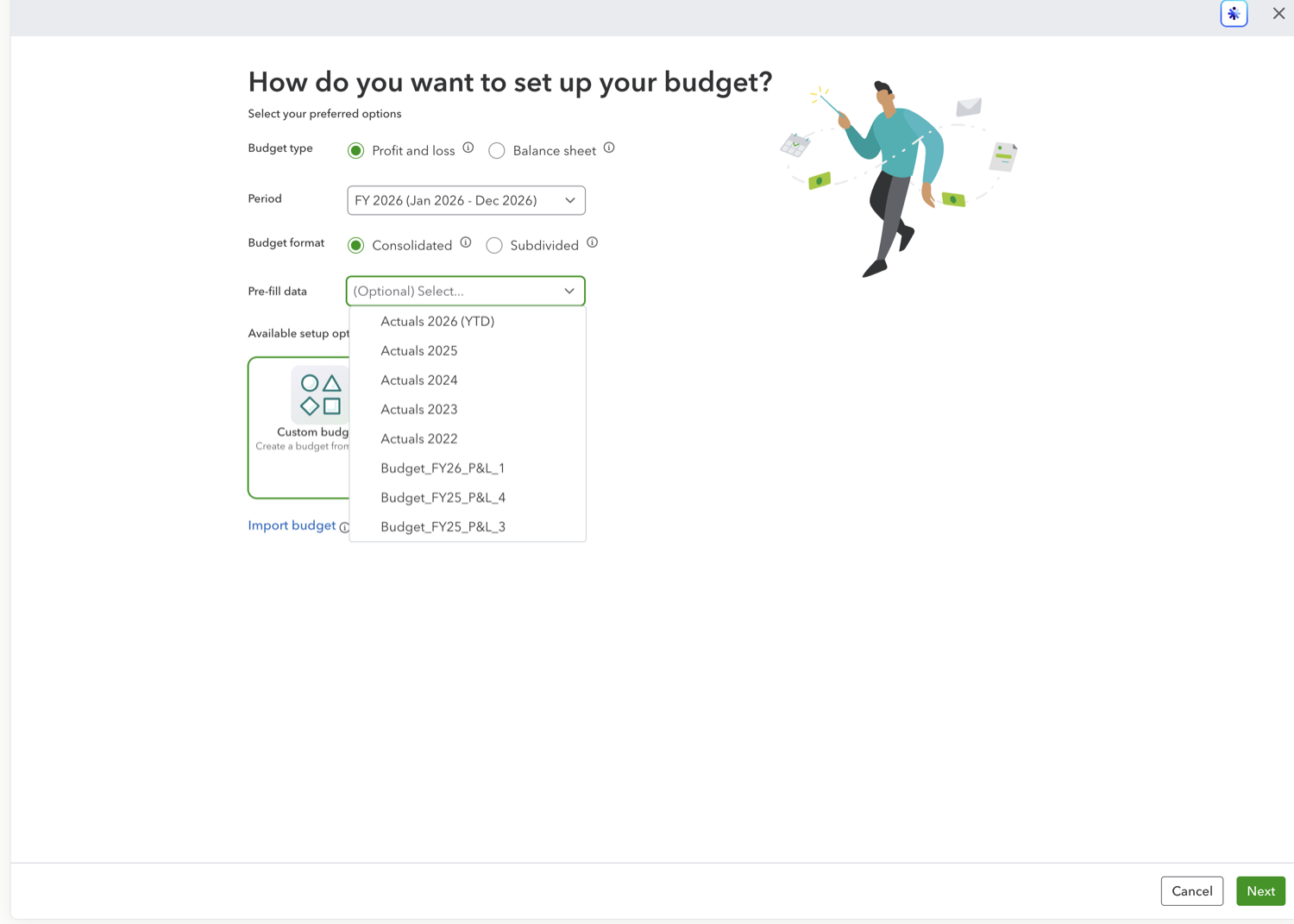
- Optionally pre-fill from a prior period
Pre-fill is a shortcut: instead of starting from an empty grid, QuickBooks copies the numbers from a source you choose (a prior year's actuals or an existing budget) into the new budget as a starting point that you can then adjust. Open the Pre-fill data dropdown and pick a source (for example, Actuals 2025) to build on last year's real figures, or leave it on "(Optional) Select…" to start from scratch. Click Next when you're ready.
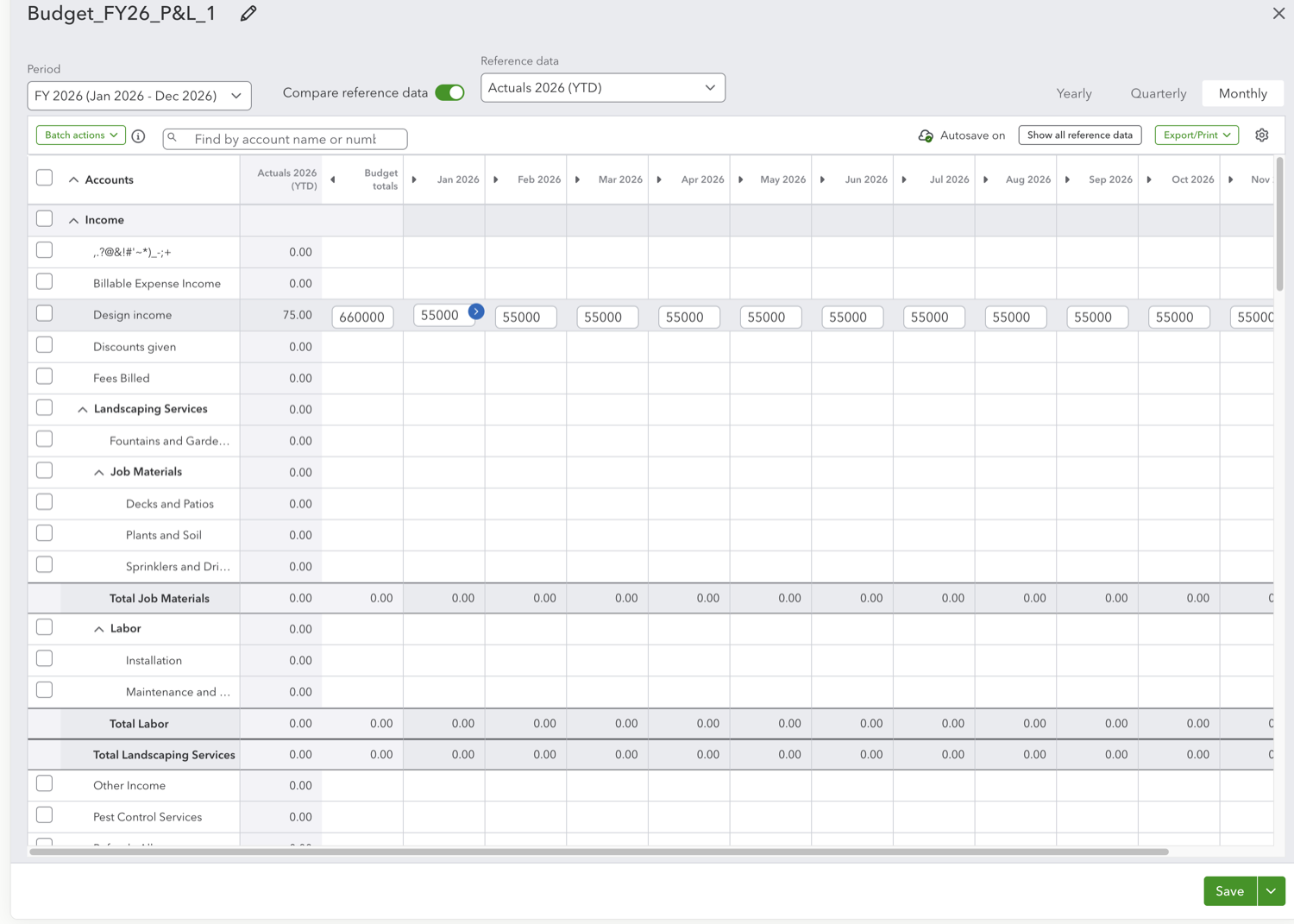
- Enter your budgeted amounts
In the grid, enter the amount you expect for each income and expense account in each period. Type a figure and use the copy-across arrow to fill it into every period, and switch between Monthly, Quarterly, and Yearly views at the top. Click the pencil by the name to rename the budget.
- Save your budget
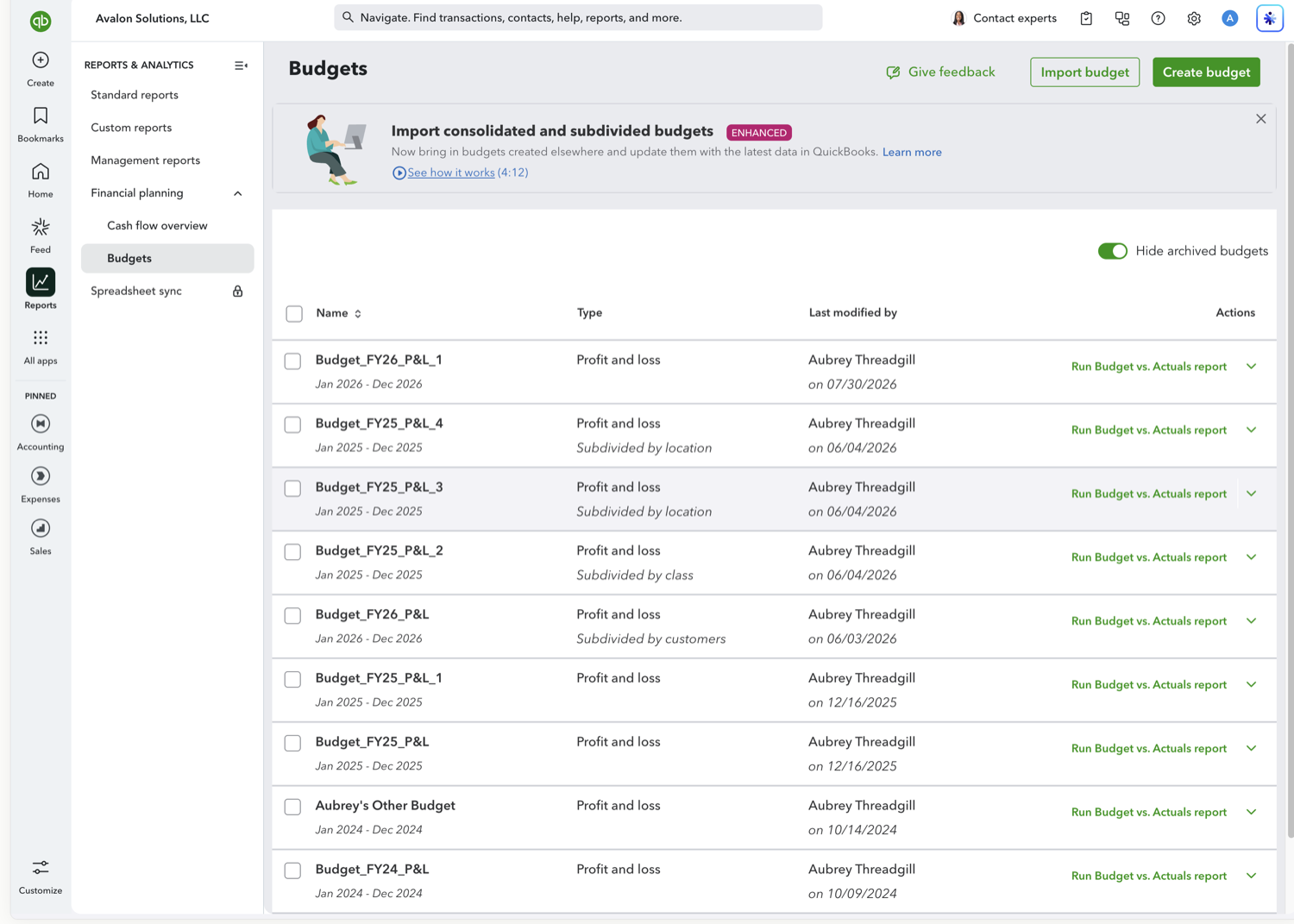
Click Save. Your budget now appears in the Budgets list and is available to the Budget Overview and Budget vs. Actuals reports.
See also
Frequently asked questions
Which QuickBooks Online plans include budgeting?
Budgeting is available on QuickBooks Online Plus and Advanced. It isn't included in Simple Start or Essentials.
Can I create more than one budget?
Yes. You can create multiple budgets, for example different fiscal years or scenarios. Each budget can be selected separately in the Budget Overview and Budget vs. Actuals reports.
Can I base my budget on last year's numbers?
Yes. When you create the budget, choose the option to pre-fill from the prior year's actuals, then adjust the figures from there.
Tired of rebuilding reports? Need more customization?
Retriever pulls QuickBooks Online reports like this one into Google Sheets on a schedule. They refresh on their own, and once the data is in Sheets you can pivot, chart, and customize it far beyond QuickBooks' fixed report layouts.
See how Retriever worksRelated report guides
Questions about this report? Reach out at aubrey@retrieverhq.com.

© 2026 Avalon Innovation Corporation. All rights reserved.
🇺🇸 Built in Orange County, California