
Why Your Budget vs. Actuals Report Puts Everything Under "Not Specified"
You set Display columns by to Class, the class columns appear, and every one of them shows a budget of $0.00 while a single "Not specified" column holds the entire plan. Nothing is broken. The report is telling you the budget has no class information in it, and the fix is in the budget rather than the report.
Steps
- Reproduce it: split any budget by class or customer
Run Budget vs. Actuals on an ordinary budget and set Display columns by to Class or Customer. QuickBooks offers these on every budget, whether or not the budget itself is split that way, which is what makes the trap easy to fall into.
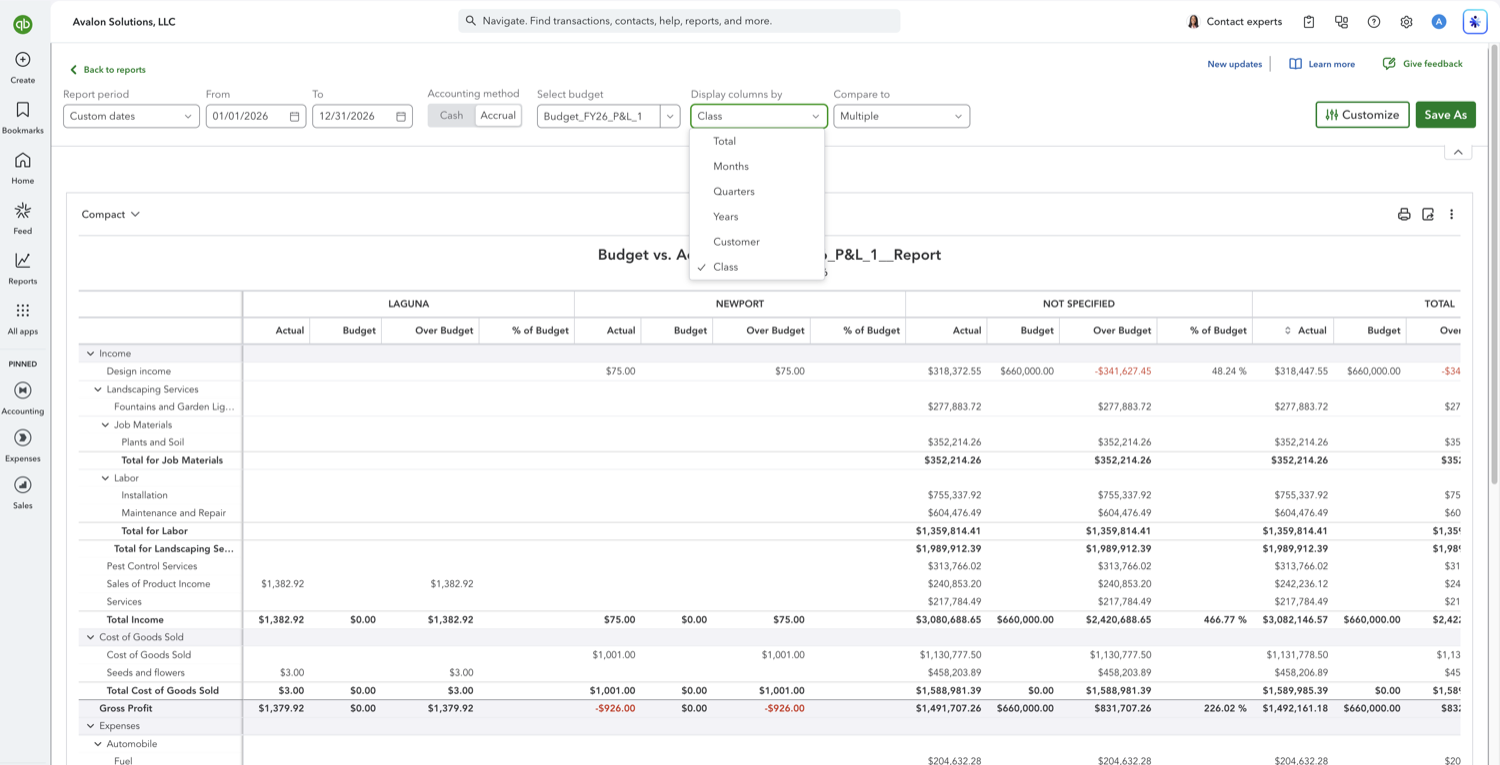
- Check the Budget column, not the Actual column
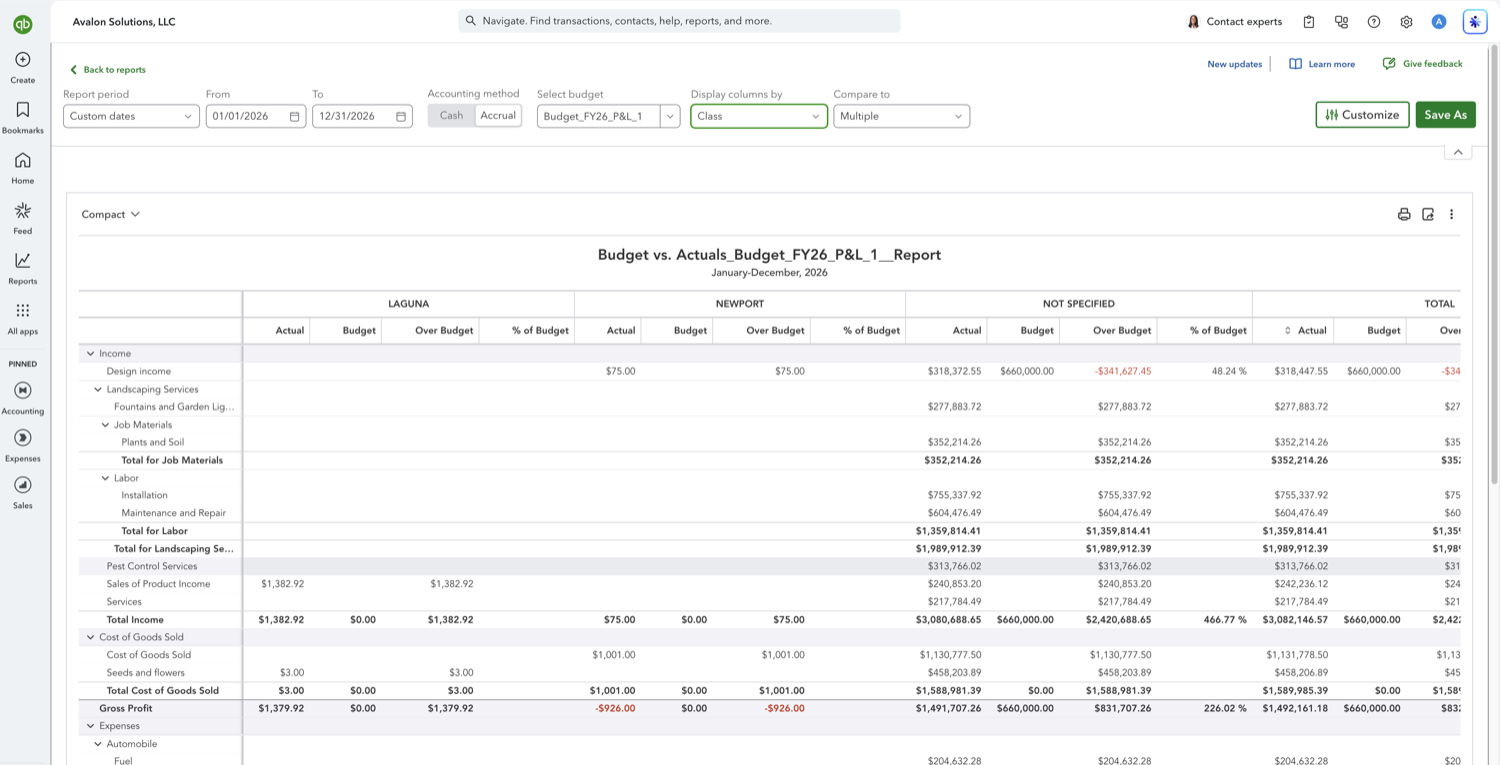
Actuals split correctly, because every transaction carries its own class. The budget does not, because a consolidated budget is one company-wide set of figures with nothing to attribute to a class. So each real class shows Actual with Budget $0.00, Over Budget equal to the actual, and a blank % of Budget, while Not Specified carries the full budget against a small actual and a wild percentage. Those per-class variances are arithmetic on a zero, not a result.
- Fix it by subdividing the budget
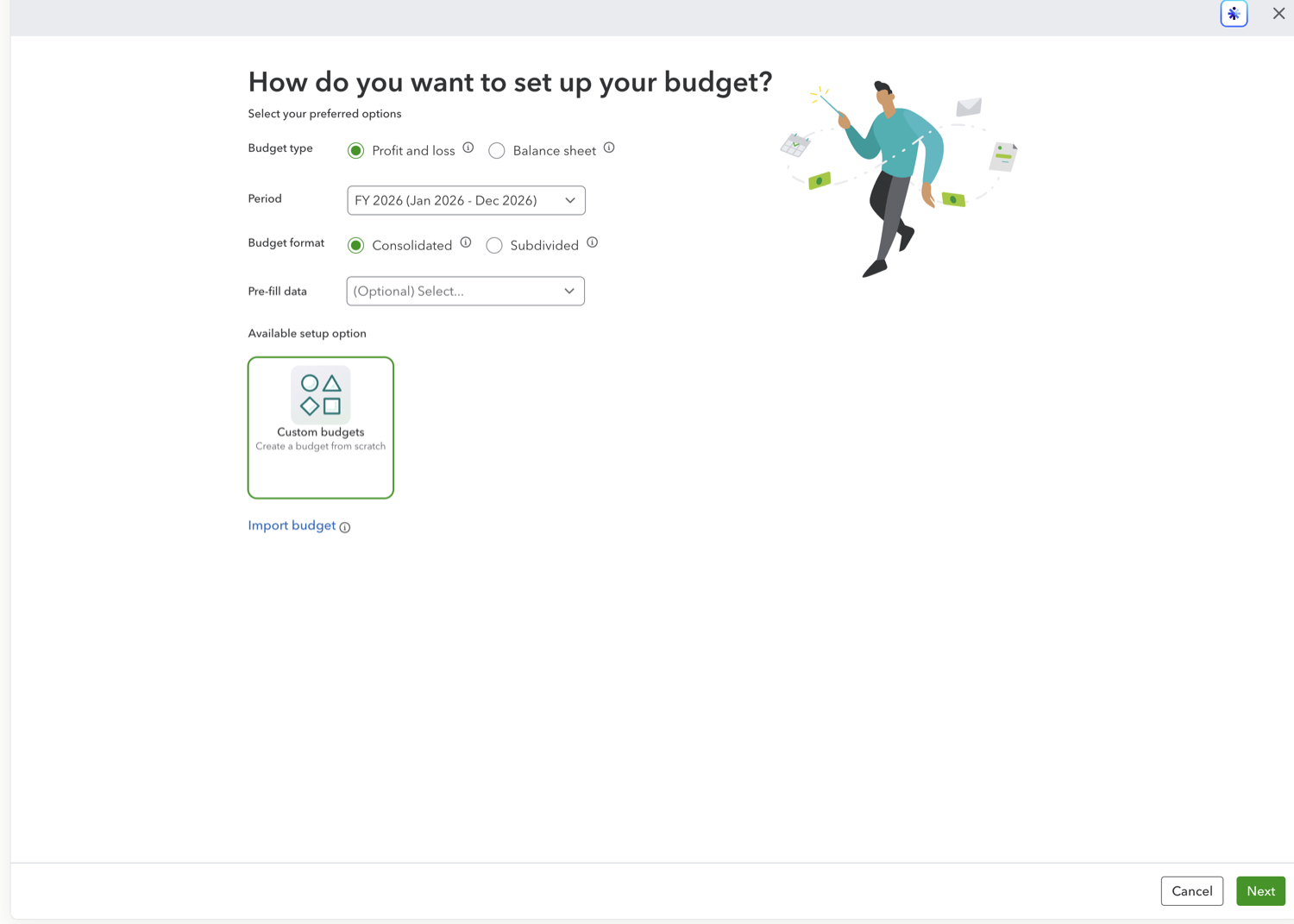
Create a budget with Budget format set to Subdivided, then choose class, customer, or location and enter figures per entity. Pre-fill from a prior year to avoid starting from an empty grid, or import the spreadsheet template with the same format set. Budget format cannot be changed after a budget is saved, so this means a new budget rather than an edit to the old one. Once it exists, run Budget vs. Actuals on it and every entity carries its own plan.
See also
Frequently asked questions
There is no Location option in Display columns by. How do I budget by location?
Display columns by offers Total, Months, Quarters, Years, Customer, and Class only. Location is absent, so a report setting will never produce location columns. A budget created with Budget format set to Subdivided by location reports that way on its own, with no dropdown involved.
My budget is subdivided and I still see a Not specified column. Why?
That one is real and worth chasing. On a properly subdivided budget, Not specified holds transactions posted without a class, customer, or location. The budget side is fine; the actuals need tagging. A large balance there means the per-entity figures understate what really happened.
Can I add a class split to a budget I already built?
No. Budget format is fixed when the budget is created. Duplicate the budget into the year you want if that helps, but the split itself requires a new budget created or imported with Subdivided chosen.
Tired of rebuilding reports? Need more customization?
Retriever pulls QuickBooks Online reports like this one into Google Sheets on a schedule. They refresh on their own, and once the data is in Sheets you can pivot, chart, and customize it far beyond QuickBooks' fixed report layouts.
See how Retriever worksRelated report guides
Questions about this report? Reach out at aubrey@retrieverhq.com.

© 2026 Avalon Innovation Corporation. All rights reserved.
🇺🇸 Built in Orange County, California