
How to Run a Budget vs. Actuals Report by Month in QuickBooks Online
A yearly Budget vs. Actuals tells you whether you ended up ahead. A monthly one tells you when you went wrong, which is the part you can still act on. In the modern report builder this is one dropdown. Here is where it is and what the columns mean.
The report needs a saved budget covering the year you want to look at. See how to create a budget in QuickBooks Online.
Steps
- Open the report and find Display columns by
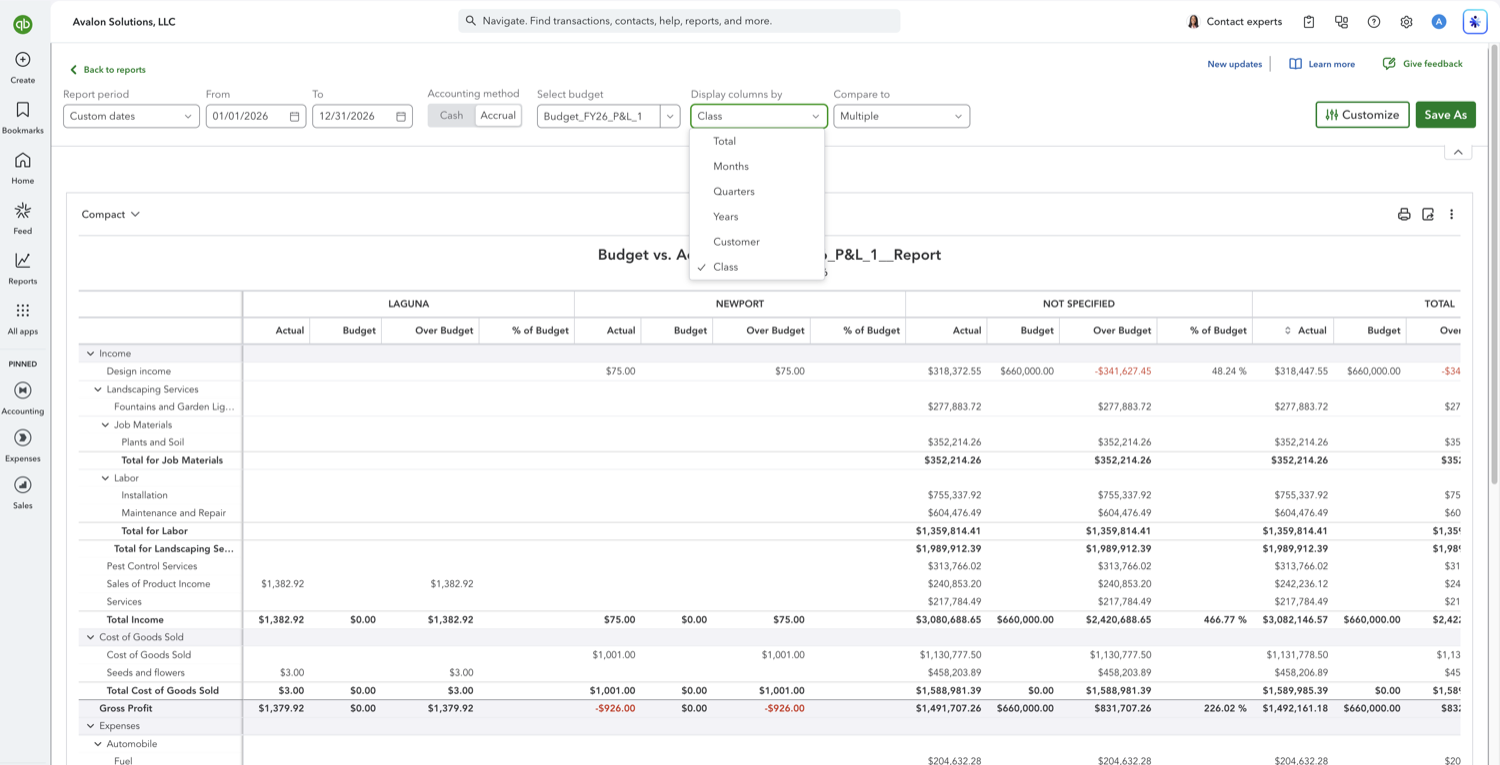
Go to Reports, open Financial planning, select Budgets, then select "Run Budget vs. Actuals report" on your budget. On the report toolbar, Display columns by sits between Select budget and Compare to. Open it and choose Months. The list also holds Total, Quarters, Years, Customer, and Class.
- Read the month columns
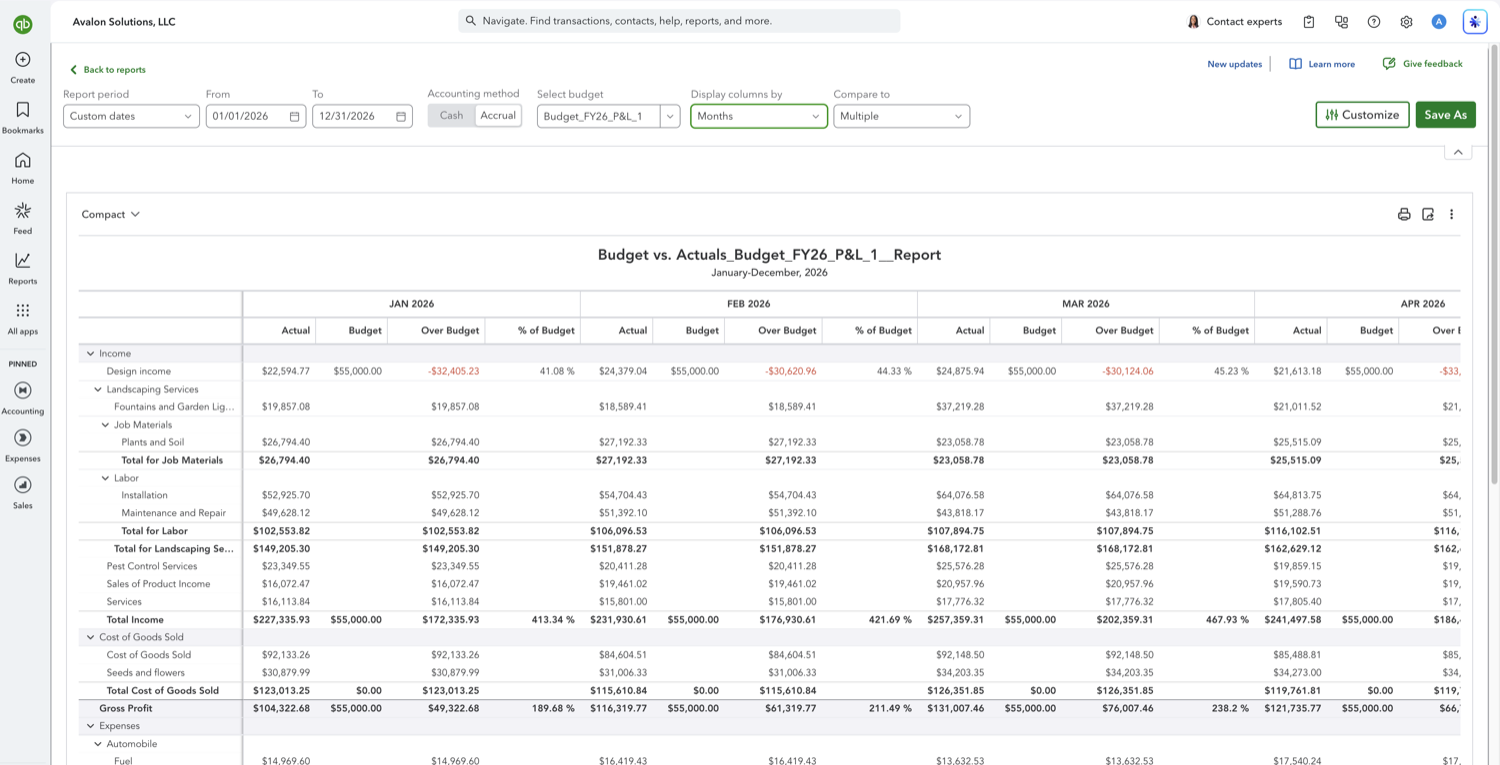
Every month in the report period becomes its own column group with Actual, Budget, Over Budget, and % of Budget, and a Total group closes the row. A twelve-month range makes a wide report, so scroll sideways or use Compare to and untick a variance column to narrow it. QuickBooks spreads an annual budget evenly across the months unless you entered monthly figures, so a flat Budget line across the year usually means the budget was entered as a single yearly number.
Other Budget vs. Actuals comparisons
See also
Frequently asked questions
I don't see a Display columns by dropdown. Where is it?
Your browser window is too narrow. QuickBooks drops both Display columns by and Compare to from the report toolbar below roughly 1,700 pixels of window width, and it does not move them into the three-dot menu, so there is nothing left to click. Widen the window, or zoom the page out with Ctrl and minus, and both reappear between Select budget and Customize.
Why is the budget the same in every month?
Because it was entered as a yearly figure. QuickBooks divides an annual budget evenly across the periods, so each month shows a twelfth. Open the budget with View/Edit and switch the grid to Monthly to enter real month-by-month numbers.
What happens to a class or customer split when I choose Months?
It is replaced. Display columns by sets one axis, so choosing Months drops the class or customer columns rather than nesting them. To see both at once, switch to the classic view and use Show Grid, which sets two axes.
Tired of rebuilding reports? Need more customization?
Retriever pulls QuickBooks Online reports like this one into Google Sheets on a schedule. They refresh on their own, and once the data is in Sheets you can pivot, chart, and customize it far beyond QuickBooks' fixed report layouts.
See how Retriever worksRelated report guides
Questions about this report? Reach out at aubrey@retrieverhq.com.

© 2026 Avalon Innovation Corporation. All rights reserved.
🇺🇸 Built in Orange County, California