
How to Run the Budget vs. Actuals Report in QuickBooks Online
A Budget vs. Actuals report puts your plan next to reality. For every account it shows what you actually earned or spent, what you budgeted, how far over or under you are, and the percentage of budget used. Here's how to run it in QuickBooks Online.
This report only works once you have a budget set up. See how to create a budget in QuickBooks Online.
Steps
- Open the Budget vs. Actuals report
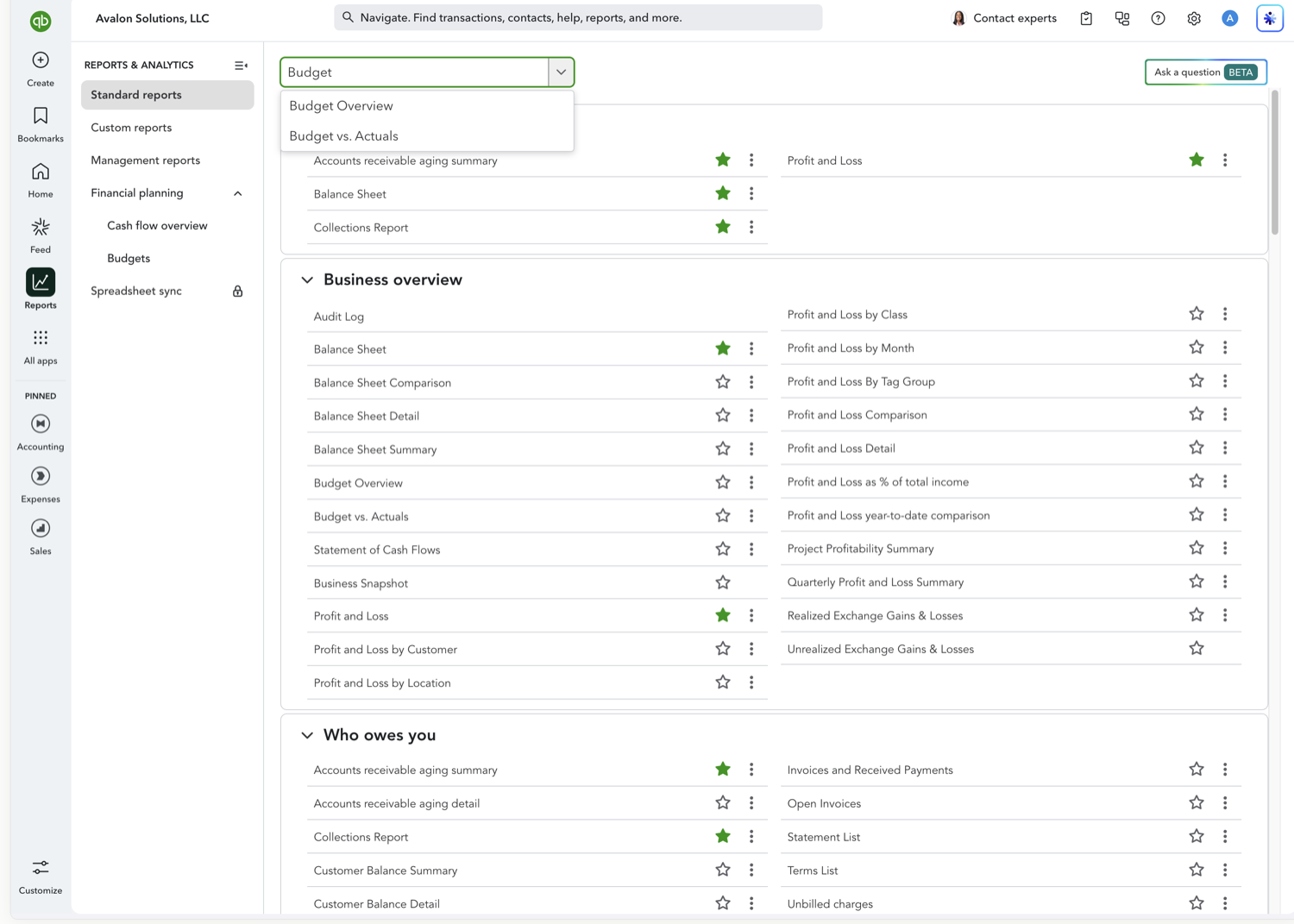
Go to Reports and search for "Budget vs. Actuals," or find it under the Business overview group. The report opens on your most recent budget for the fiscal year.
- Read the four columns for each segment
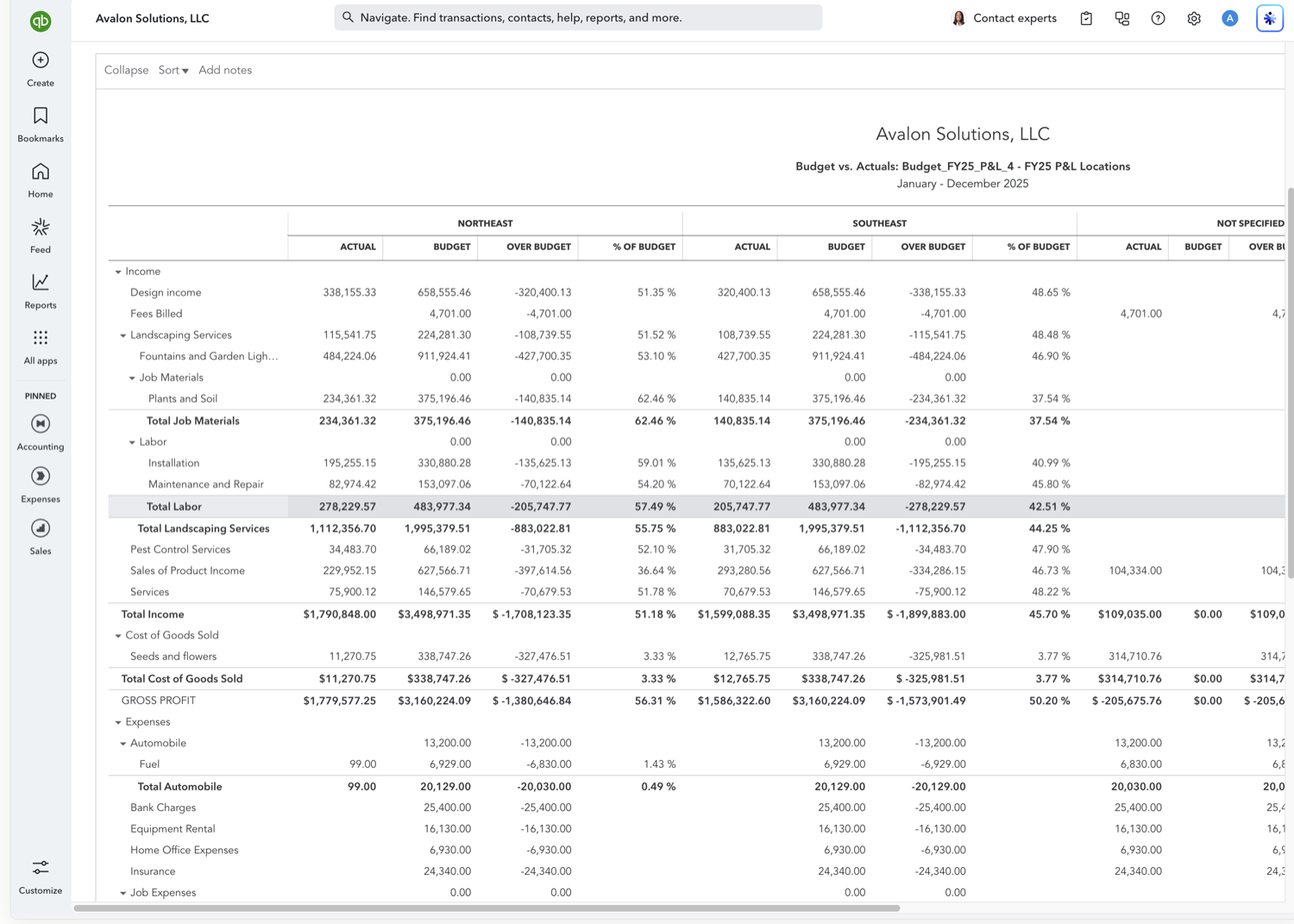
For every account you get four columns (Actual, Budget, Over Budget, and % of Budget) repeated for each class, customer, or location your budget is divided by, plus a Total. Over Budget shows the dollar gap between plan and reality; % of Budget shows how much of the plan you've used. The report opens in the modern report builder, so the Report period, Accounting method, and Select budget controls sit along the top, and Customize on the right opens filters and number formatting.
See also
Frequently asked questions
What does the "% of Budget" column mean?
It's the actual amount divided by the budgeted amount, expressed as a percentage. For income, over 100% means you beat plan; for expenses, over 100% means you spent more than budgeted.
Why does the Over Budget column show negative numbers?
Over Budget is Actual minus Budget. A negative means the actual came in under the budgeted figure, good for expenses, less so for income.
Can I export Budget vs. Actuals to Excel or Google Sheets?
Yes. Use the export icon above the report to send it to Excel. For a version that refreshes on its own in Google Sheets, tools like Retriever can pull QuickBooks reports into a spreadsheet on a schedule.
Tired of rebuilding reports? Need more customization?
Retriever pulls QuickBooks Online reports like this one into Google Sheets on a schedule. They refresh on their own, and once the data is in Sheets you can pivot, chart, and customize it far beyond QuickBooks' fixed report layouts.
See how Retriever worksRelated report guides
Questions about this report? Reach out at aubrey@retrieverhq.com.

© 2026 Avalon Innovation Corporation. All rights reserved.
🇺🇸 Built in Orange County, California