
How to Create a Profit and Loss Report Comparison (Year-over-Year) in QuickBooks Online
A comparative Profit and Loss report puts this year and last year side by side, so you can see growth (or decline) at a glance without exporting two separate reports. Here's how to set it up in QuickBooks Online.
New to QuickBooks Online's modern view? See how it compares to the classic view.
Steps
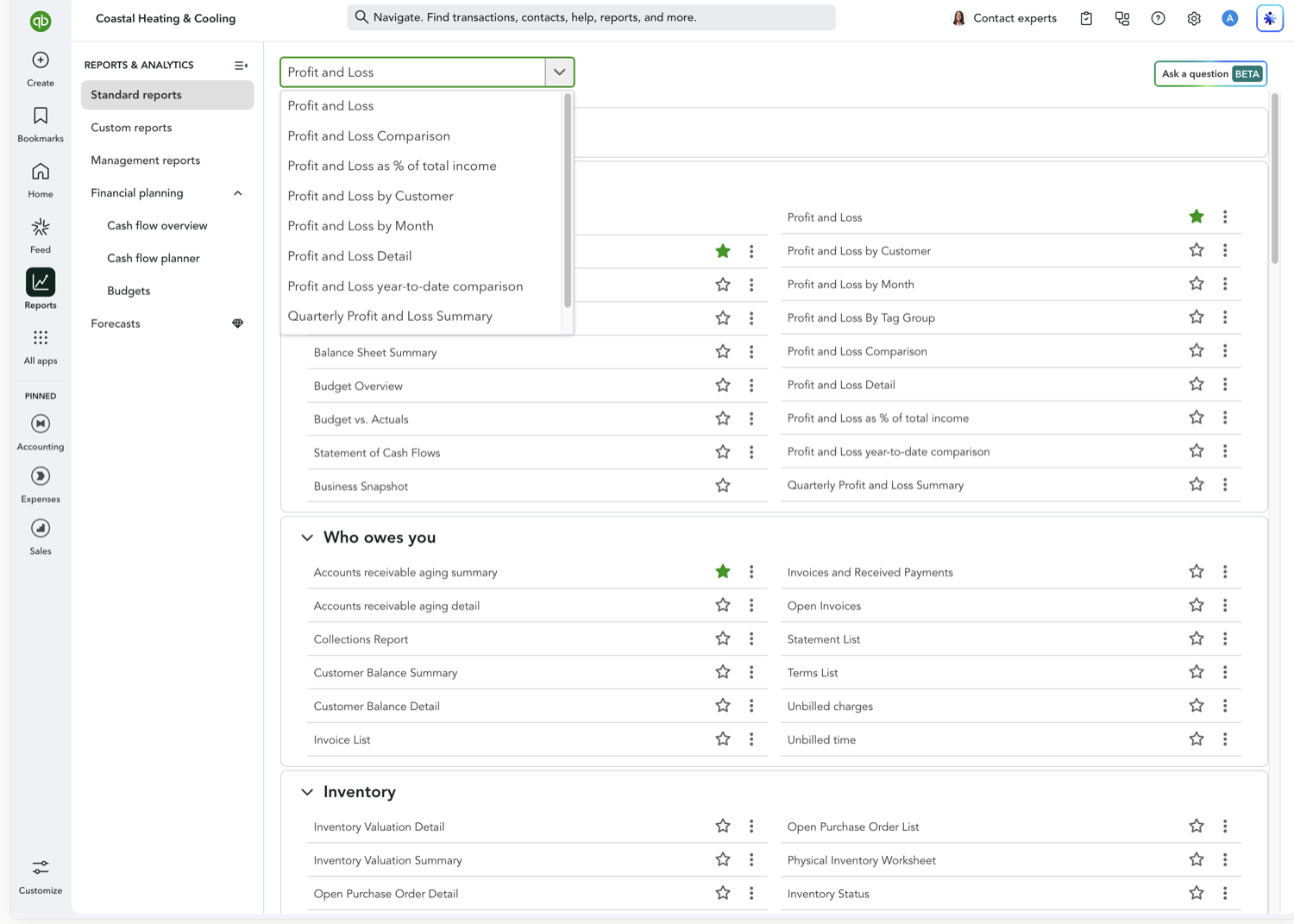
- Open the Profit and Loss report
Go to Reports and select "Profit and Loss."
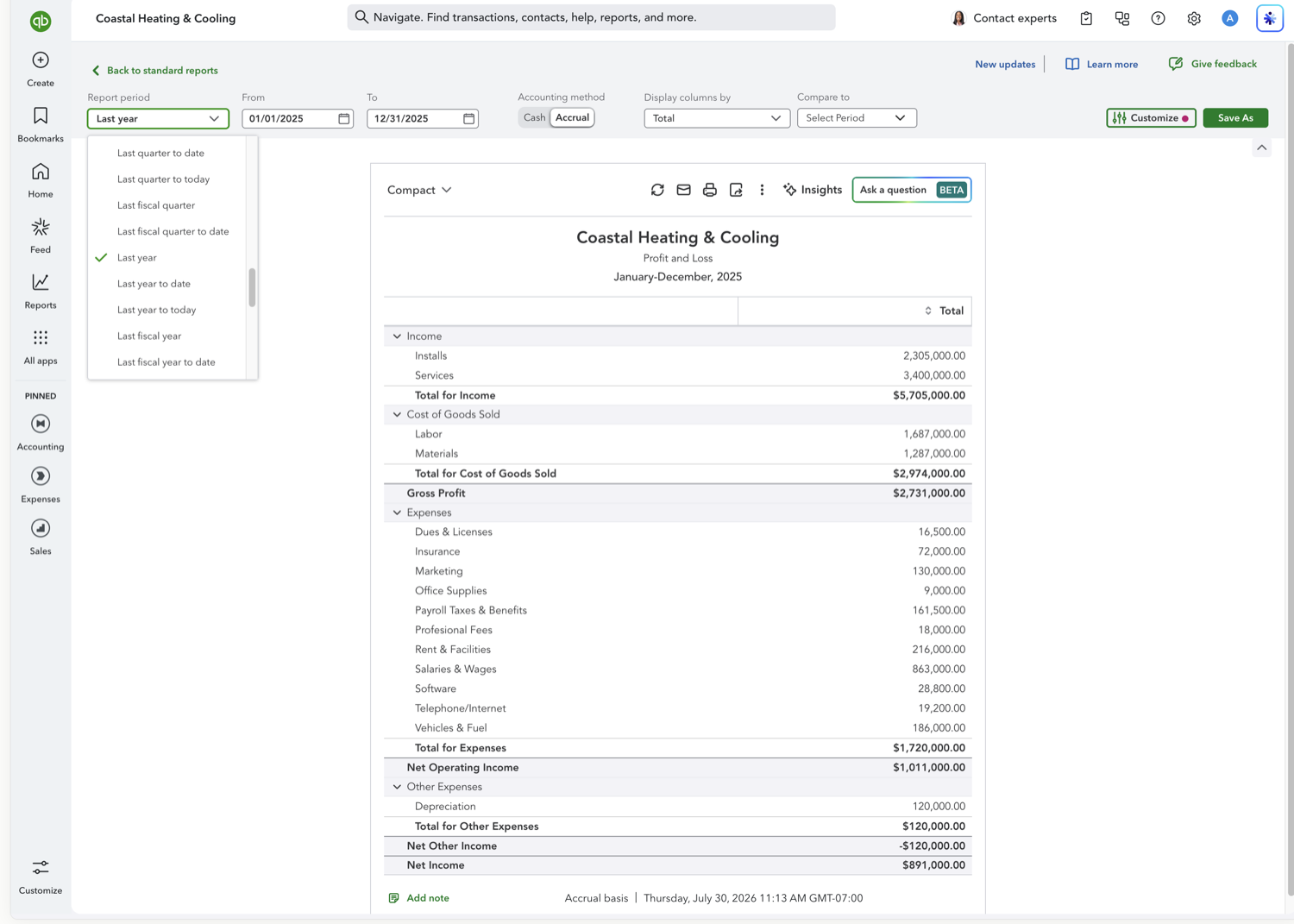
- Set your date range to the current period
Choose the period you want to lead with, such as "This Fiscal Year." The comparison periods are added in the next step.
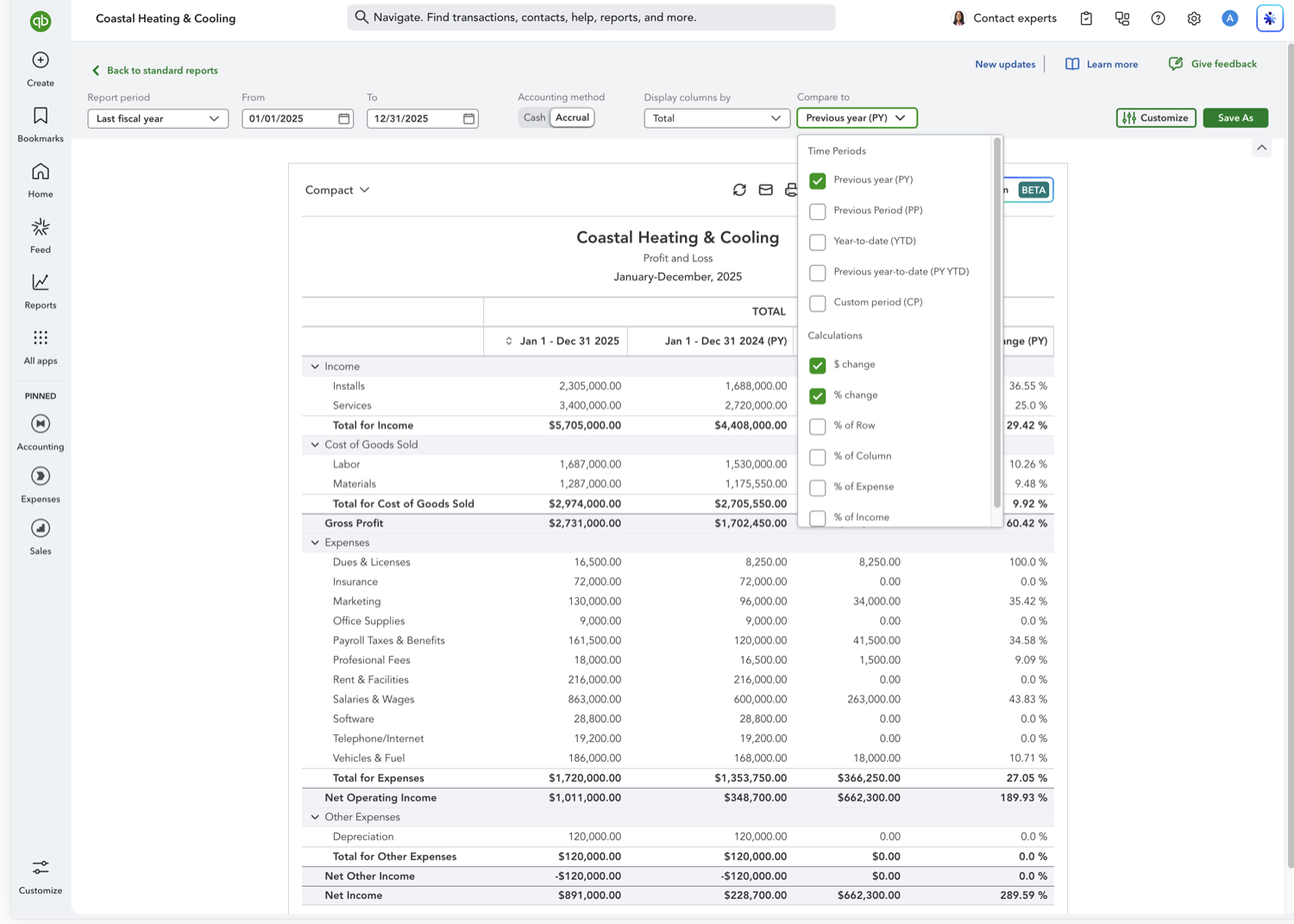
- Turn on a Previous Year comparison
Open the "Compare to" dropdown at the top of the report and check "Previous year (PY)." Then check "$ change" and "% change" to add prior-year dollar and percentage change columns next to each period.
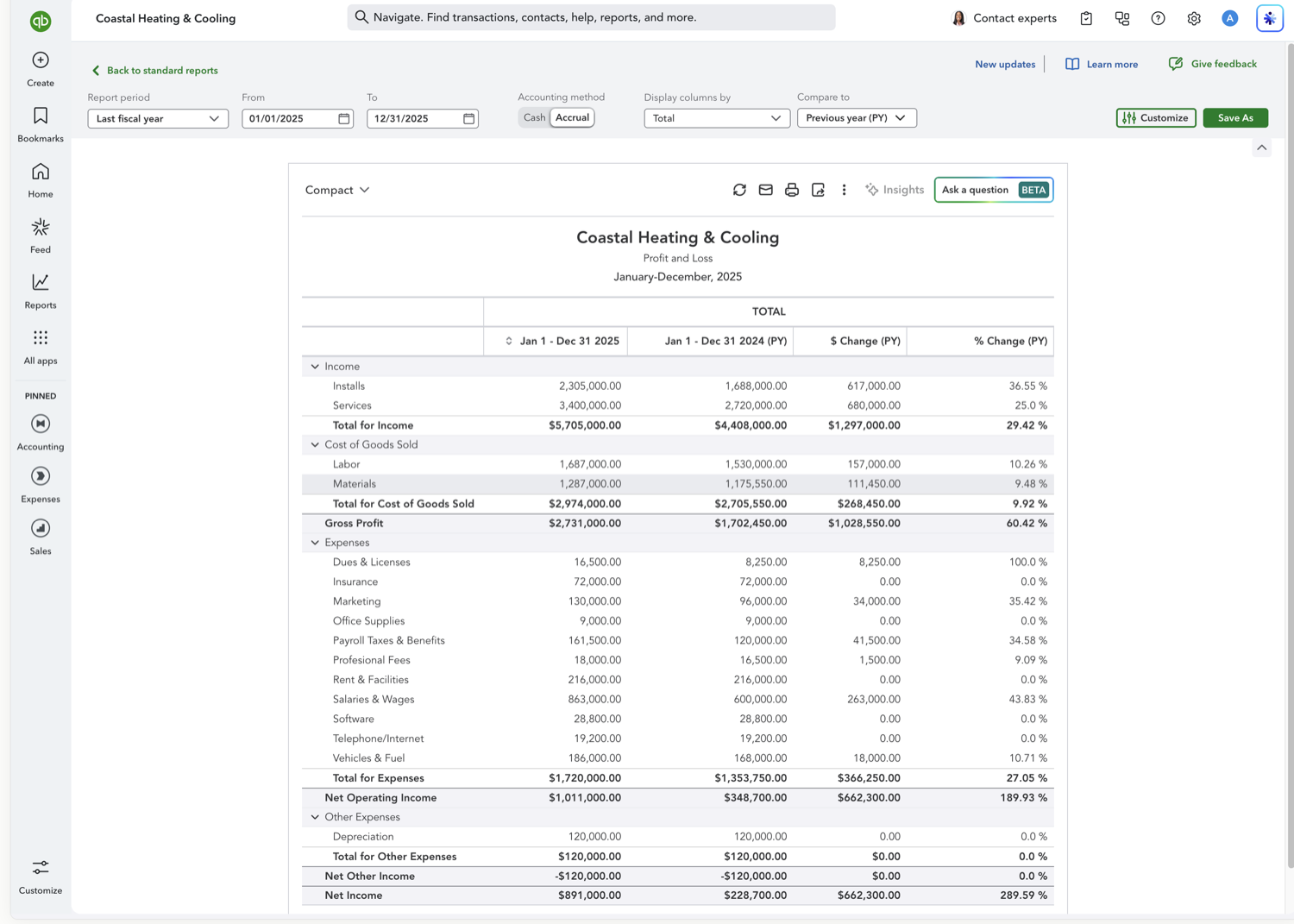
- Review the year-over-year columns
The report updates automatically. You'll now see this year's figures alongside last year's, plus the dollar and percentage change between them.
Calculation columns you can add
Alongside the comparison period, the "Compare to" dropdown offers calculation columns that add computed values rather than another time period:
$ change — The dollar difference between the current period and the comparison period.
% change — The percentage difference between the current period and the comparison period.
% of Row — Shows each amount as a percentage of its row total.
% of Column — Shows each amount as a percentage of its column total.
% of Expense — Shows each amount as a percentage of total expenses.
% of Income — Shows each amount as a percentage of total income.
Other Profit and Loss comparisons
See also
Frequently asked questions
Can I compare more than two years at once?
The built-in Previous Year comparison only adds one prior period. To compare three or more years side by side, you'd typically need to export multiple report runs into a spreadsheet and combine them.
Can I compare this month to last month instead of year-over-year?
Yes. That is a month-over-month comparison: set "Compare to" to "Previous Period (PP)" instead of "Previous year (PY)." See our Month-over-Month guide for the full walkthrough.
Why do the percentage change columns show "n/a" for some rows?
That usually means there was no activity in that account in the prior period, so a percentage change can't be calculated (division by zero).
Tired of rebuilding reports? Need more customization?
Retriever pulls QuickBooks Online reports like this one into Google Sheets on a schedule. They refresh on their own, and once the data is in Sheets you can pivot, chart, and customize it far beyond QuickBooks' fixed report layouts.
See how Retriever worksRelated report guides
Questions about this report? Reach out at aubrey@retrieverhq.com.

© 2026 Avalon Innovation Corporation. All rights reserved.
🇺🇸 Built in Orange County, California