
Clearing versus deleting empty account rows
When you create a Retriever report with a moving date, such as This Month, QuickBooks can return a different set of accounts the next time you refresh. A row goes empty when that account is no longer in the report. That usually means the account has no values in the period, or it was made inactive and Rows to show is set to Active.
In January, for example, a Profit and Loss for This Month at Bob's Home Services includes income for Snow removal, a seasonal account that only has activity in winter.
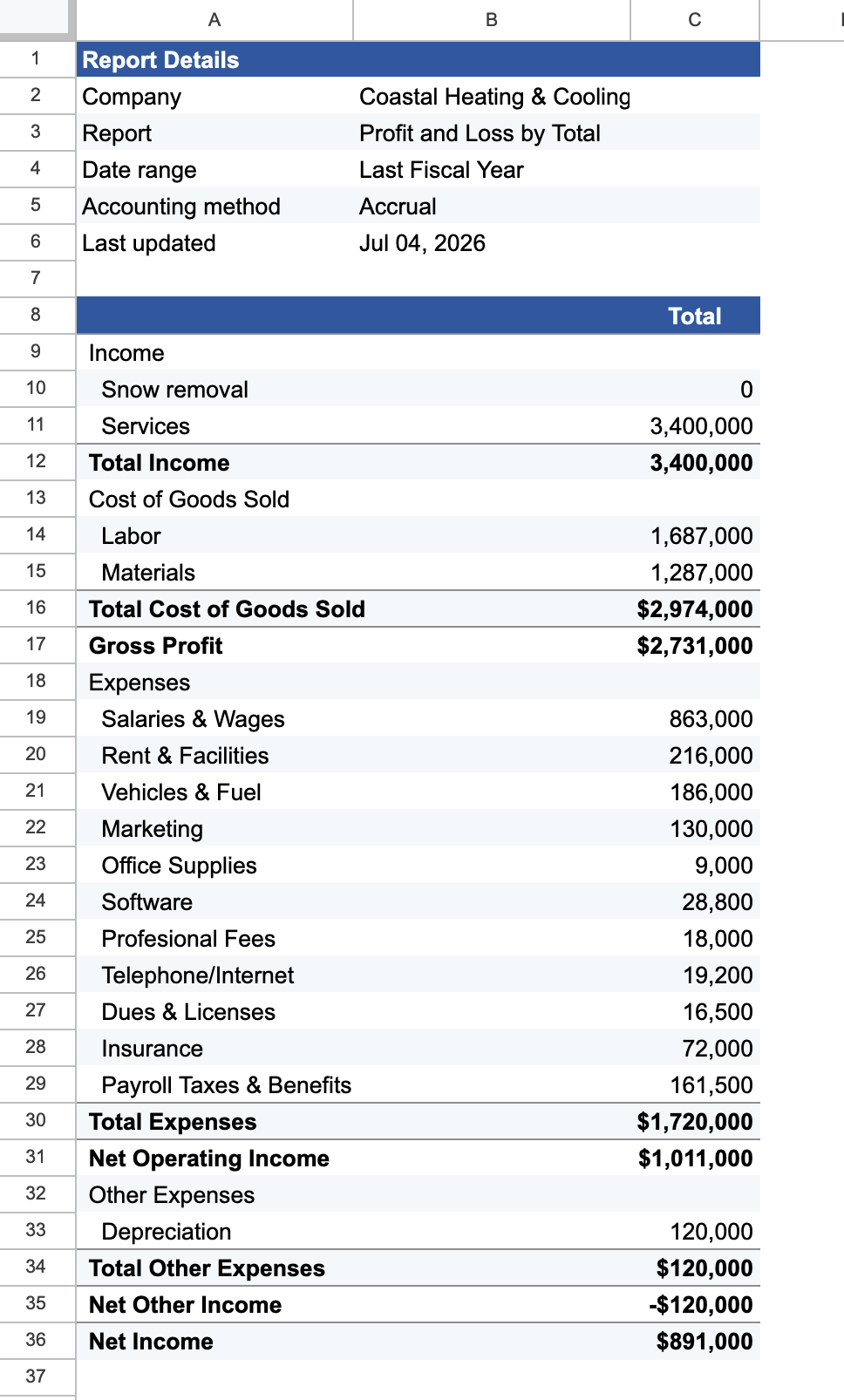
Refresh that report in July and Snow removal is no longer in the report QuickBooks returned, because there was no snow-removal income that month. With Clear, which is the default, the row stays in the Google Sheet and the amount is blank, or 0 if Show zeros is on.
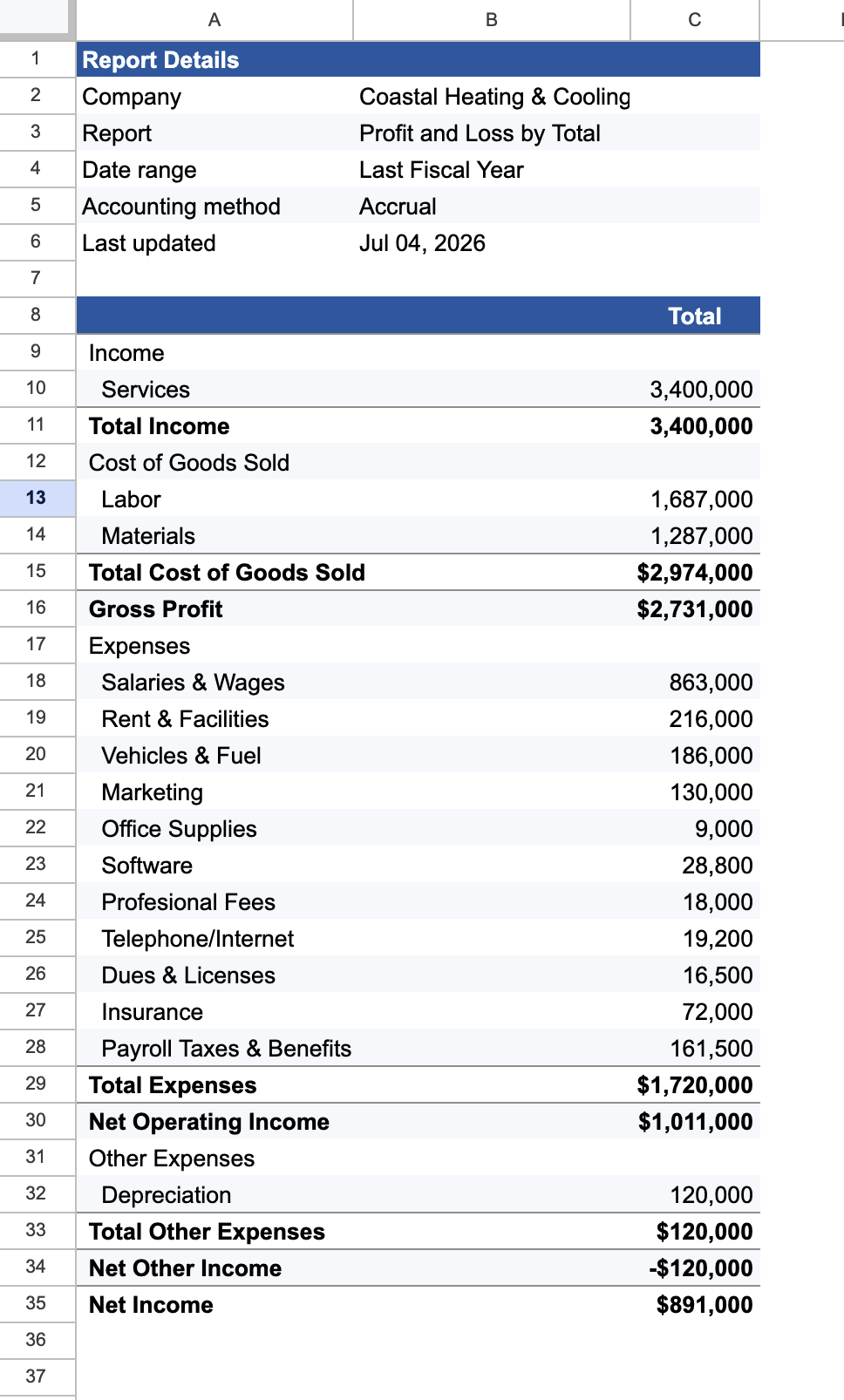
If you would rather remove the row so the sheet matches QuickBooks, set If row becomes empty to Delete.
Where to set it
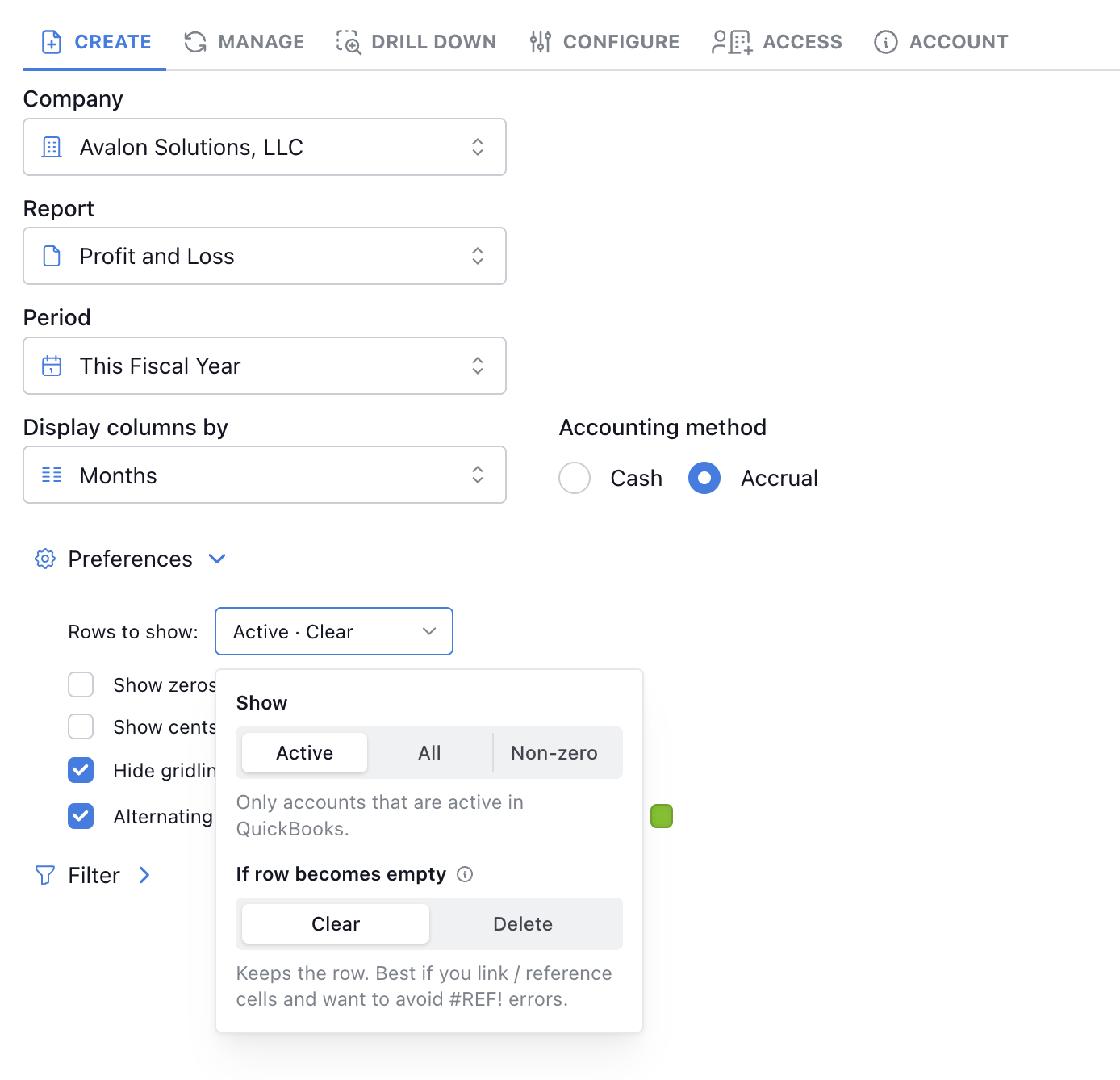
Under Preferences, open Rows to show. The choice is labeled If row becomes empty. It is available when you create a report and when you edit one you already have, on these reports:
How to change it
- Edit a report you already have, or create a new one
This works on reports you have already built. Open the report and edit it, then change If row becomes empty. You can set the same choice while creating a new report.
- Open Preferences, then click "Rows to show"
While the menu is closed, the control shows the current pair of choices, such as Active · Clear.
- Choose which accounts to show
Active, All, and Non-zero control which accounts QuickBooks returns. If you choose All, If row becomes empty is hidden and the report uses Clear.
- Choose what happens when a row becomes empty
Clear keeps the spreadsheet row and clears the amounts. Delete removes the row so the sheet matches the QuickBooks report.
Clearing versus deleting
Here is one Profit and Loss both ways. With Clear, Snow removal stays on the sheet and the amount is 0, because Show zeros is on. With Show zeros off, that cell would be blank. With Delete, the row is gone and the accounts below move up.
Clear
Delete
Show zeros
Show zeros is a separate checkbox in the same Preferences panel, and it only affects Clear. Amounts on the emptied row are written as 0 instead of being left blank. Formatting on the row stays as it is. Columns you added outside the report are left alone, and so is the account-name column.
Defaults
New reports start on Clear. Reports you already have stay on Clear too, until you edit the report and choose Delete. Clear is the default so a refresh does not remove rows or turn formulas that point at them into #REF! errors.
Rows to show
Rows to show, in the same menu, decides which accounts QuickBooks returns in the first place.
- Active is the default. The menu describes it as "Only accounts that are active in QuickBooks."
- All is "Include inactive accounts." The empty-row choice is hidden, and the report uses Clear.
- Non-zero is "Accounts with a balance, including inactive accounts that have activity."
Clear versus Delete only matters for Active and Non-zero. Active leaves out an account with no values in the period, and it also leaves out inactive accounts. Non-zero leaves out accounts with no balance.
Switching companies
This setting does not cover a company switch. If you point the sheet at a different QuickBooks company, Retriever removes the previous company's account rows, because those accounts belong to the other company. That happens even when the sheet is set to Clear.
Deleting a row yourself
You can also delete the row yourself in Google Sheets. A row you remove stays gone on later refreshes, unless that account has values. When it does, Retriever inserts the row again on the next refresh. For the most control, using Clear and manually pruning old rows may be the best option.
Frequently asked questions
Will reports I already have start deleting rows?
No. New reports start on Clear, and so do reports created before this setting existed. Retriever does not store a choice until someone explicitly picks Delete, so an existing sheet will not start deleting rows on the next refresh. To change one, edit that report and set If row becomes empty.
Which reports have If row becomes empty?
Profit and Loss, Profit and Loss Comparison, Balance Sheet, Balance Sheet Comparison, and Cash Flow. You can change the setting by editing a report you already have, or set it while creating a new one.
What does Show zeros change?
Show zeros is a separate checkbox in Preferences, and it only affects Clear. Amounts on the emptied row are written as 0 instead of left blank. Formatting on the row stays as it is. Columns you added outside the report are left alone, and so is the account-name column.
I moved an account under a different parent. Is that an empty row?
No. If the account still exists and was only moved under a different parent, Retriever treats that as a rename or reorder and updates the row in place.
I deleted a row in Google Sheets. Will the next refresh put it back?
A row you delete yourself stays gone on later refreshes unless that account has values. If it has values, Retriever inserts the row again on the next refresh.
What if I switch the QuickBooks company on the sheet?
Switching companies always removes the previous company's account rows. Those accounts belong to the other company, so Clear does not keep them.
Keep the row when an account drops off
Retriever writes QuickBooks Online reports into Google Sheets and refreshes them on a schedule. With Clear, a seasonal row stays in place when the month rolls forward, and formulas that point at it keep working.
See how Retriever worksSee also
Questions about empty rows? Reach out at aubrey@retrieverhq.com.

© 2026 Avalon Innovation Corporation. All rights reserved.
🇺🇸 Built in Orange County, California