
How to Run an Income Statement in QuickBooks Online
If you are looking for the income statement in QuickBooks Online, you are looking for the Profit and Loss. They are the same report under two names: accountants and lenders usually say income statement, and QuickBooks says Profit and Loss. It shows income, cost of goods sold, and expenses over a period of time, ending in net income. Here is how to run it and how to read what it gives you.
Steps
- Open the Profit and Loss report
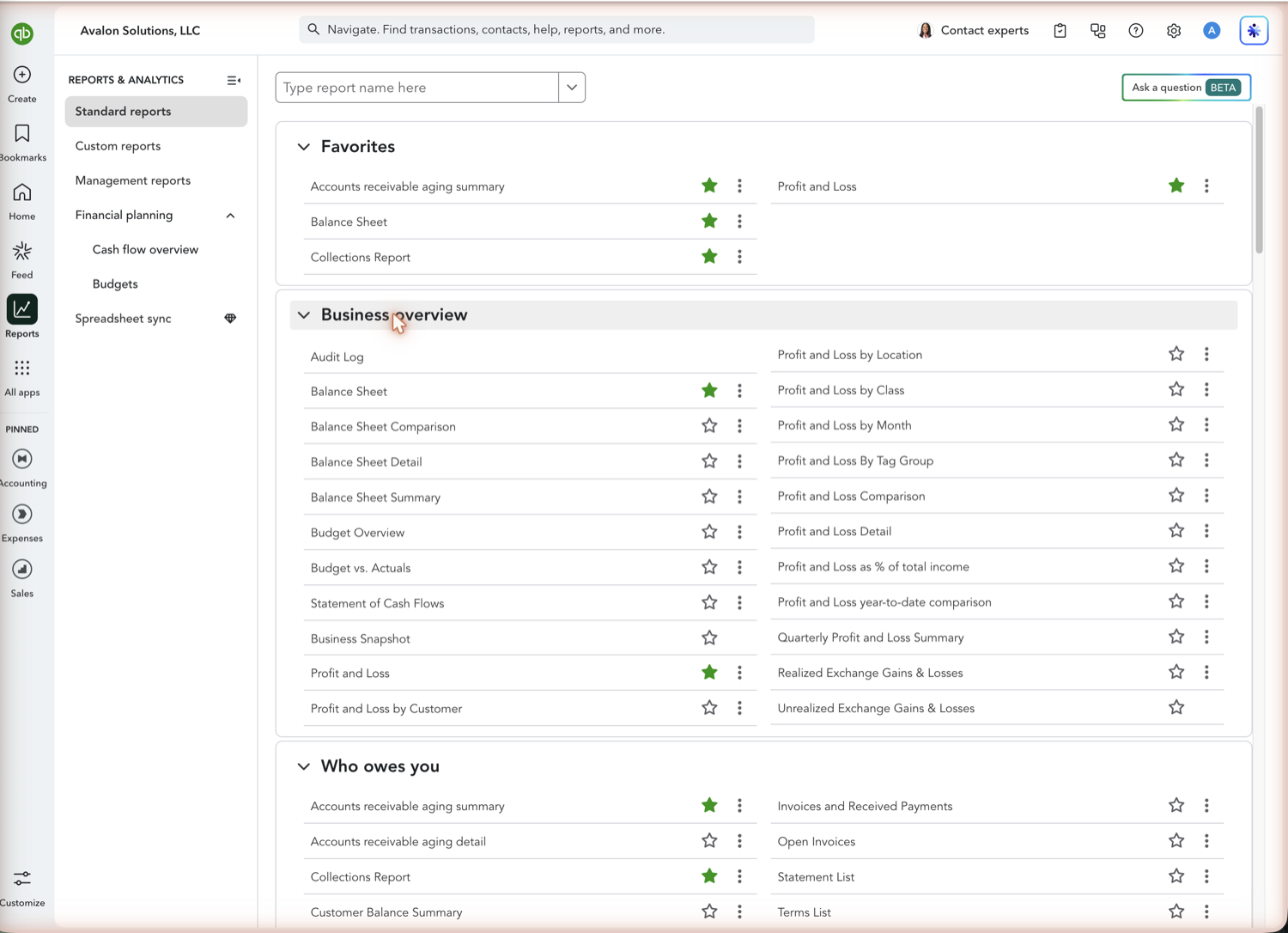
Go to Reports in the left navigation and look under the "Business overview" group for "Profit and Loss." Searching for "income statement" will not find it: the report search matches the QuickBooks name, and QuickBooks does not use that term anywhere in the product. Search for "profit and loss" instead.
- Set the period and accounting method
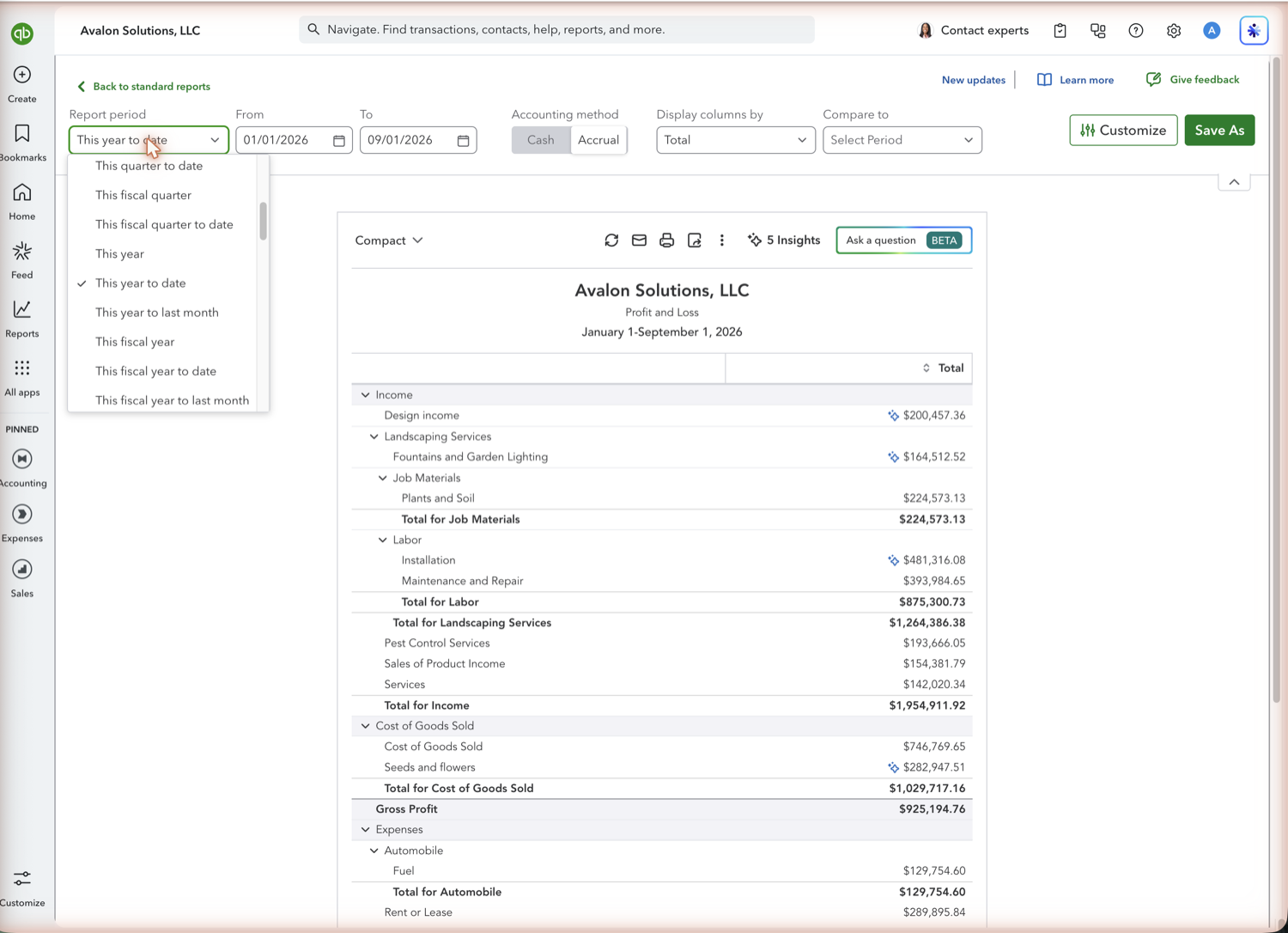
Use the Report period dropdown to pick the range, then set Accounting method to Cash or Accrual. Cash counts income when money arrives and expenses when they are paid. Accrual counts them when the invoice or bill is dated. The two produce different net income figures from the same books, so confirm which one your reader expects.
- Read the sections in order
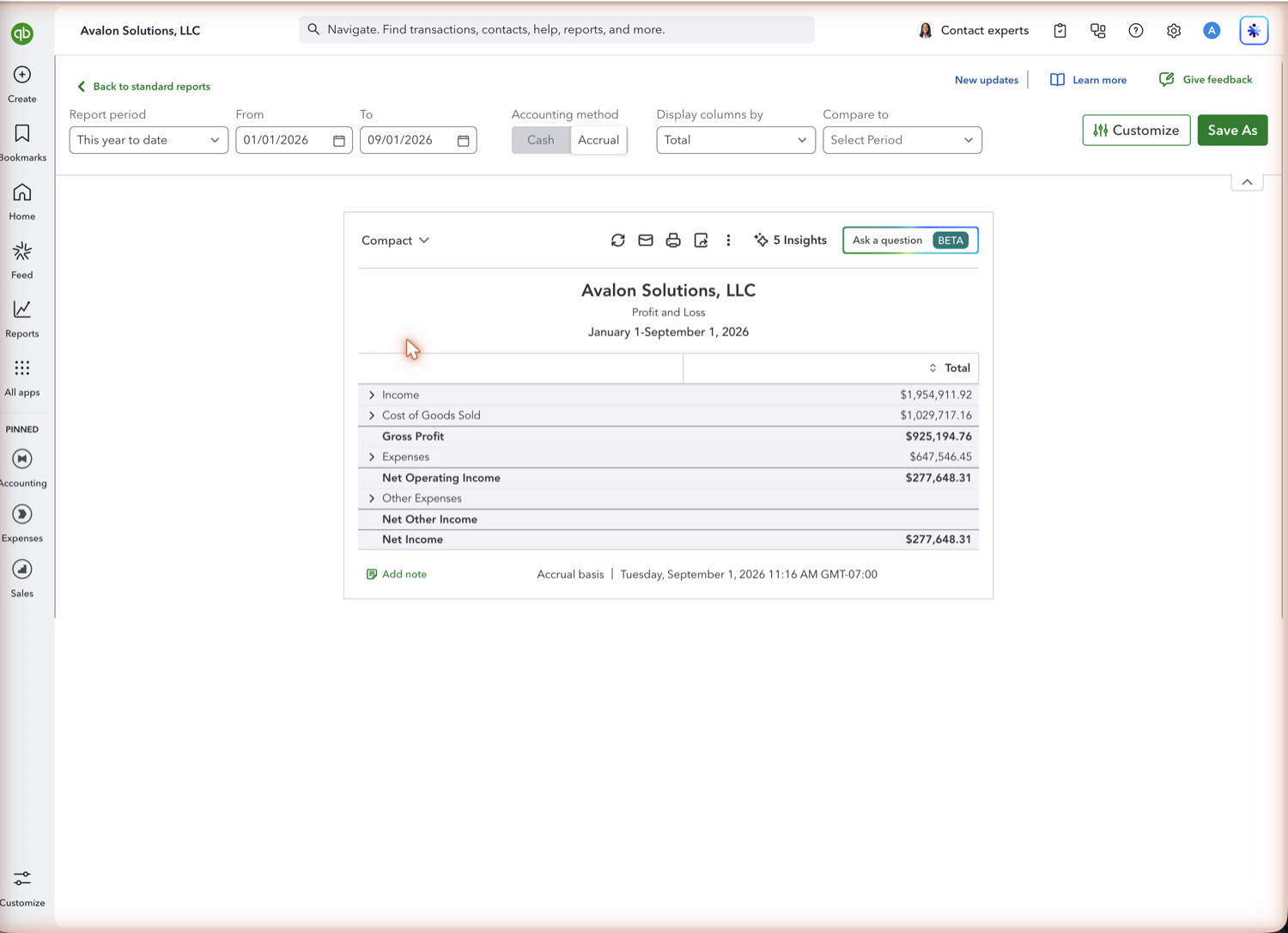
Income at the top, then cost of goods sold, which gives gross profit. Operating expenses come next, producing net operating income. Other income and other expenses follow as net other income, and net income is the final line. Gross profit, net operating income, and net income are subtotals QuickBooks calculates for you. Use Collapse All from the view dropdown to see the whole shape on one screen.
- Add a comparison column
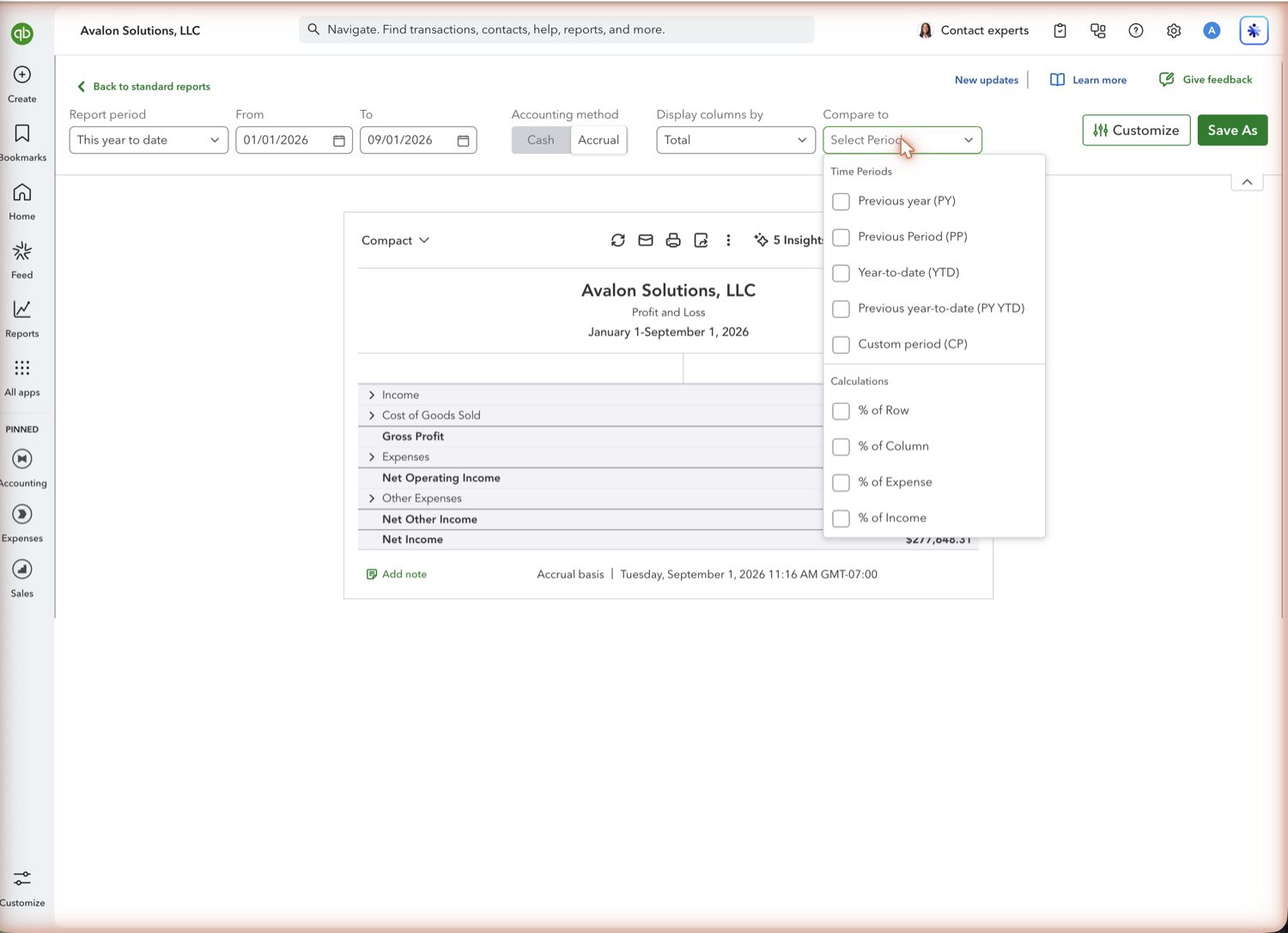
Open the "Compare to" dropdown in the toolbar, next to Display columns by. Under Time Periods you can add previous year, previous period, year-to-date, or previous year-to-date, and under Calculations you can add % of row, % of column, % of expense, or % of income. A single-period income statement tells you the result; a comparison column tells you whether it is moving in the right direction.
See also
Frequently asked questions
Does QuickBooks Online have an income statement?
Yes. It is called the Profit and Loss. QuickBooks does not publish a separate report named "income statement," but the Profit and Loss is that statement, with the same sections and the same net income line.
Is a profit and loss the same as an income statement?
Yes. The two names describe the same financial statement: revenue less cost of goods sold and expenses over a period, ending in net income. Balance sheets report a point in time; income statements report a span of time.
Should I run my income statement on cash or accrual basis?
Accrual matches income and expenses to the period they belong to, which is what most lenders, boards, and tax preparers expect. Cash shows what actually moved through the bank. Run both if you are not sure which your reader wants.
Can I add my own rows to a QuickBooks income statement?
Not inside QuickBooks. Calculated lines like gross margin percent, EBITDA, or revenue per employee have to be built in a spreadsheet on top of the report. Retriever pulls the Profit and Loss into Google Sheets so those rows can sit alongside it and refresh with the data.
Tired of rebuilding reports? Need more customization?
Retriever pulls QuickBooks Online reports like this one into Google Sheets on a schedule. They refresh on their own, and once the data is in Sheets you can pivot, chart, and customize it far beyond QuickBooks' fixed report layouts.
See how Retriever worksRelated report guides
Questions about this report? Reach out at aubrey@retrieverhq.com.

© 2026 Avalon Innovation Corporation. All rights reserved.
🇺🇸 Built in Orange County, California