
How to Run a Balance Sheet Report in QuickBooks Online
A Balance Sheet is a snapshot of what your business owns and owes on a single date: assets on one side, liabilities and equity on the other, always balancing to the same total. Here's how to run it in QuickBooks Online's modern view.
New to QuickBooks Online's modern view? See how it compares to the classic view.
Steps
- Open the Balance Sheet report
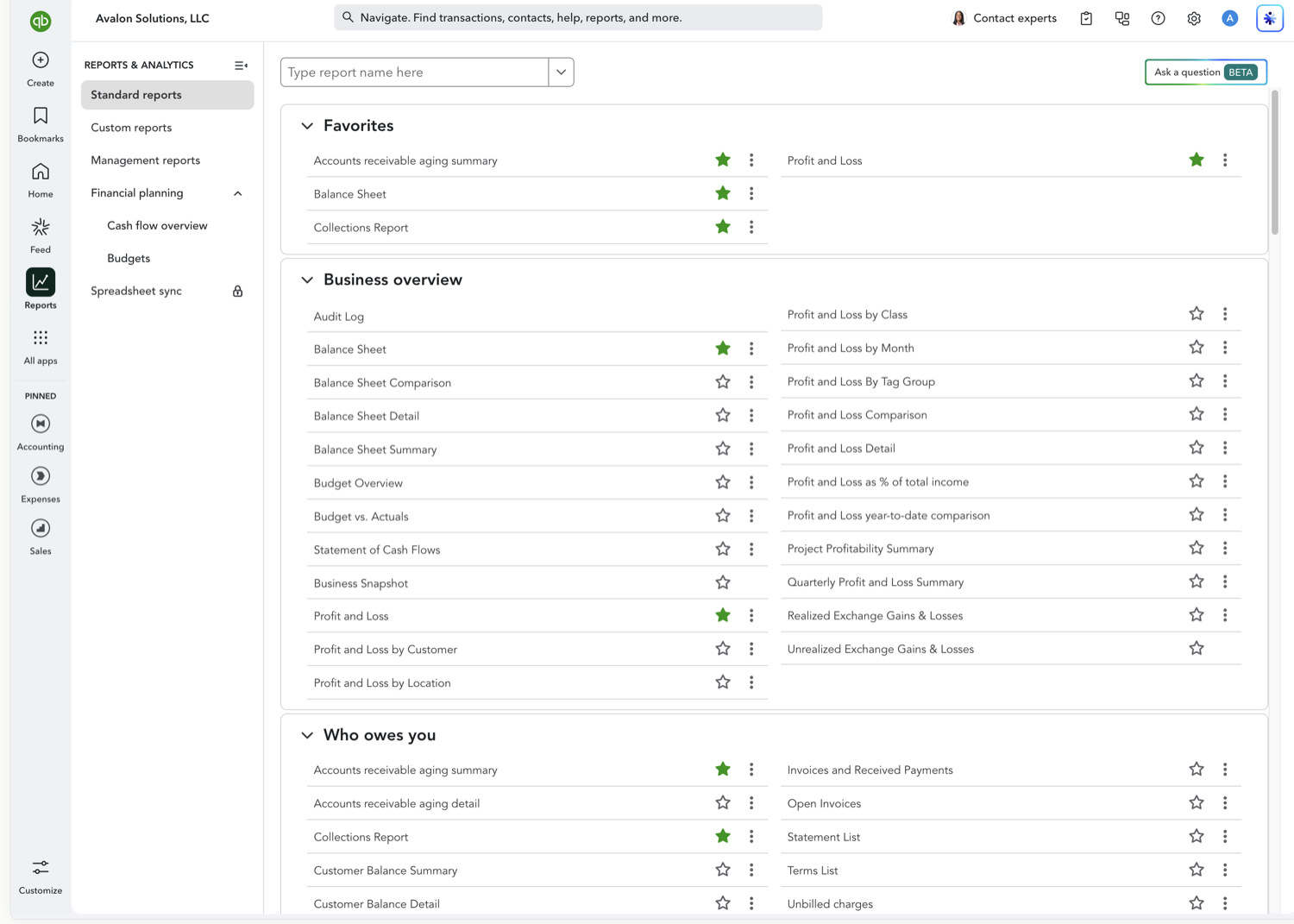
Go to Reports in the left navigation and, under Business overview, select "Balance Sheet." It opens as of today with your accounts grouped into Assets, Liabilities, and Equity.
- Set the as-of date and accounting method
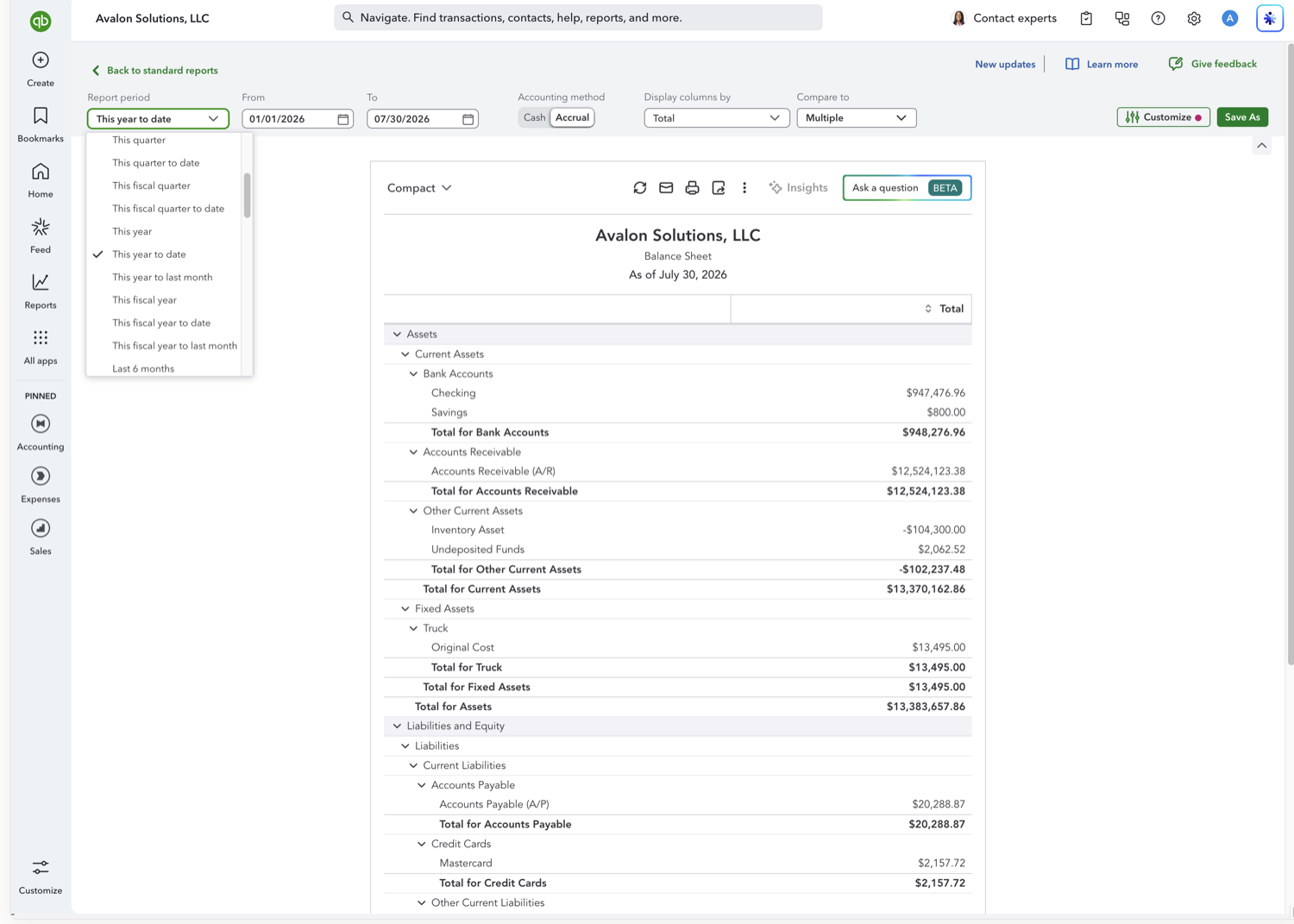
A Balance Sheet is always "as of" a single date. Use the Report period dropdown (or the To date) to pick that date: This year to date, a month-end, or a custom date. Then choose Cash or Accrual next to Accounting method; accrual includes unpaid invoices and bills, cash does not.
- Read the report
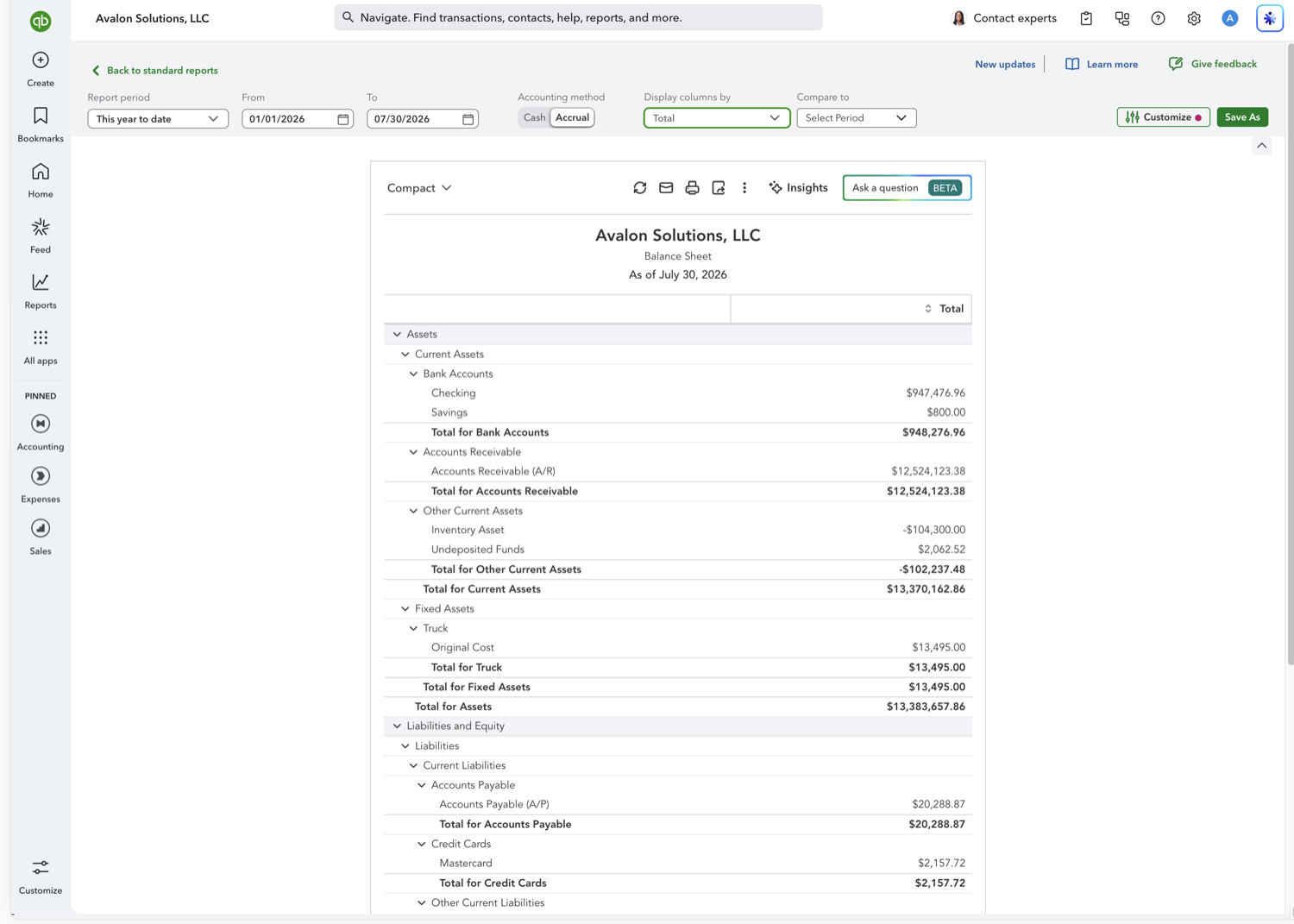
Review Total Assets, then Total Liabilities and Equity. The two totals always match. Expand Current Assets, Fixed Assets, Current Liabilities, and Equity to see the account-level detail behind each subtotal.
See also
Frequently asked questions
Why does my Balance Sheet always balance?
Because of double-entry accounting: every transaction affects two sides of the equation, so Assets always equal Liabilities plus Equity. If your Balance Sheet is out of balance, it usually points to a data issue worth investigating.
What's the difference between cash and accrual on a Balance Sheet?
Accrual includes Accounts Receivable (unpaid invoices) and Accounts Payable (unpaid bills); cash basis removes them and shows only money already received or paid. Switch between them with the Accounting method toggle.
Can I compare the Balance Sheet to a prior period?
Yes. Use the "Compare to" dropdown to add a previous year or period. See the Balance Sheet Comparison guide for the full set of options.
Tired of rebuilding reports? Need more customization?
Retriever pulls QuickBooks Online reports like this one into Google Sheets on a schedule. They refresh on their own, and once the data is in Sheets you can pivot, chart, and customize it far beyond QuickBooks' fixed report layouts.
See how Retriever worksRelated report guides
Questions about this report? Reach out at aubrey@retrieverhq.com.

© 2026 Avalon Innovation Corporation. All rights reserved.
🇺🇸 Built in Orange County, California