
How to Create a Balance Sheet by Class in QuickBooks Online
A Balance Sheet by class breaks your assets, liabilities, and equity into a column per class. It's useful for tracking separate funds, programs, or business lines, but only accounts you've tagged with a class will populate, so expect it to be sparser than a Profit and Loss by class.
New to QuickBooks Online's modern view? See how it compares to the classic view.
Steps
- Turn on class tracking
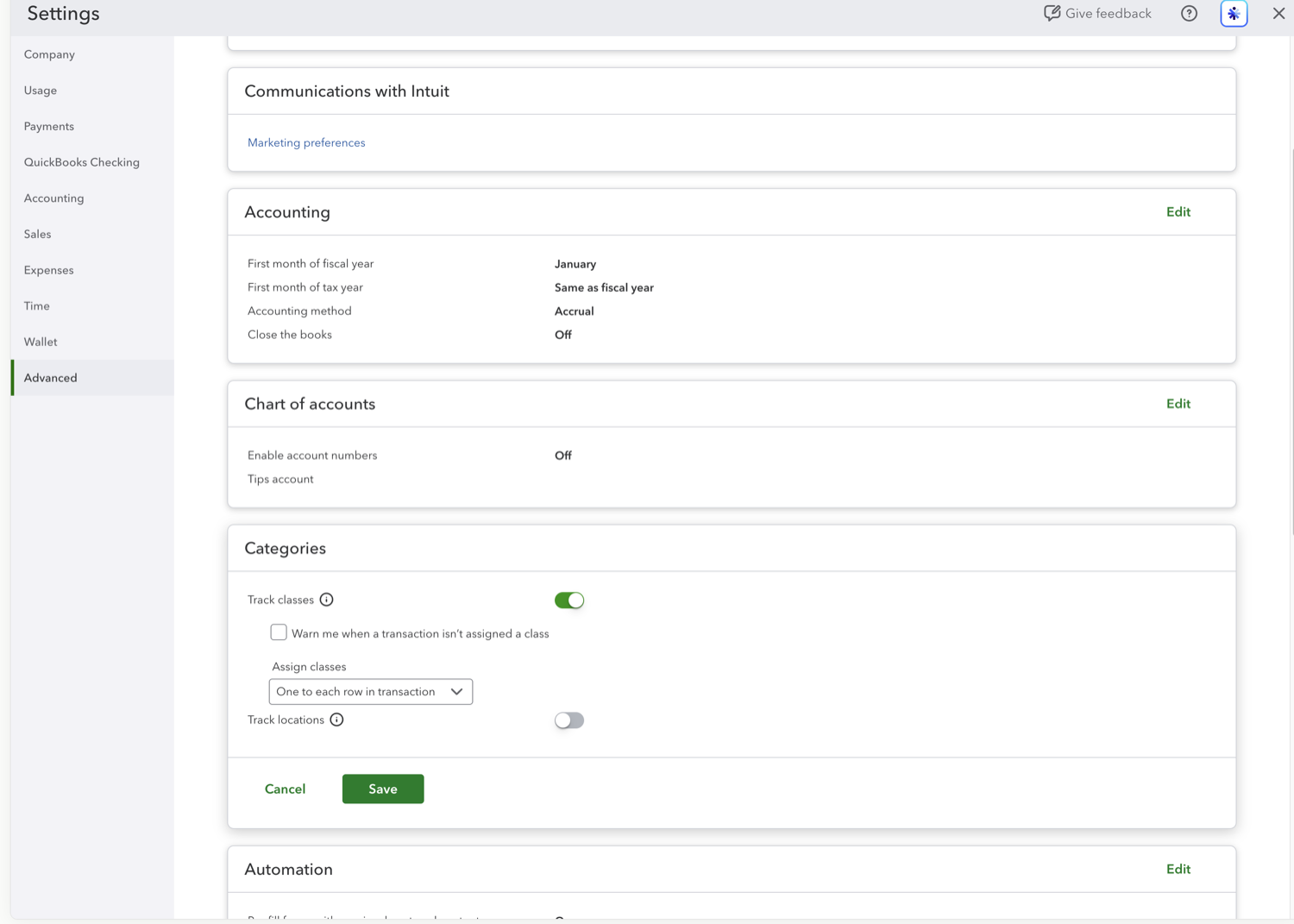
Class tracking must be on first. Go to Settings (gear icon) → Account and settings → Advanced → Categories, and turn on "Track classes." Class tracking requires QuickBooks Online Plus or Advanced.
- Open the Balance Sheet report
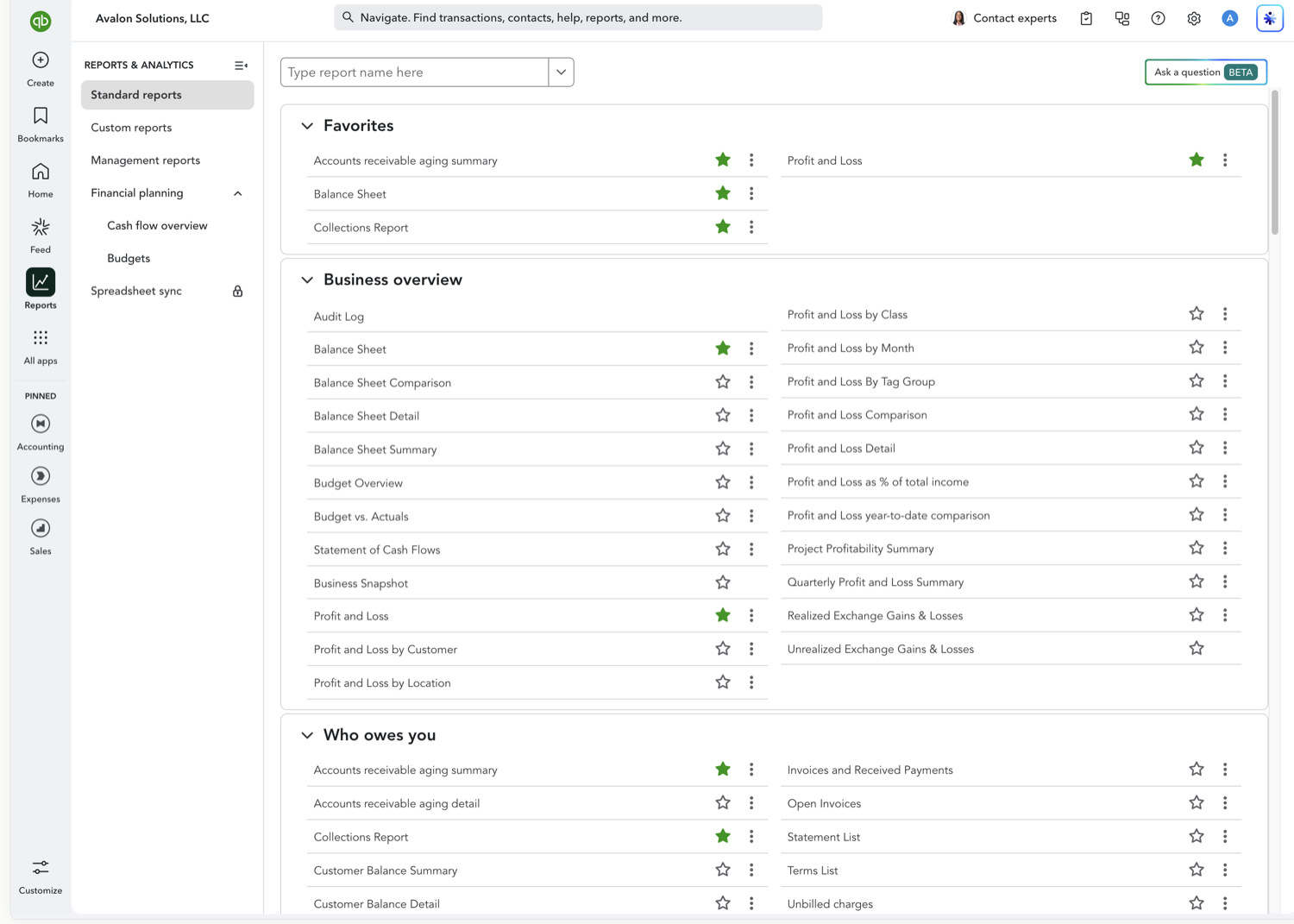
Go to Reports and, under Business overview, select "Balance Sheet," then set your as-of date.
- Set "Display columns by" to Class
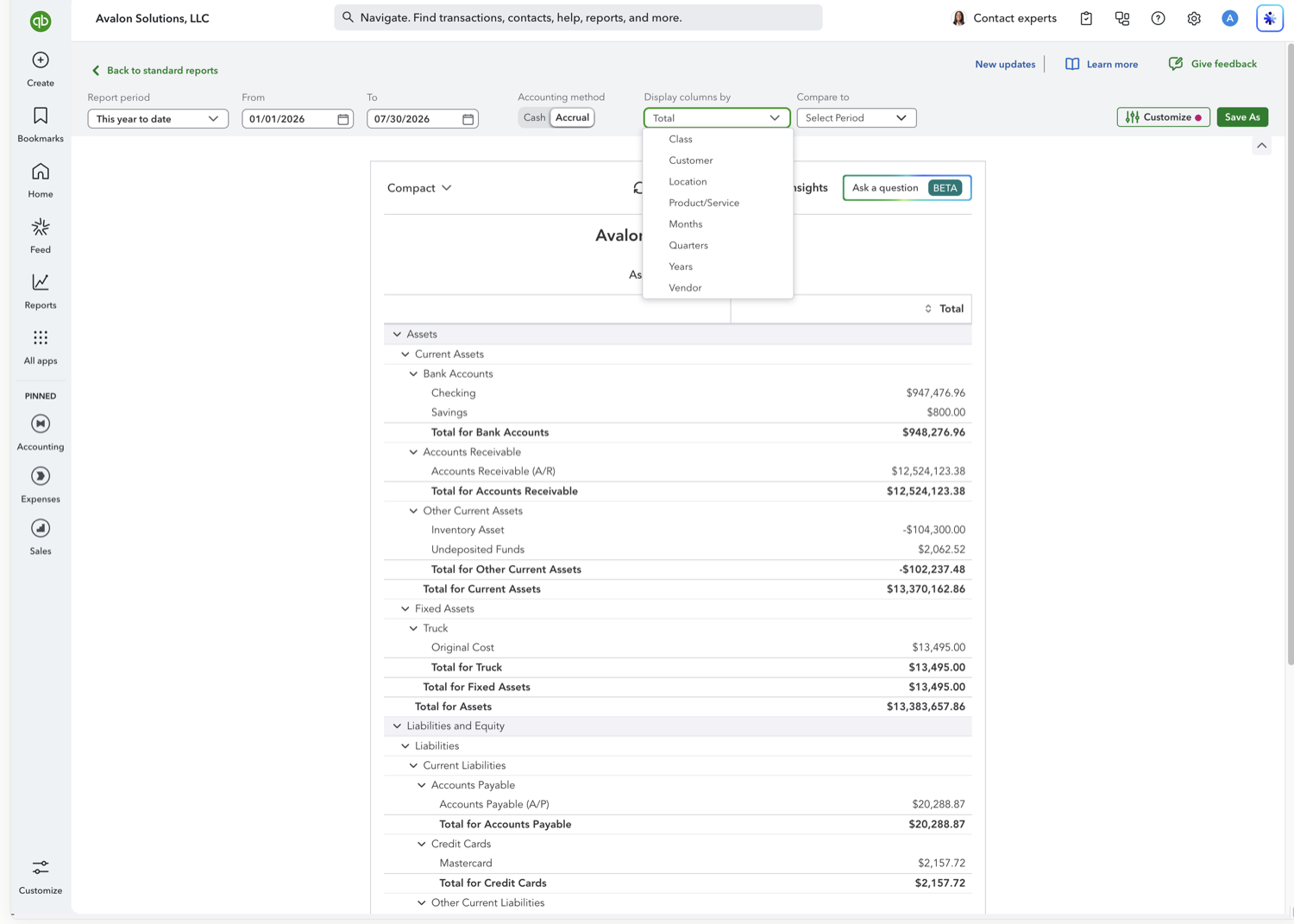
Open the "Display columns by" dropdown and choose Class. QuickBooks adds a column per class, plus a column for amounts with no class assigned.
- Review the class columns
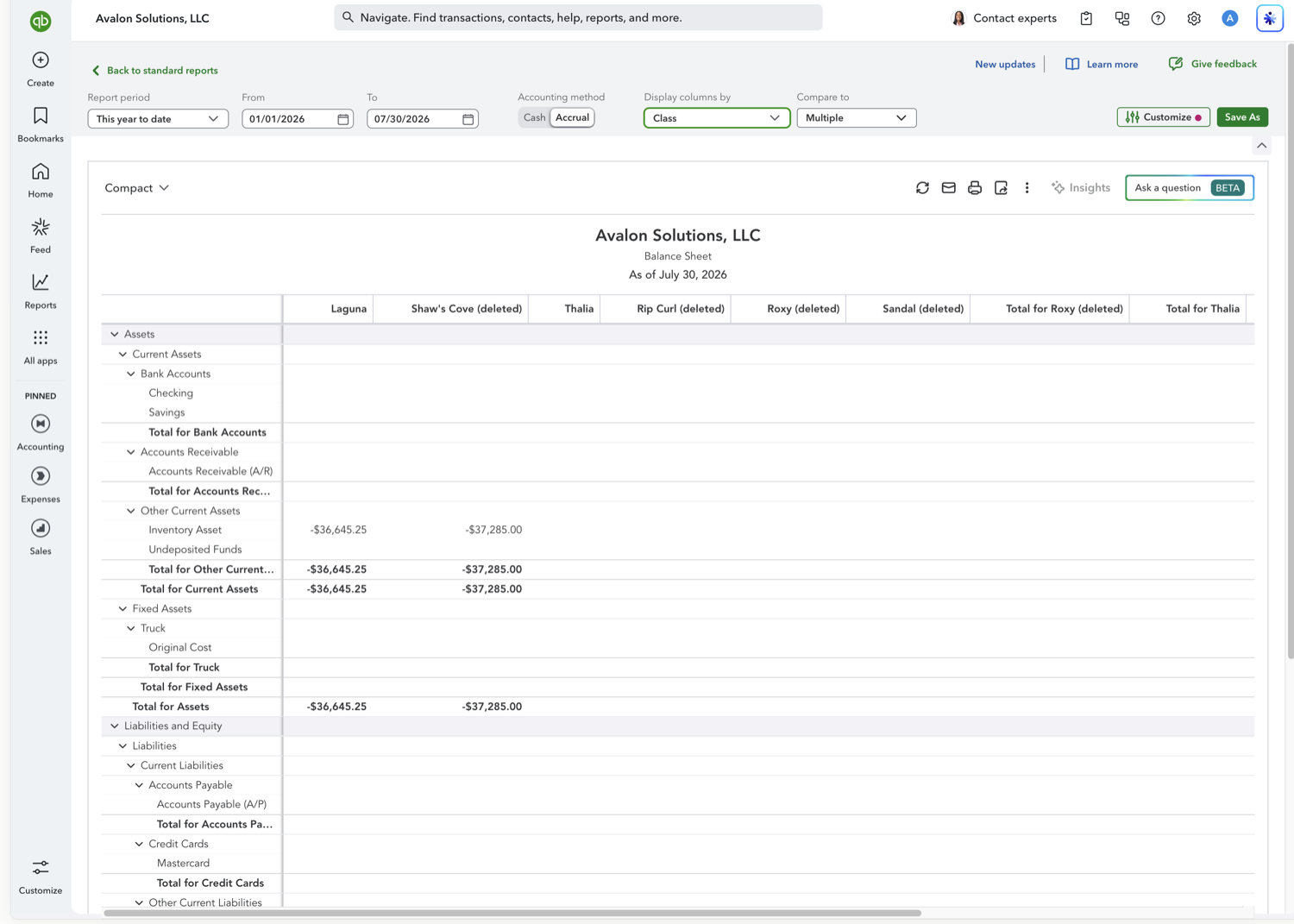
Only balances on transactions tagged with a class appear in that class's column, typically inventory, equity, or fund accounts. Bank, A/R, and A/P balances that were never class-tagged fall into the unassigned column or stay blank, which is why a Balance Sheet by class is usually far sparser than a P&L by class.
See also
Frequently asked questions
Why is my Balance Sheet by class mostly empty?
Because balance-sheet accounts only carry a class when the underlying transaction was tagged with one. Many everyday postings to bank, A/R, and A/P accounts aren't class-tagged, so those balances show under the unassigned column rather than a specific class.
Does this require a specific QuickBooks plan?
Yes. Class tracking is available on QuickBooks Online Plus and Advanced.
Tired of rebuilding reports? Need more customization?
Retriever pulls QuickBooks Online reports like this one into Google Sheets on a schedule. They refresh on their own, and once the data is in Sheets you can pivot, chart, and customize it far beyond QuickBooks' fixed report layouts.
See how Retriever worksRelated report guides
Questions about this report? Reach out at aubrey@retrieverhq.com.

© 2026 Avalon Innovation Corporation. All rights reserved.
🇺🇸 Built in Orange County, California