
How to Create a Balance Sheet by Quarter in QuickBooks Online
A quarterly Balance Sheet gives you the same period-over-period view as the monthly one, but with fewer, wider columns, handy for board decks and year-end reviews where twelve monthly columns would be too much.
New to QuickBooks Online's modern view? See how it compares to the classic view.
Steps
- Open the Balance Sheet report
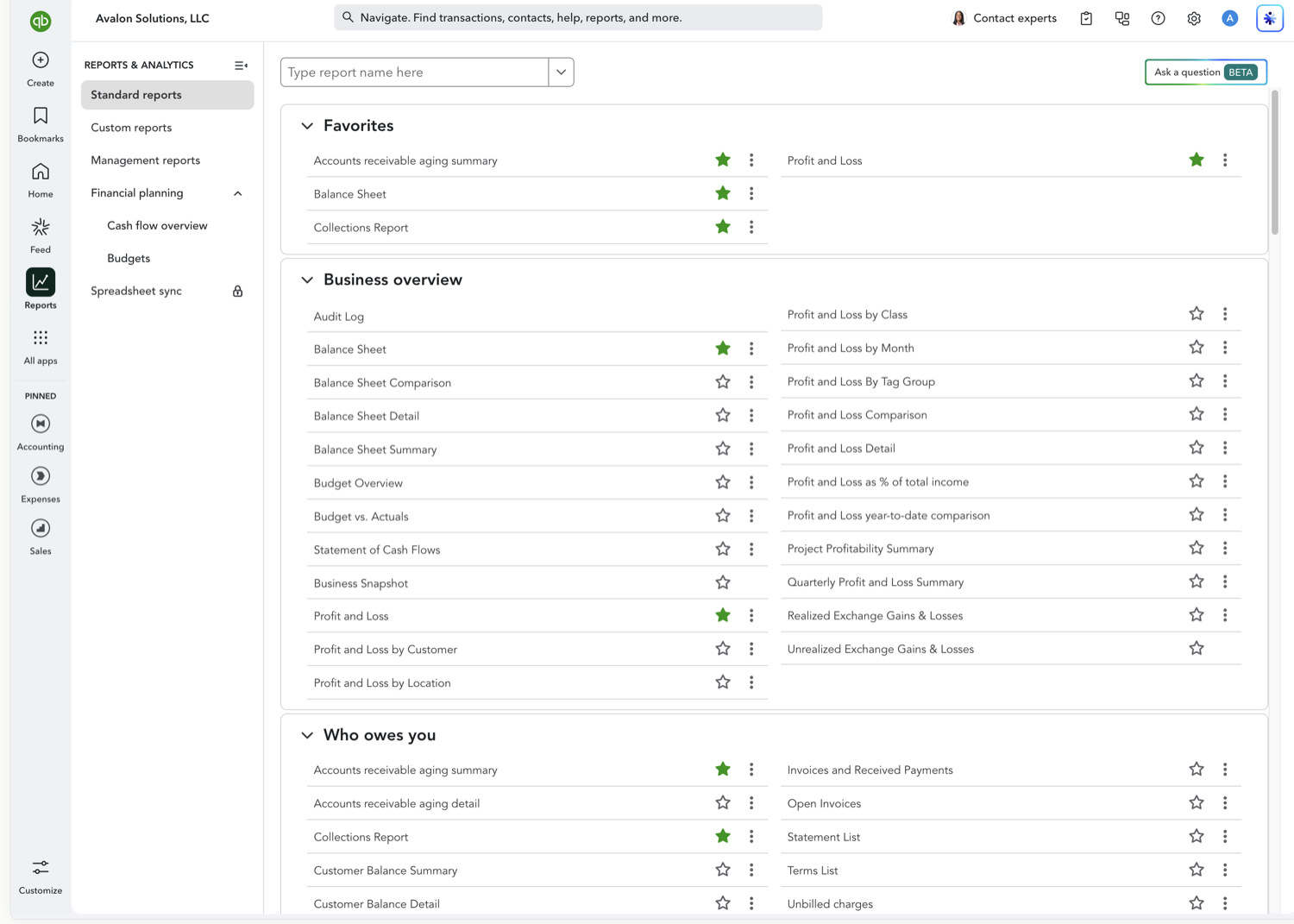
Go to Reports and, under Business overview, select "Balance Sheet." Set the From/To range to cover the quarters you want. A full fiscal year to date works well.
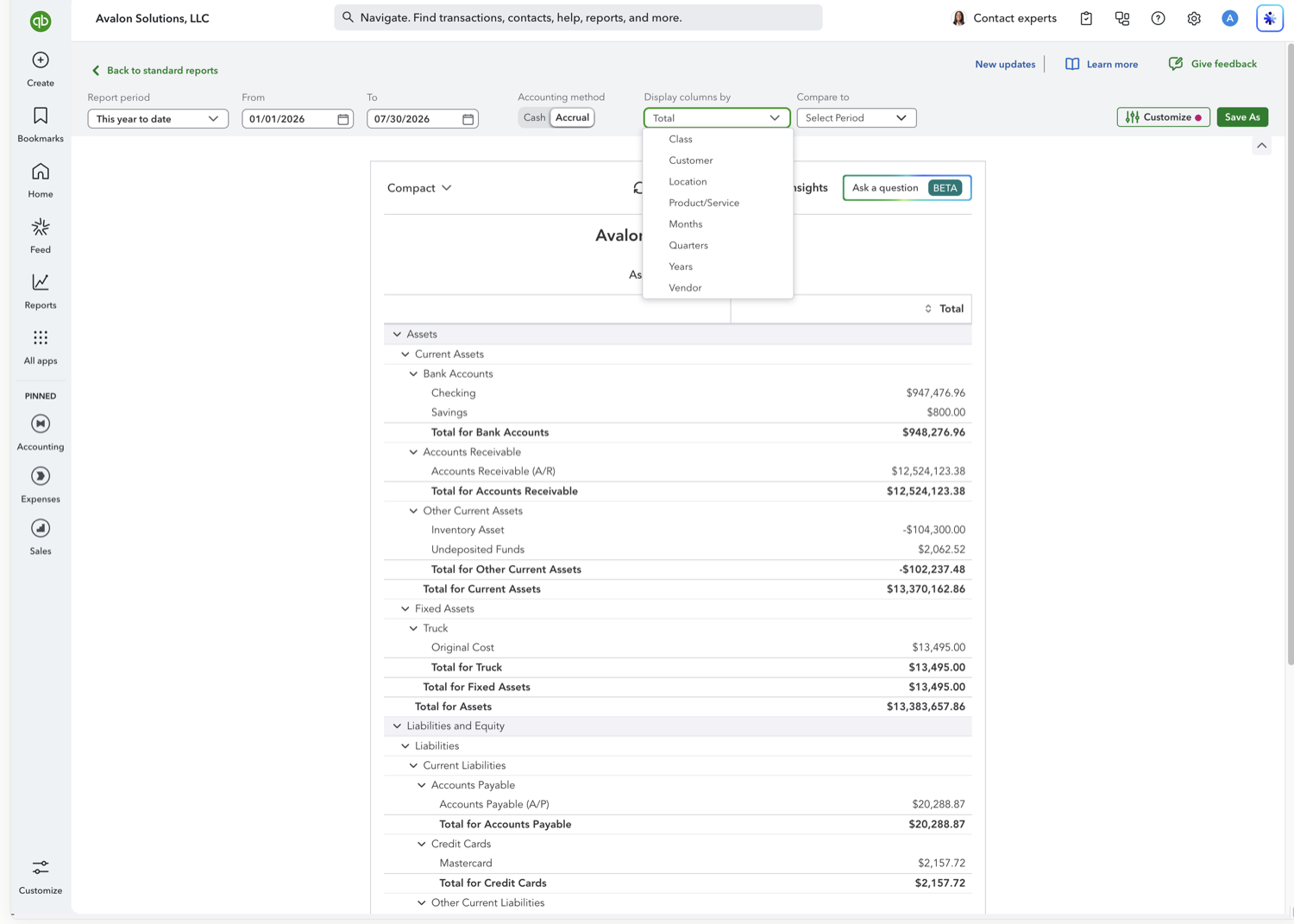
- Set "Display columns by" to Quarters
Open the "Display columns by" dropdown and choose Quarters. QuickBooks shows one column per quarter, each with balances as of that quarter-end.
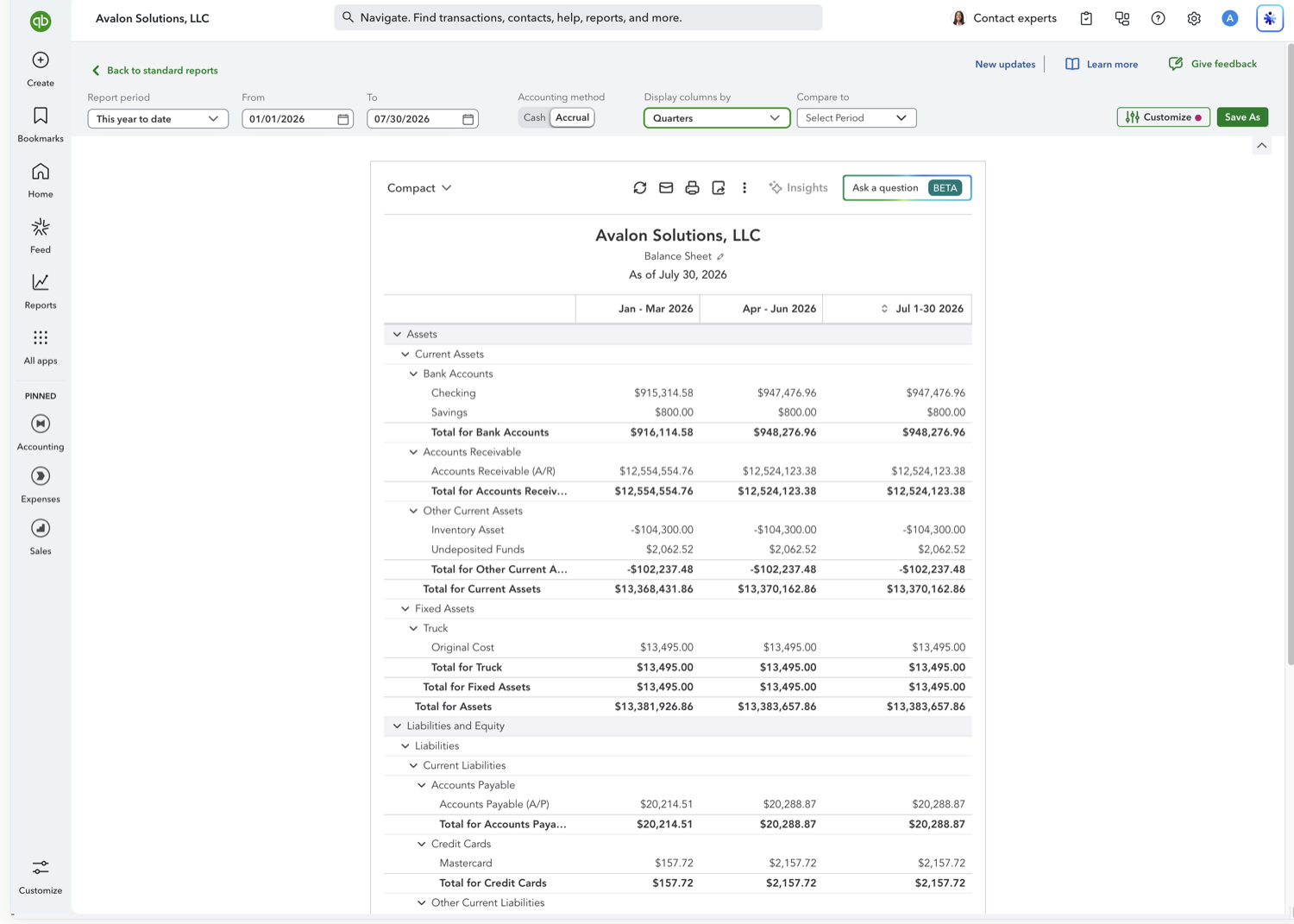
- Review the quarterly columns
Each column is labeled by its quarter (for example Jan – Mar) and shows the account balances as of the last day of that quarter, so you can compare your position at each quarter-end at a glance.
Frequently asked questions
Are the quarters calendar or fiscal?
They follow your company's fiscal year setting. If your fiscal year starts in a month other than January, the quarter columns start from that month.
Can I see months instead of quarters?
Yes. Choose Months in the same "Display columns by" dropdown. See the Balance Sheet by Month guide.
Tired of rebuilding reports? Need more customization?
Retriever pulls QuickBooks Online reports like this one into Google Sheets on a schedule. They refresh on their own, and once the data is in Sheets you can pivot, chart, and customize it far beyond QuickBooks' fixed report layouts.
See how Retriever worksRelated report guides
Questions about this report? Reach out at aubrey@retrieverhq.com.

© 2026 Avalon Innovation Corporation. All rights reserved.
🇺🇸 Built in Orange County, California