
How to Run the Statement of Cash Flows in QuickBooks Online
The Statement of Cash Flows shows how cash actually moved through your business over a period, split into operating, investing, and financing activities. It answers a question the Profit and Loss cannot: where the cash went, even in a month you were profitable. Here is how to run it in QuickBooks Online.
Steps
- Open the Statement of Cash Flows
Go to Reports and, under the "Business overview" group, select "Statement of Cash Flows." It opens grouped into three sections: operating activities, investing activities, and financing activities.
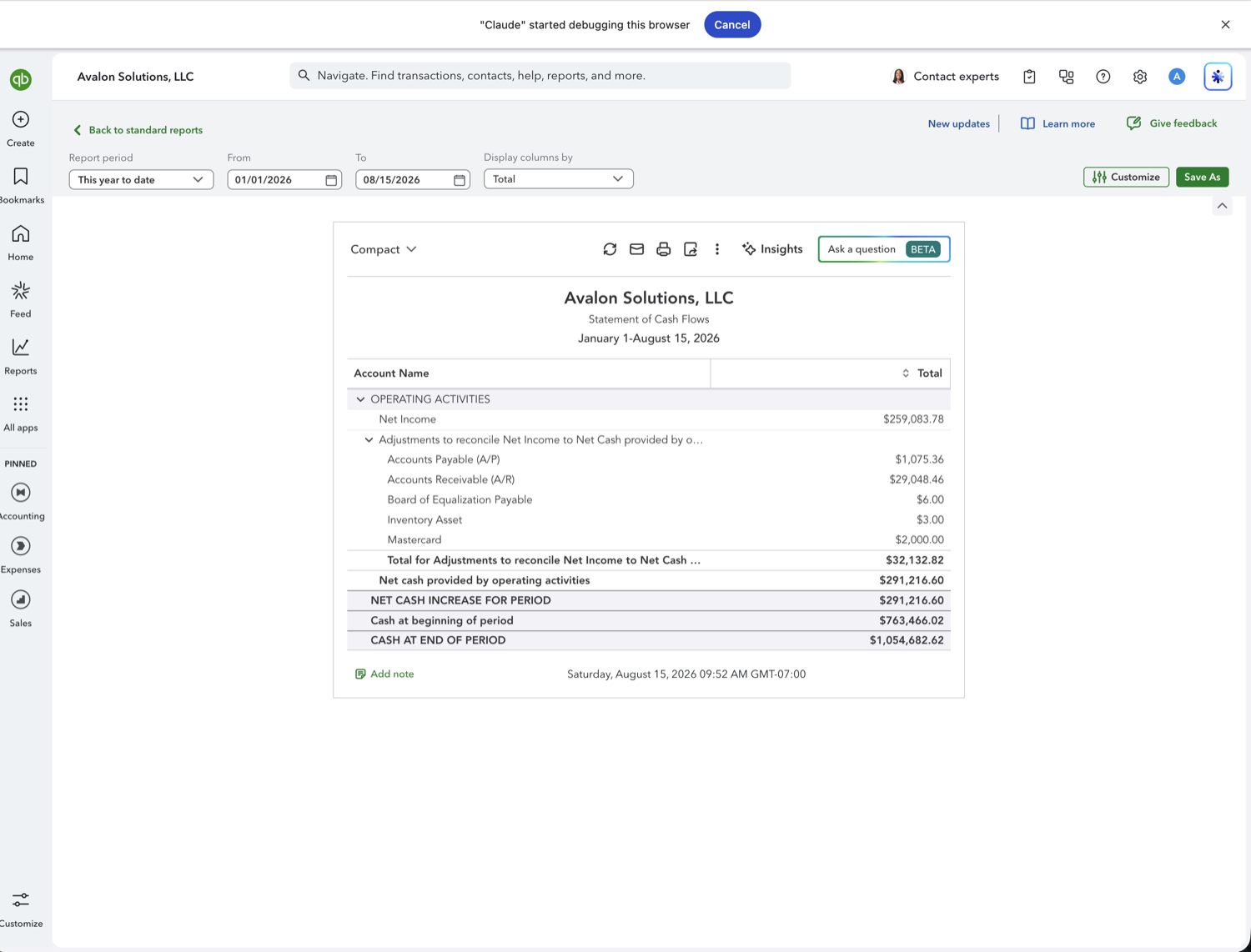
- Set the report period
Use the Report period dropdown to pick your range, such as This year to date, Last month, or a custom period. QuickBooks builds the statement using the indirect method: it starts from net income and adjusts for the changes in your balance sheet accounts.
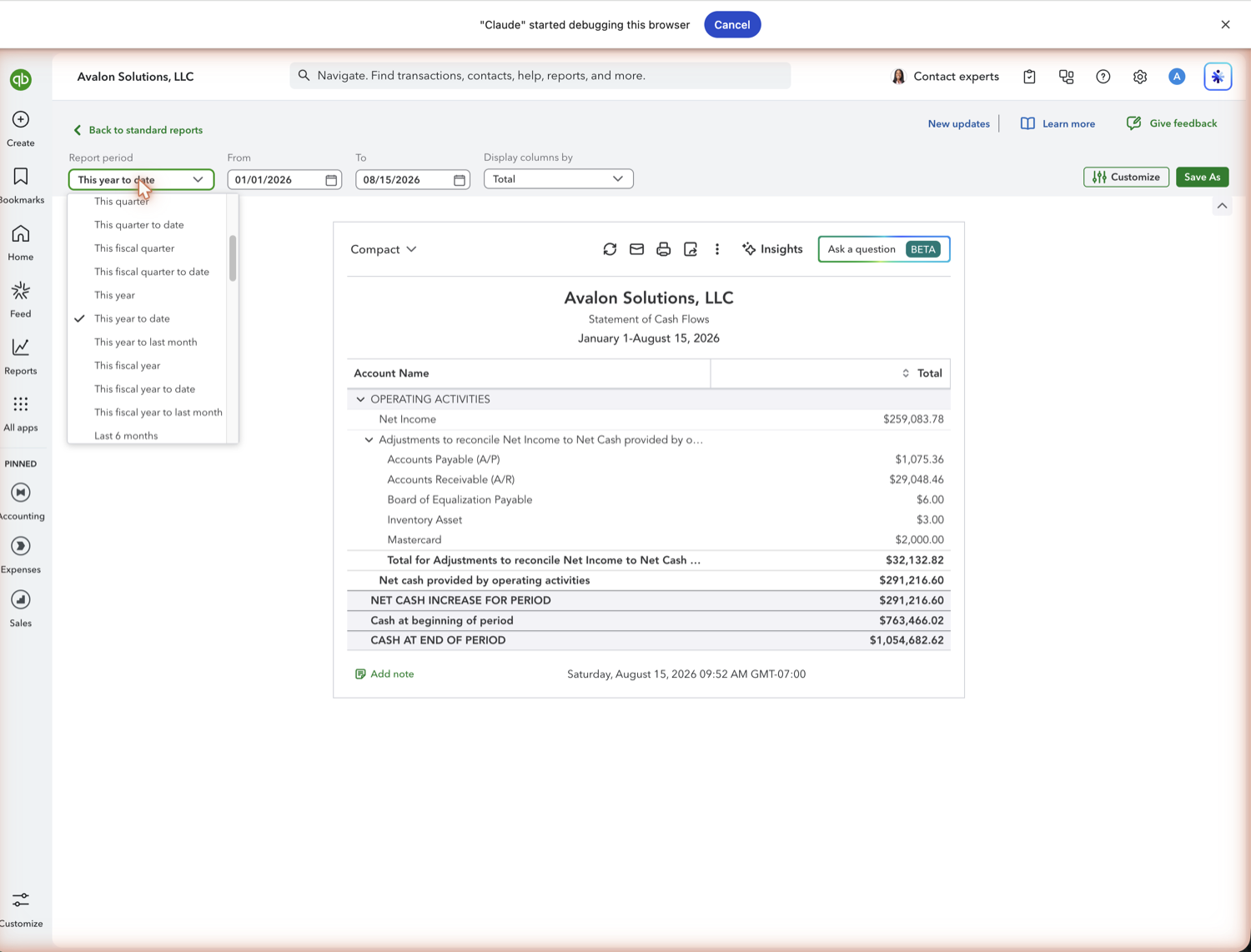
- Read the three sections and the net change
Expand operating, investing, and financing to see the accounts behind each. The three subtotals add up to the net cash increase or decrease for the period, which reconciles the cash balance at the start of the period to the cash balance at the end.
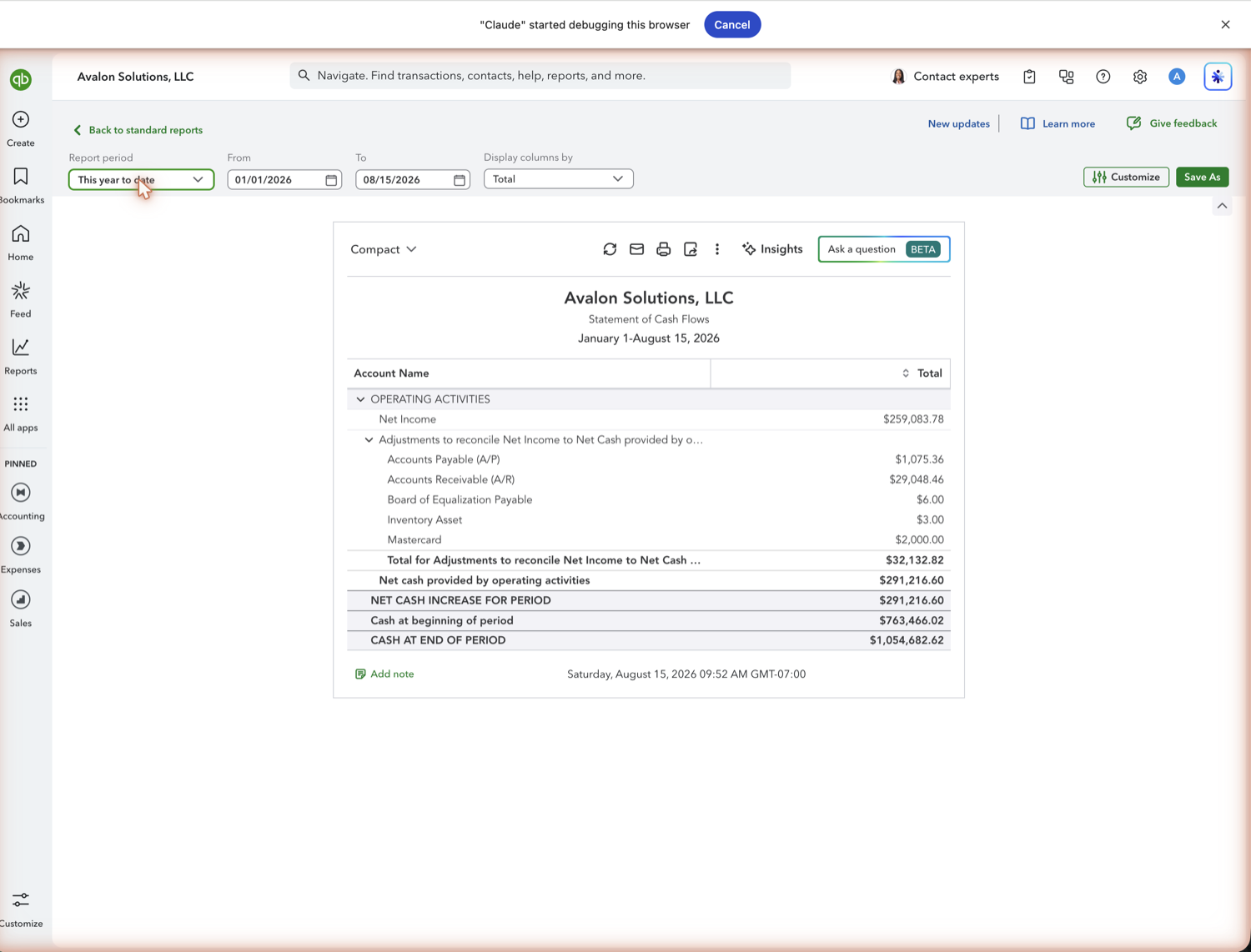
See also
Frequently asked questions
Why does my cash flow not match my Profit and Loss?
Profit includes non-cash items and unpaid invoices and bills; the Statement of Cash Flows strips those out and shows only cash that moved. That gap is exactly what the statement is meant to explain.
Does QuickBooks use the direct or indirect method?
QuickBooks Online produces the Statement of Cash Flows using the indirect method, starting from net income and adjusting for changes in balance sheet accounts.
How do I track cash flow across several months in one view?
The report shows one period at a time. To put multiple months side by side and keep them refreshing, pull the report into Google Sheets with Retriever. See the linked guide.
Tired of rebuilding reports? Need more customization?
Retriever pulls QuickBooks Online reports like this one into Google Sheets on a schedule. They refresh on their own, and once the data is in Sheets you can pivot, chart, and customize it far beyond QuickBooks' fixed report layouts.
See how Retriever worksRelated report guides
Questions about this report? Reach out at aubrey@retrieverhq.com.

© 2026 Avalon Innovation Corporation. All rights reserved.
🇺🇸 Built in Orange County, California