
How to Run A/R and A/P Aging Reports in QuickBooks Online
Aging reports show unpaid amounts bucketed by how overdue they are. The accounts receivable aging is what your customers owe you; the accounts payable aging is what you owe your vendors. Together they are how you stay on top of collections and upcoming bills. Here is how to run both in QuickBooks Online.
Steps
- Open the A/R aging report
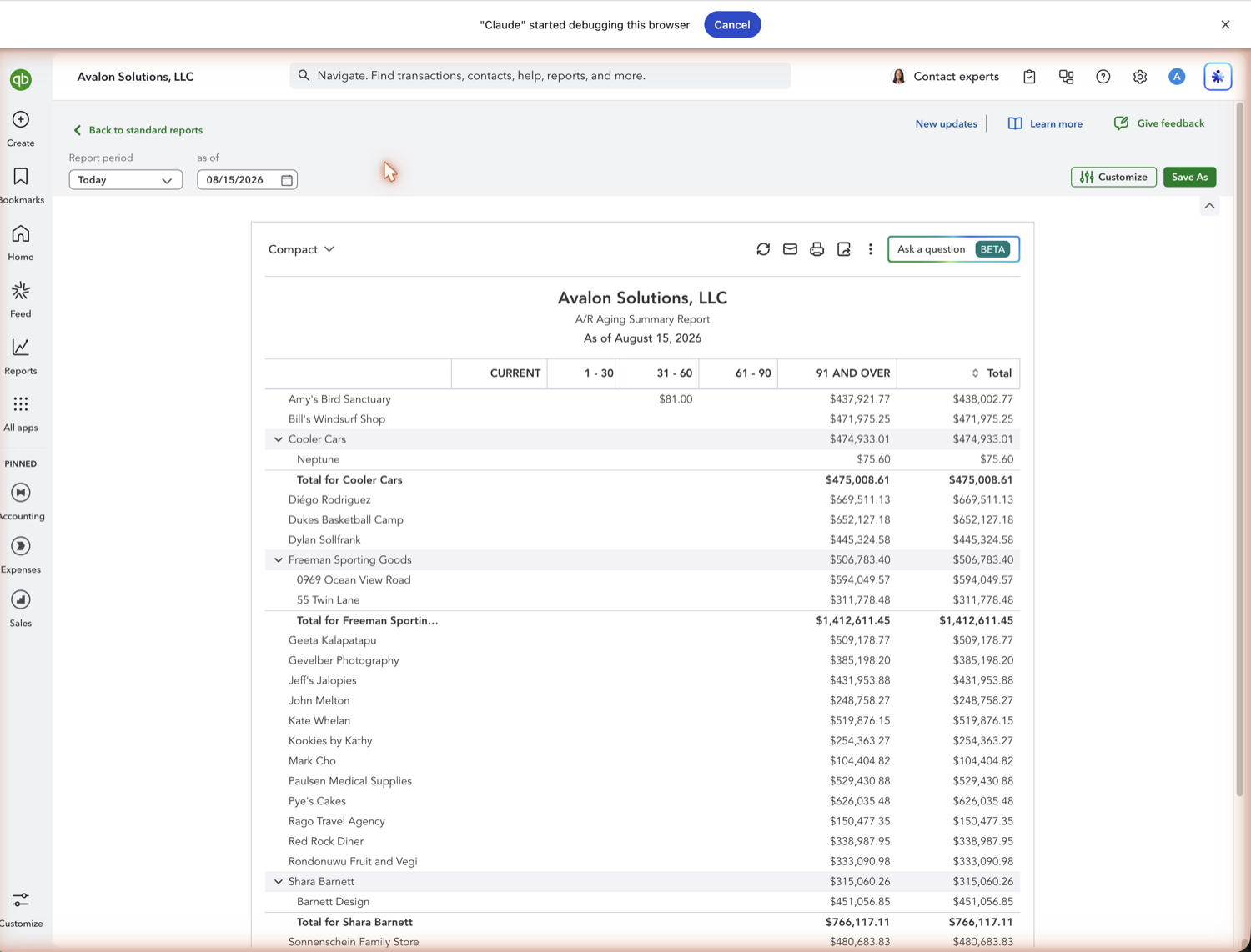
Go to Reports and, under the "Who owes you" group, select "Accounts receivable aging summary" (or "...detail" for line-by-line invoices). It lists each customer with open balances spread across aging buckets: Current, 1-30, 31-60, 61-90, and 91 and over days past due.
- Open the A/P aging report
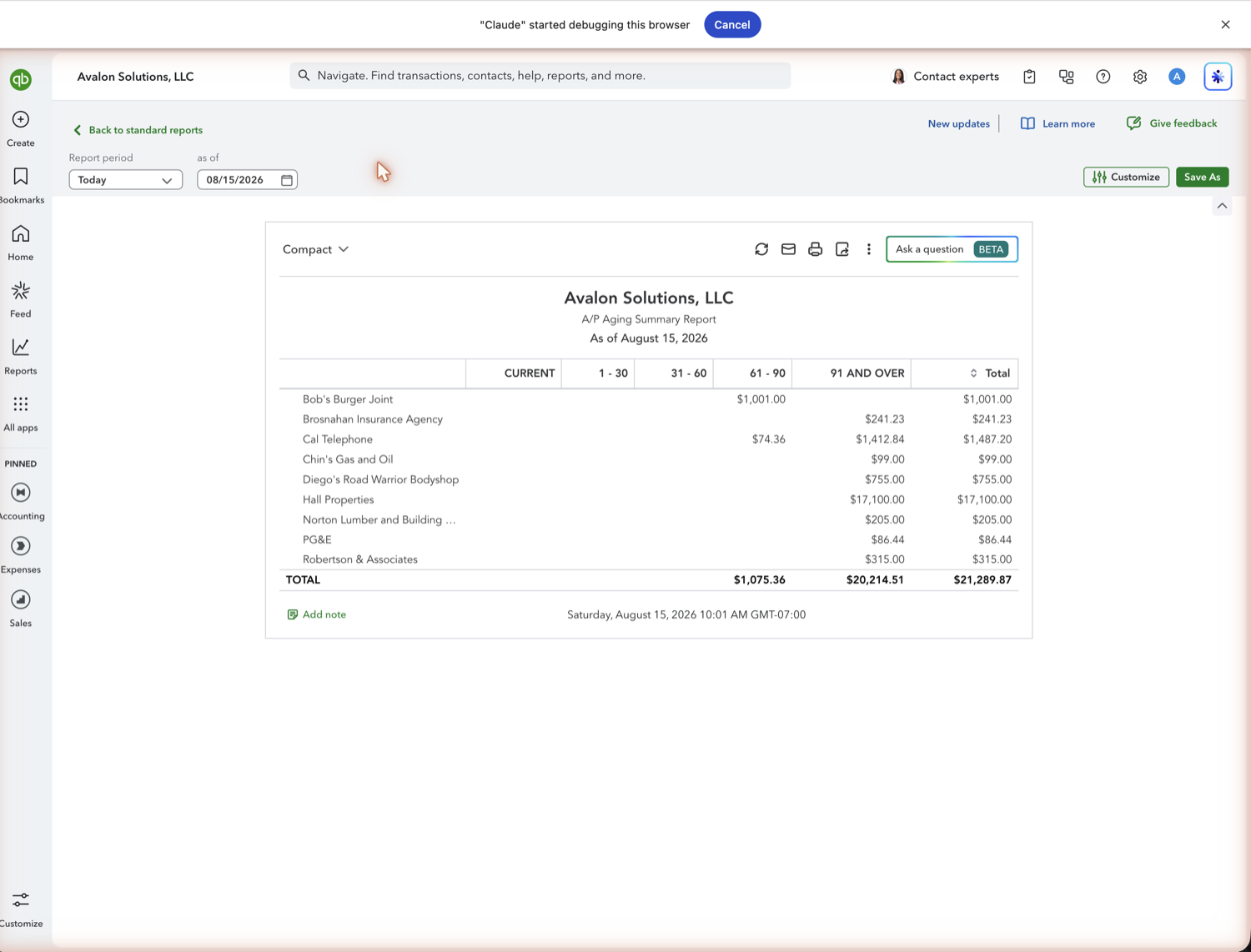
For the other side, go to Reports and, under the "What you owe" group, select "Accounts payable aging summary." It uses the same buckets to show what you owe each vendor and how overdue each bill is.
- Adjust the aging date and intervals
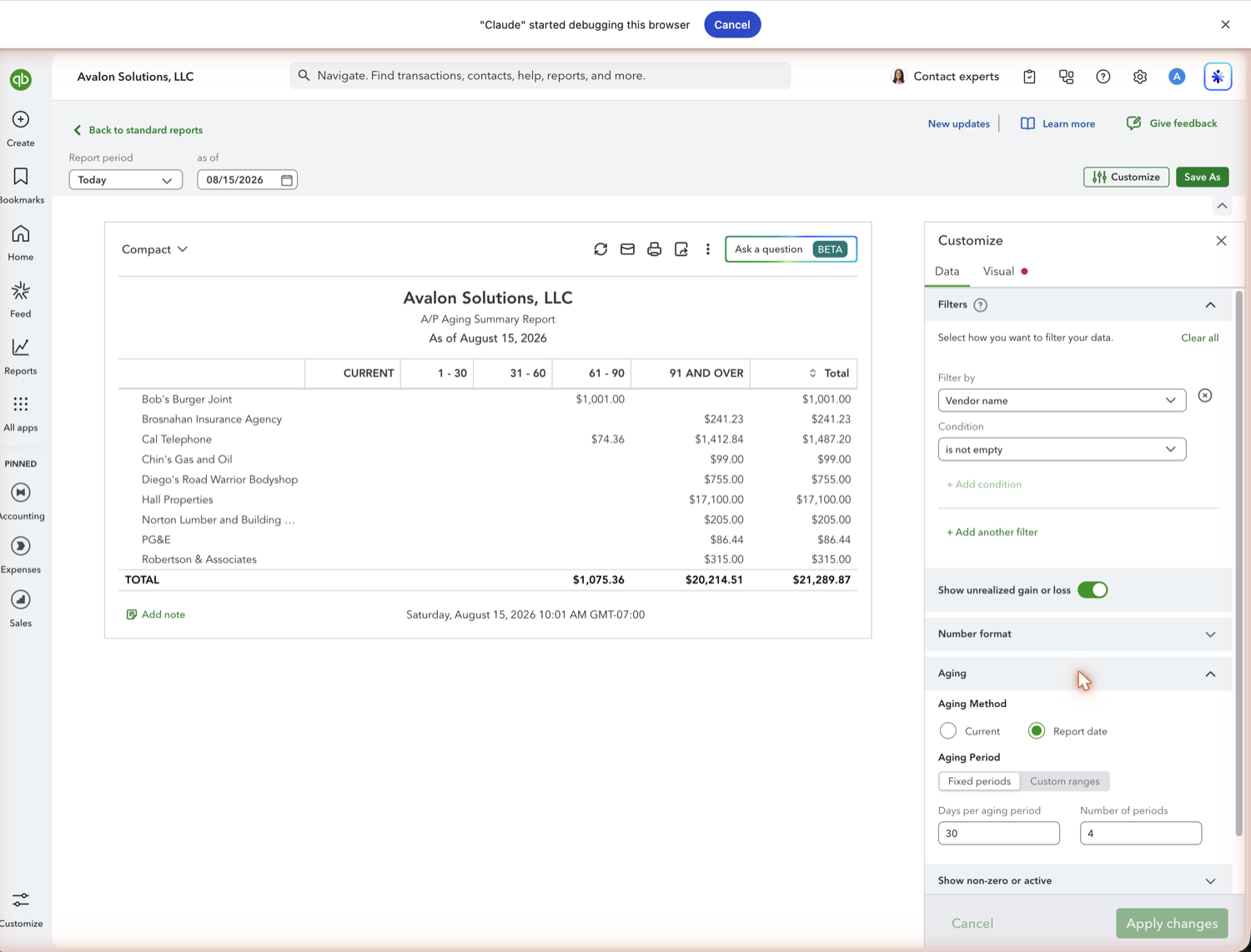
Click Customize to change how the buckets work: the aging method (by report date or current date), the number of days in each period, and how many periods to show. Set the report date to age everything as of a specific day.
See also
Frequently asked questions
What's the difference between the aging summary and the aging detail?
The summary shows one row per customer or vendor with totals in each aging bucket. The detail lists the individual invoices or bills behind those totals, with due dates.
What do the aging buckets mean?
Each bucket groups open amounts by how far past the due date they are: Current is not yet due, then 1-30, 31-60, 61-90, and 91 and over days overdue. You can change the interval under Customize.
Can I track aging in Google Sheets?
Yes. Retriever pulls the A/R and A/P aging reports into Google Sheets and refreshes them on demand, so you can build a collections tracker that stays current. See the guide on connecting QuickBooks to Google Sheets.
Tired of rebuilding reports? Need more customization?
Retriever pulls QuickBooks Online reports like this one into Google Sheets on a schedule. They refresh on their own, and once the data is in Sheets you can pivot, chart, and customize it far beyond QuickBooks' fixed report layouts.
See how Retriever worksRelated report guides
Questions about this report? Reach out at aubrey@retrieverhq.com.

© 2026 Avalon Innovation Corporation. All rights reserved.
🇺🇸 Built in Orange County, California