
How to Run the General Ledger Report in QuickBooks Online
The General Ledger is the full record behind your financial statements: every account, and every transaction posted to it, with a running balance. It is the report you open when a number on the Balance Sheet or Profit and Loss looks off and you need to see the transactions underneath it. Here is how to run it in QuickBooks Online.
Steps
- Open the General Ledger report
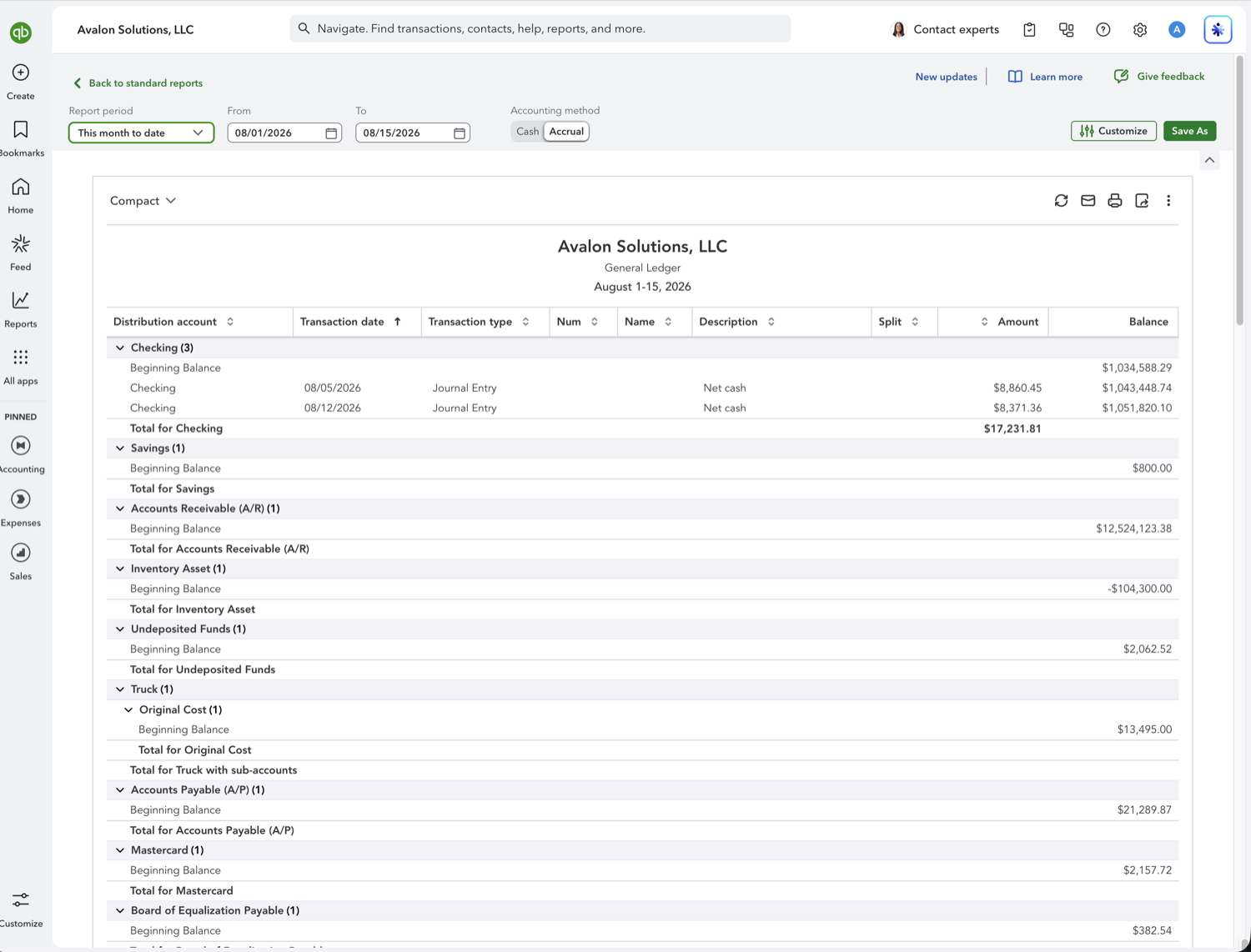
Go to Reports in the left navigation and scroll to the "For my accountant" group, then select "General Ledger." You can also type "General Ledger" into the report search box at the top. It opens with each account listed in chart-of-accounts order.
- Set the date range and accounting method
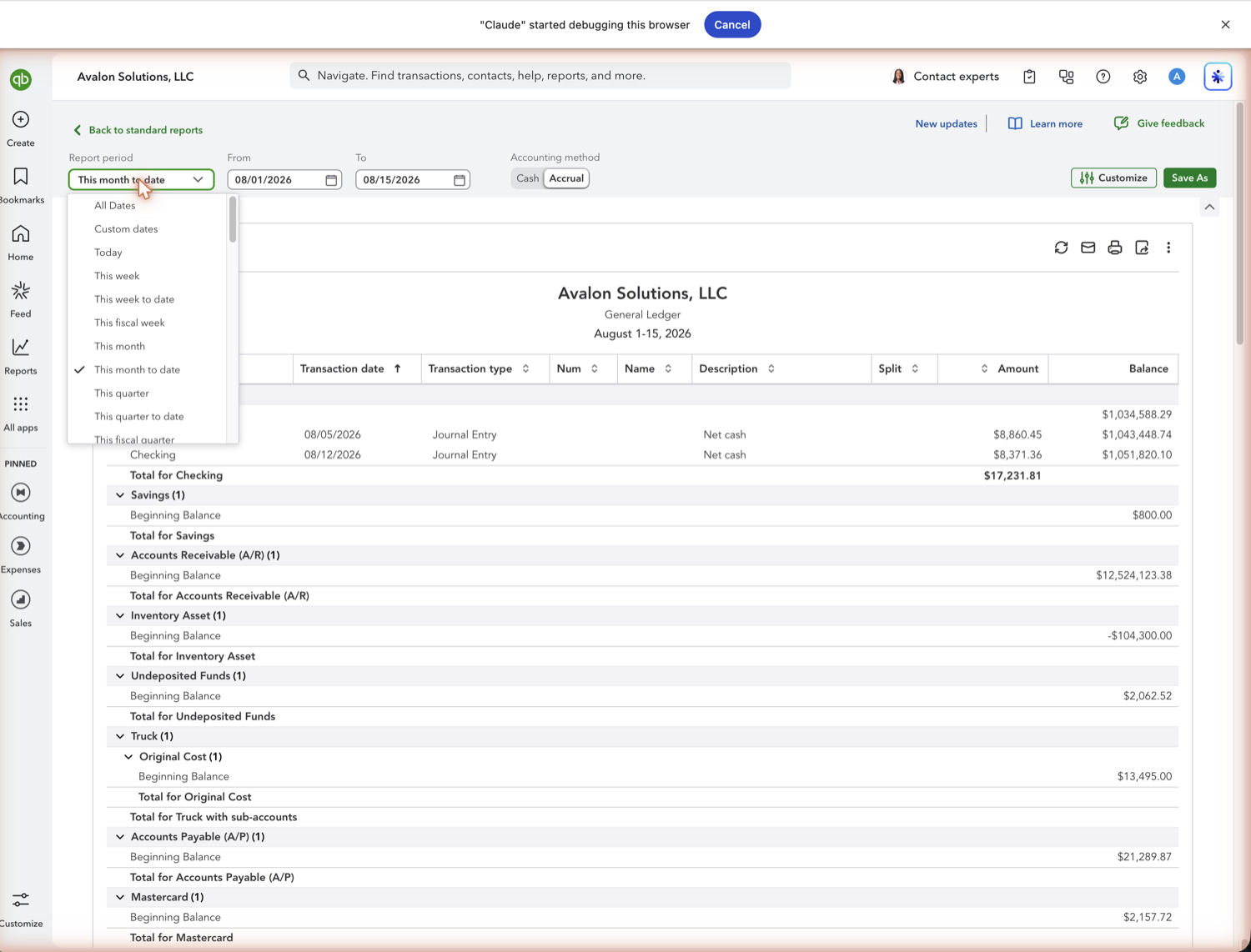
Use the Report period dropdown to choose your range, then set Accounting method to Cash or Accrual. For each account the report shows a beginning balance, every transaction (date, type, number, name, memo, split, debit, and credit), and a running balance that ends at the account total.
- Filter to the accounts you need
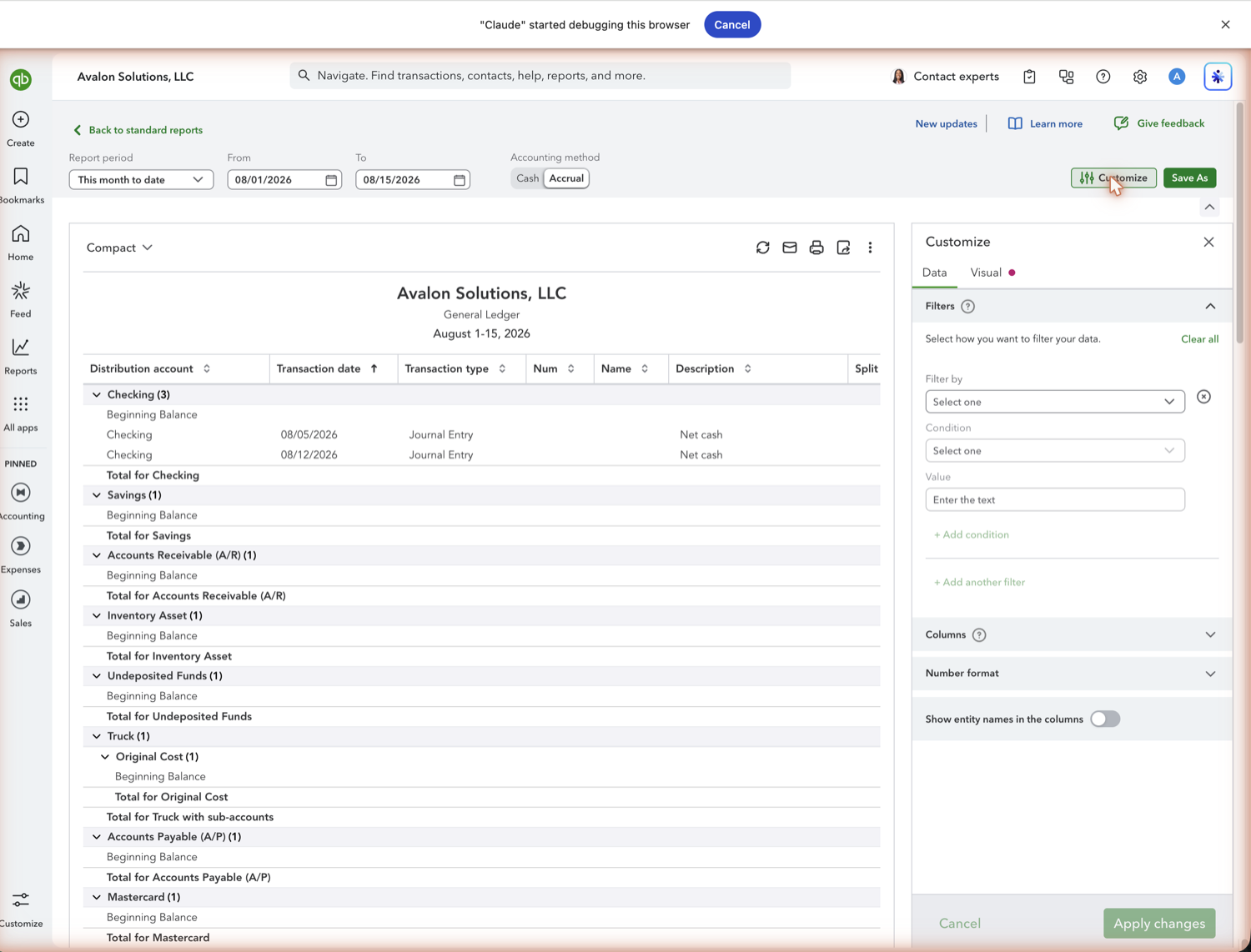
The General Ledger is long by design. Click Customize to filter to a single account, a distribution account, or a date range, or to switch which columns show. To sort it, hide zero-balance rows, or add account numbers, pull the report into Google Sheets where those edits stick.
See also
Frequently asked questions
What's the difference between the General Ledger and the Trial Balance?
The Trial Balance shows one ending balance per account. The General Ledger shows every transaction that produced those balances, so it is the report you drill into when you need the detail behind a number.
Why is my General Ledger so long?
It lists every posted transaction for every account in the range you chose. Narrow the Report period, or use Customize to filter to specific accounts, to make it manageable.
Can I get the General Ledger into Google Sheets and keep it current?
Yes. Retriever pulls the General Ledger into Google Sheets and refreshes it on demand, so your sorting, hidden rows, and formulas stay in place. See the guide on connecting QuickBooks to Google Sheets.
Tired of rebuilding reports? Need more customization?
Retriever pulls QuickBooks Online reports like this one into Google Sheets on a schedule. They refresh on their own, and once the data is in Sheets you can pivot, chart, and customize it far beyond QuickBooks' fixed report layouts.
See how Retriever worksRelated report guides
Questions about this report? Reach out at aubrey@retrieverhq.com.

© 2026 Avalon Innovation Corporation. All rights reserved.
🇺🇸 Built in Orange County, California