
How to Create a Profit and Loss Report by Class in QuickBooks Online
If you use QuickBooks Online classes to track departments, programs, locations, or business lines, a Profit and Loss by Class report is one of the most useful views you can build. Here's how to set it up in the new modern view.
New to QuickBooks Online's modern view? See how it compares to the classic view.
Steps
- Turn on class tracking (if you haven't already)
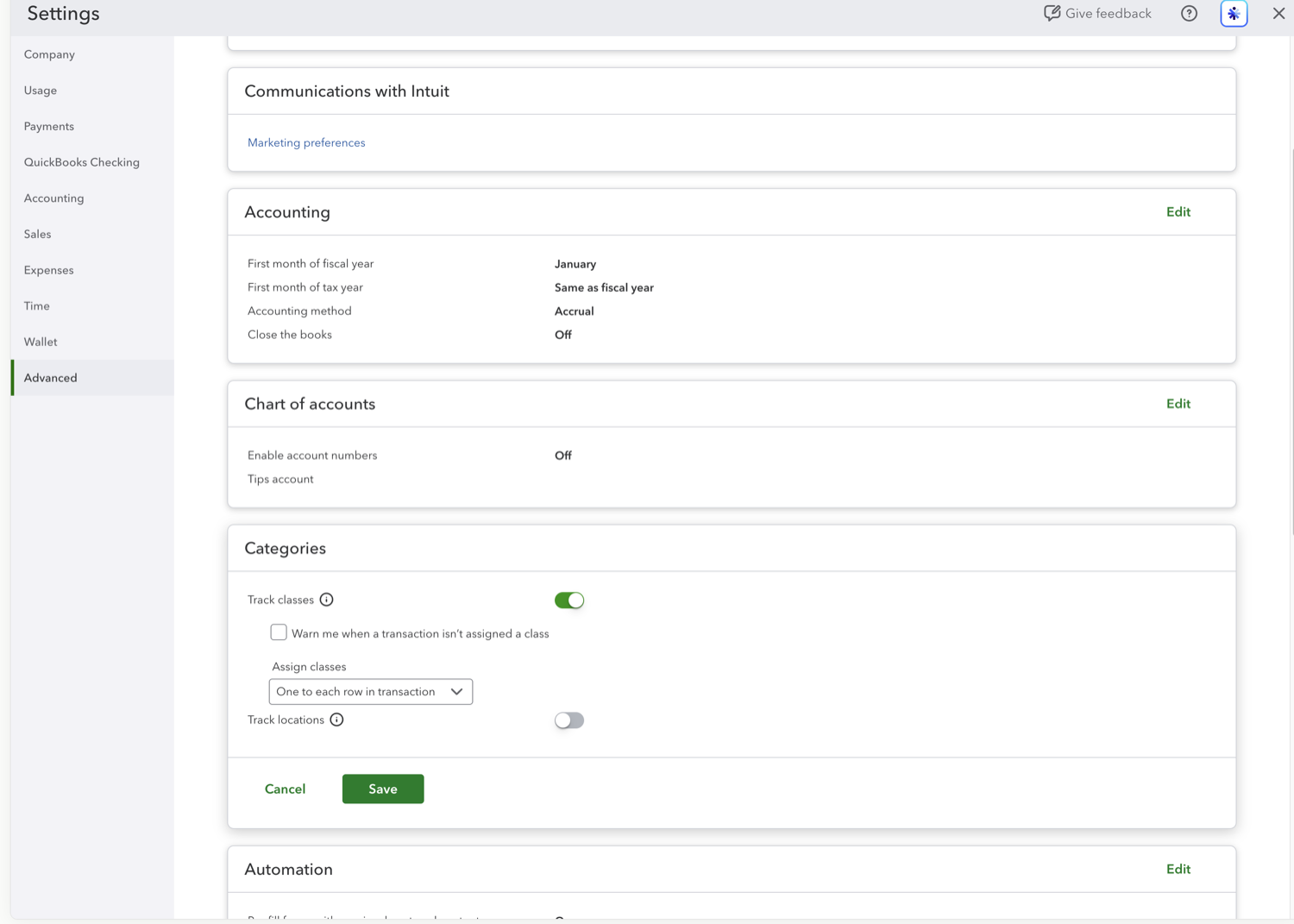
Go to Settings (gear icon) > Account and settings > Advanced. In the Categories section, toggle on "Track classes" and click Save. This is required before Class shows up as a column option.
- Open the Profit and Loss report
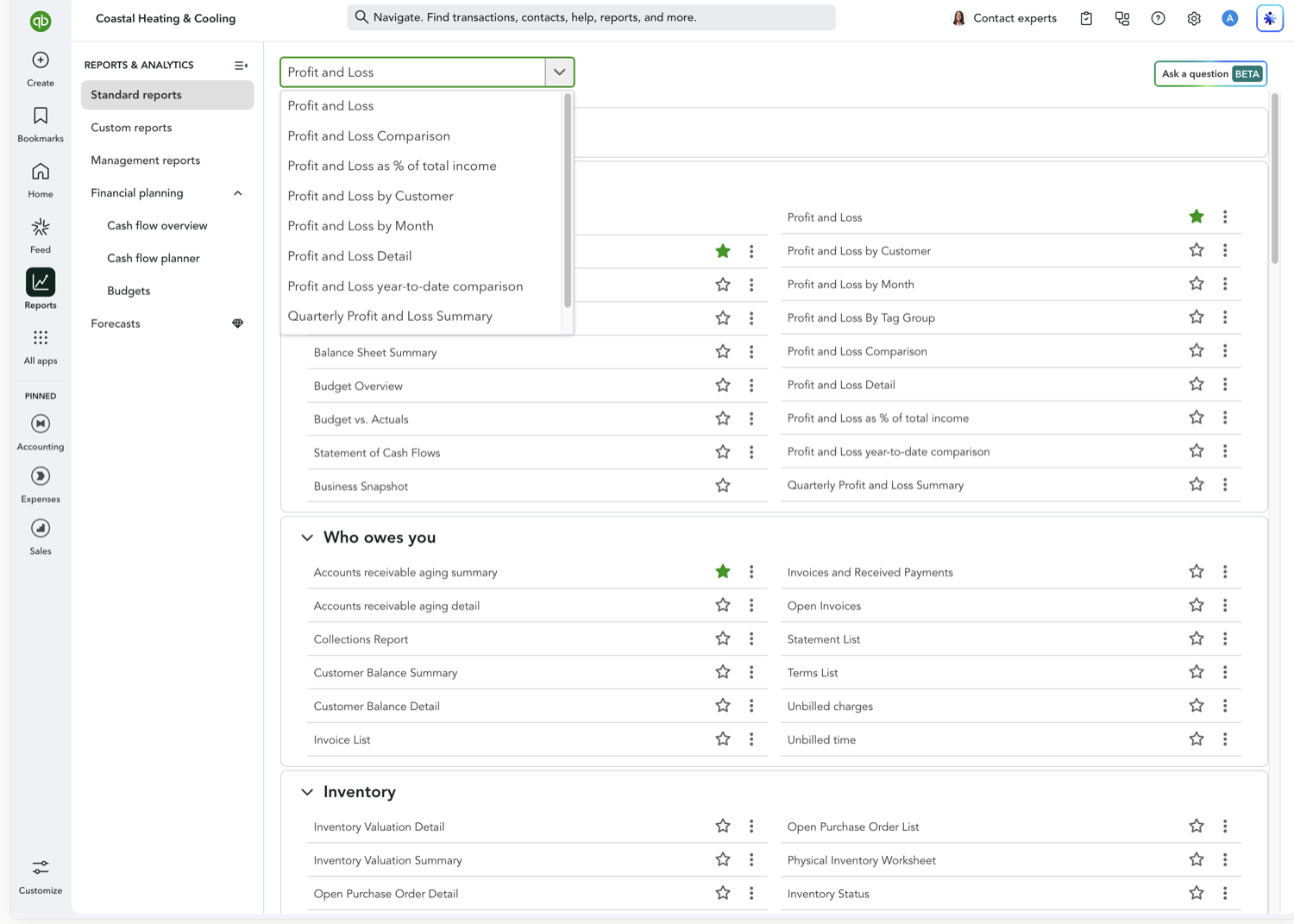
Go to Reports and select "Profit and Loss" to open the standard report.
- Set your reporting period
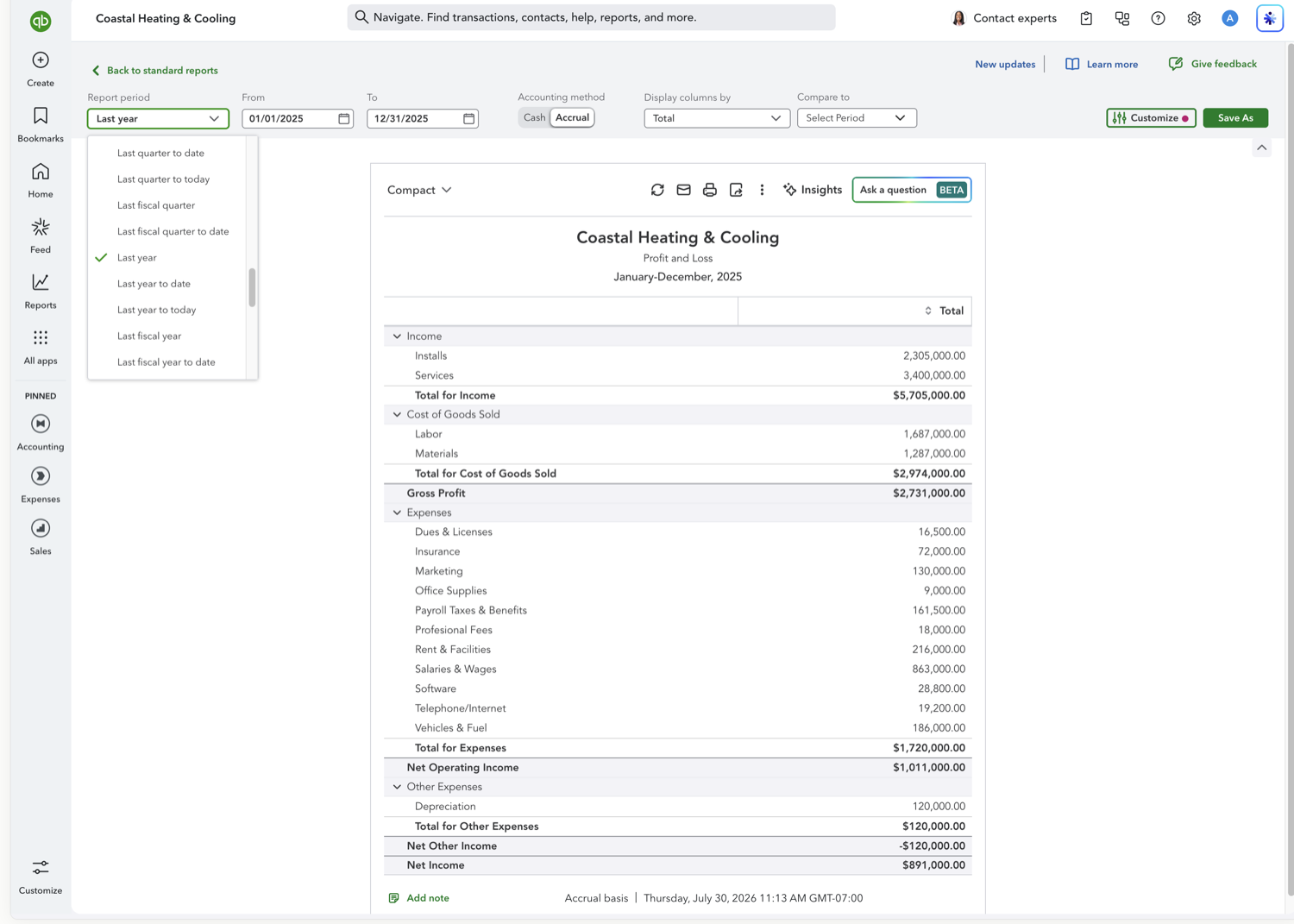
Choose the date range you want the class breakdown to cover.
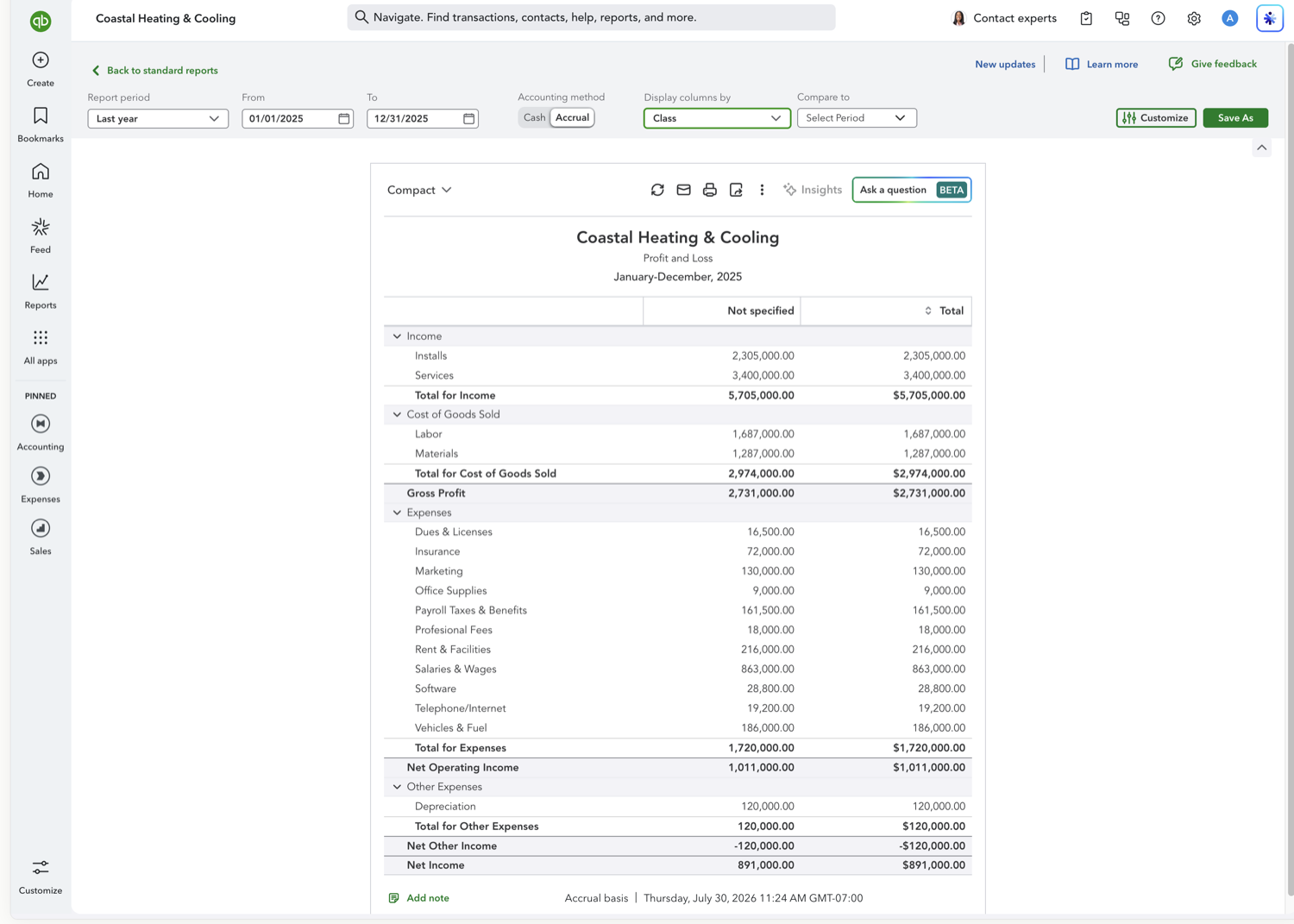
- Set the report to display columns by Class
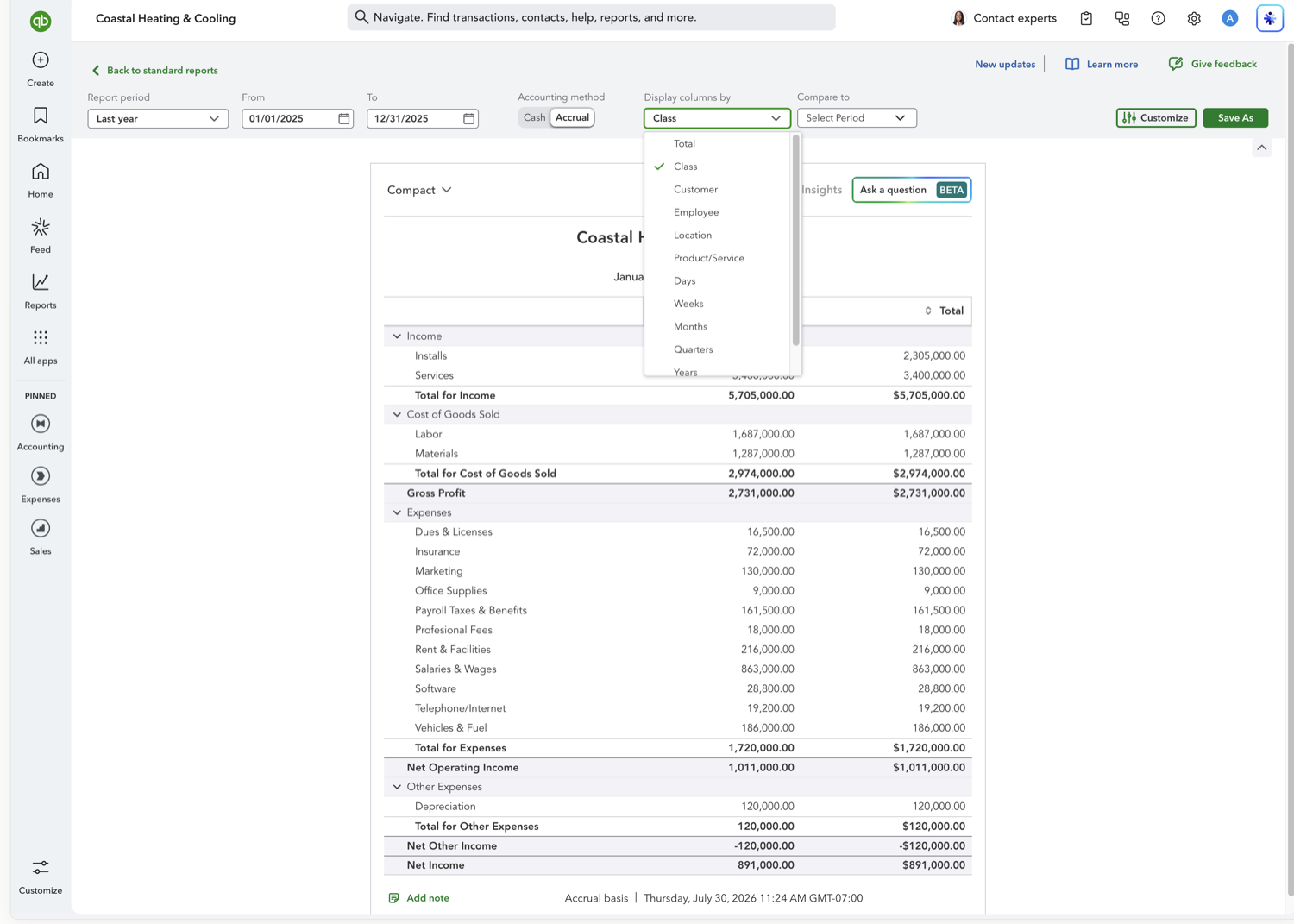
Open the "Display columns by" dropdown at the top of the report and choose Class. The report will now show one column per class, plus a "Not specified" column for transactions without a class assigned.
- Review the Not specified column
The report updates automatically. Check the "Not specified" column closely. A large balance there usually means transactions are missing a class and need to be cleaned up for the report to be reliable.
See also
Frequently asked questions
What is the difference between class and location tracking?
Classes are typically used for departments, programs, or business lines, while locations track physical or regional business units. Both are optional Plus/Advanced features and both can be used as a report column grouping.
Can I set a default class for new transactions?
Yes. In Account and settings > Advanced > Categories, turn on "Warn me when a transaction isn't assigned a class." QuickBooks will then prompt you whenever a class is missing, which helps keep the "Not specified" column empty on future reports.
Is class tracking available on QuickBooks Online Simple Start or Essentials?
No, class and location tracking require QuickBooks Online Plus or Advanced. If you're on Simple Start or Essentials, you'd need to upgrade to use this report.
Tired of rebuilding reports? Need more customization?
Retriever pulls QuickBooks Online reports like this one into Google Sheets on a schedule. They refresh on their own, and once the data is in Sheets you can pivot, chart, and customize it far beyond QuickBooks' fixed report layouts.
See how Retriever worksRelated report guides
Questions about this report? Reach out at aubrey@retrieverhq.com.

© 2026 Avalon Innovation Corporation. All rights reserved.
🇺🇸 Built in Orange County, California