
QuickBooks Online Reports: The Full List, by Group
QuickBooks Online ships more than 150 standard reports, organized into groups on the Reports page. Most people use six or seven of them and never find the rest. This is the map: what each group covers, which report in it you probably want, and how to get to it quickly.
Steps
- Open the Reports page
Select Reports in the left navigation. Reports are grouped by what they answer rather than alphabetically, so the fastest route to a specific one is the search box at the top of the page.
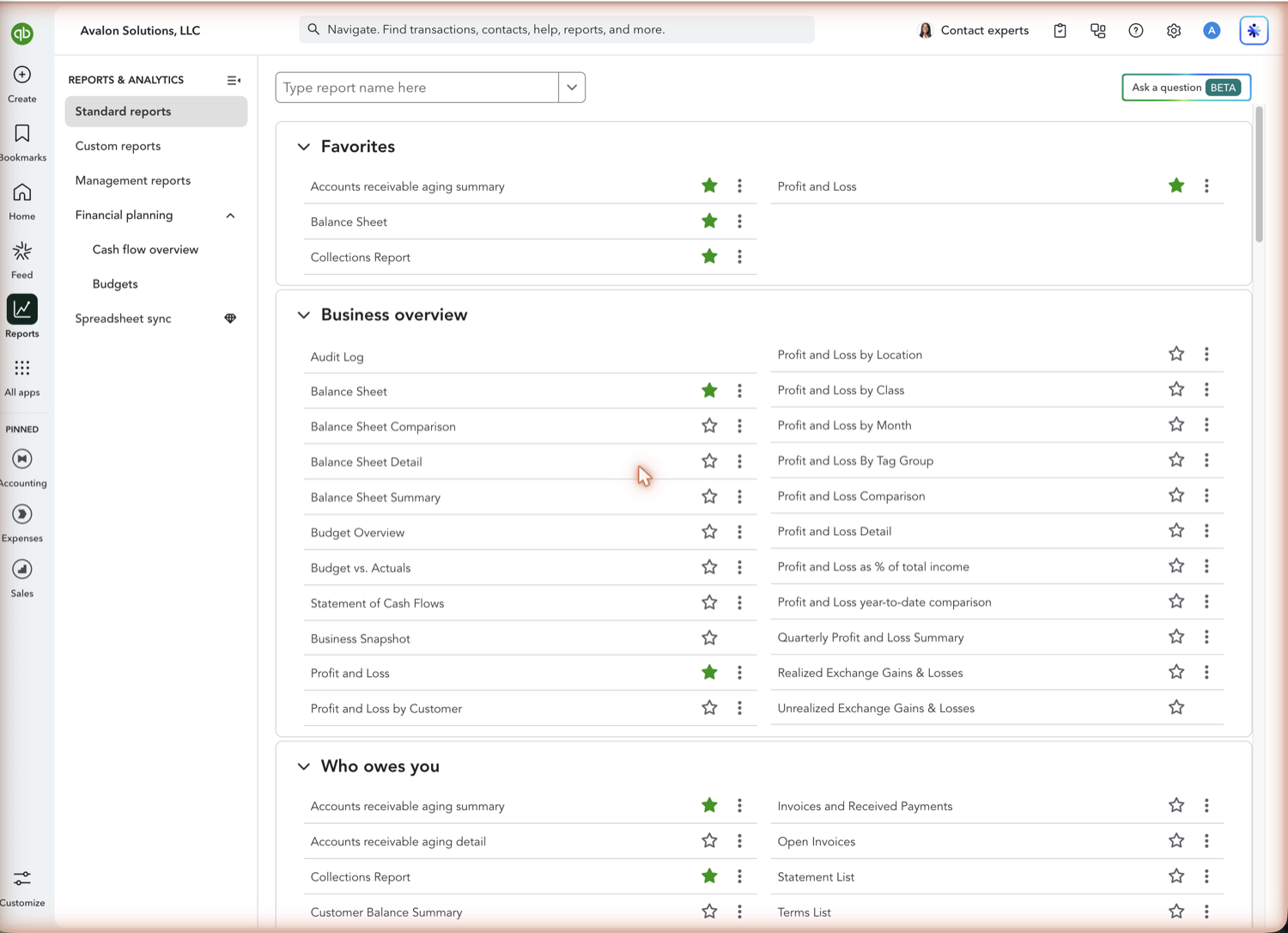
- Search by the report name
Type into the box at the top of the page and matching reports appear beneath it, including any saved customizations. It matches the report name as QuickBooks spells it, not synonyms: "general ledger" works, "income statement" returns nothing because the report is called Profit and Loss. When a search comes up empty, try the QuickBooks name for the report rather than the term you would use out loud.
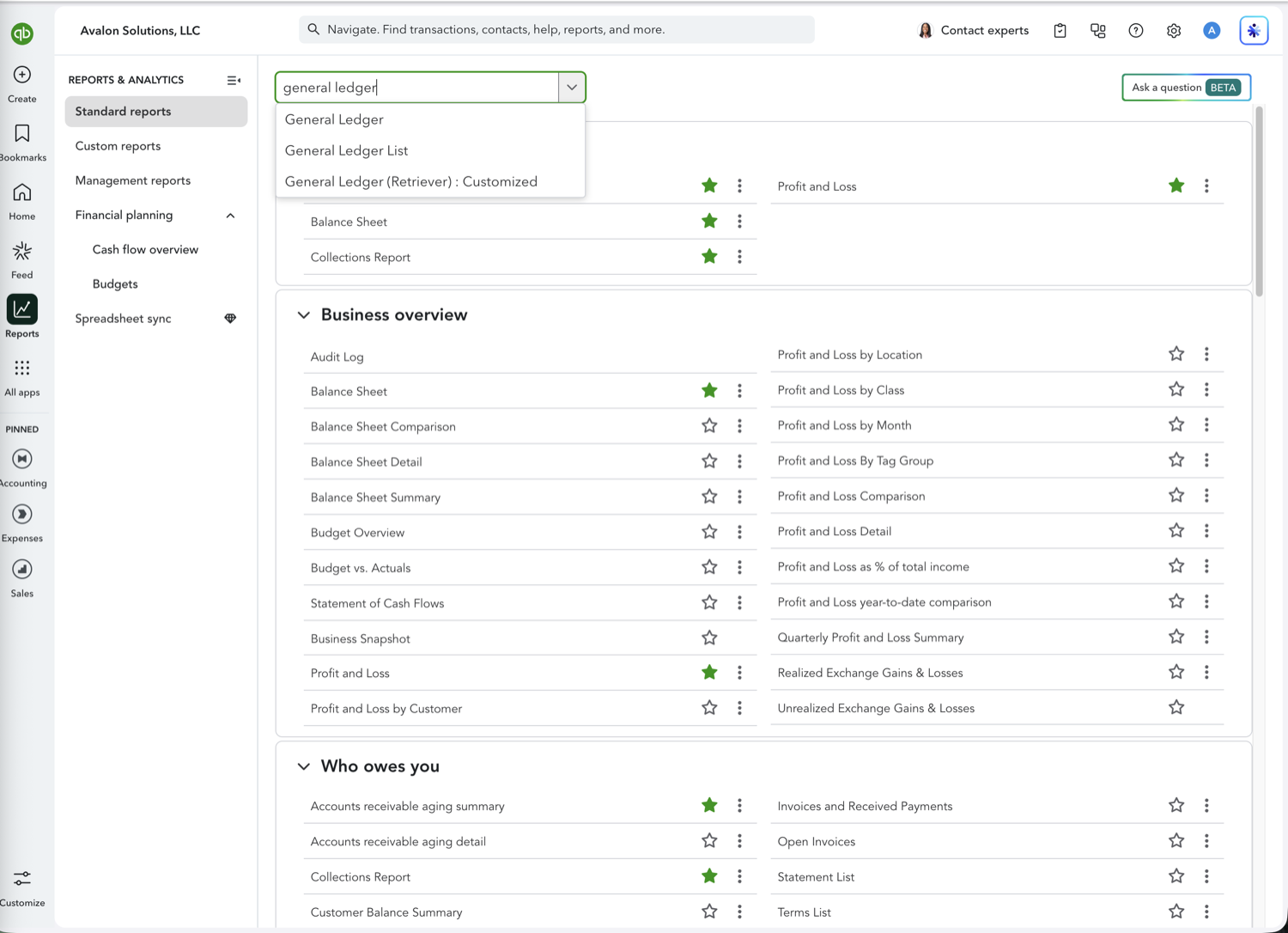
- Favorite the ones you run every month
Select the star next to a report and it moves to Favorites at the top of the page. Your month-end set is usually five or six reports, and pinning them removes the hunt each close.
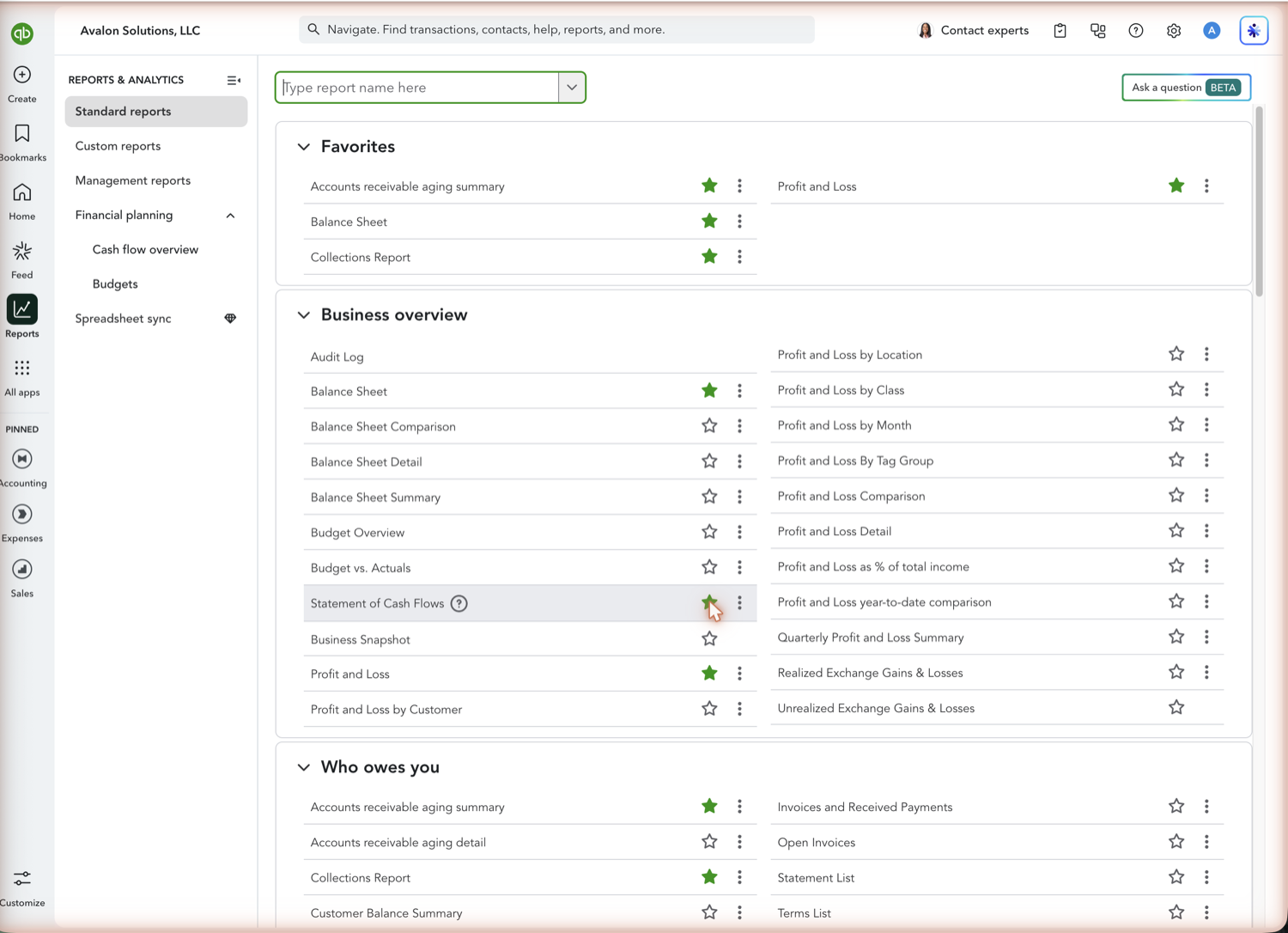
- Save a customized version
Once a report is filtered the way you want, select Save As. The "Save as new report?" dialog asks for a report name, who to share it with (None keeps it visible only to you), and an optional group to add it to. Saved reports live under Custom reports in the left nav, and grouping them is how most firms build a standard client reporting pack.
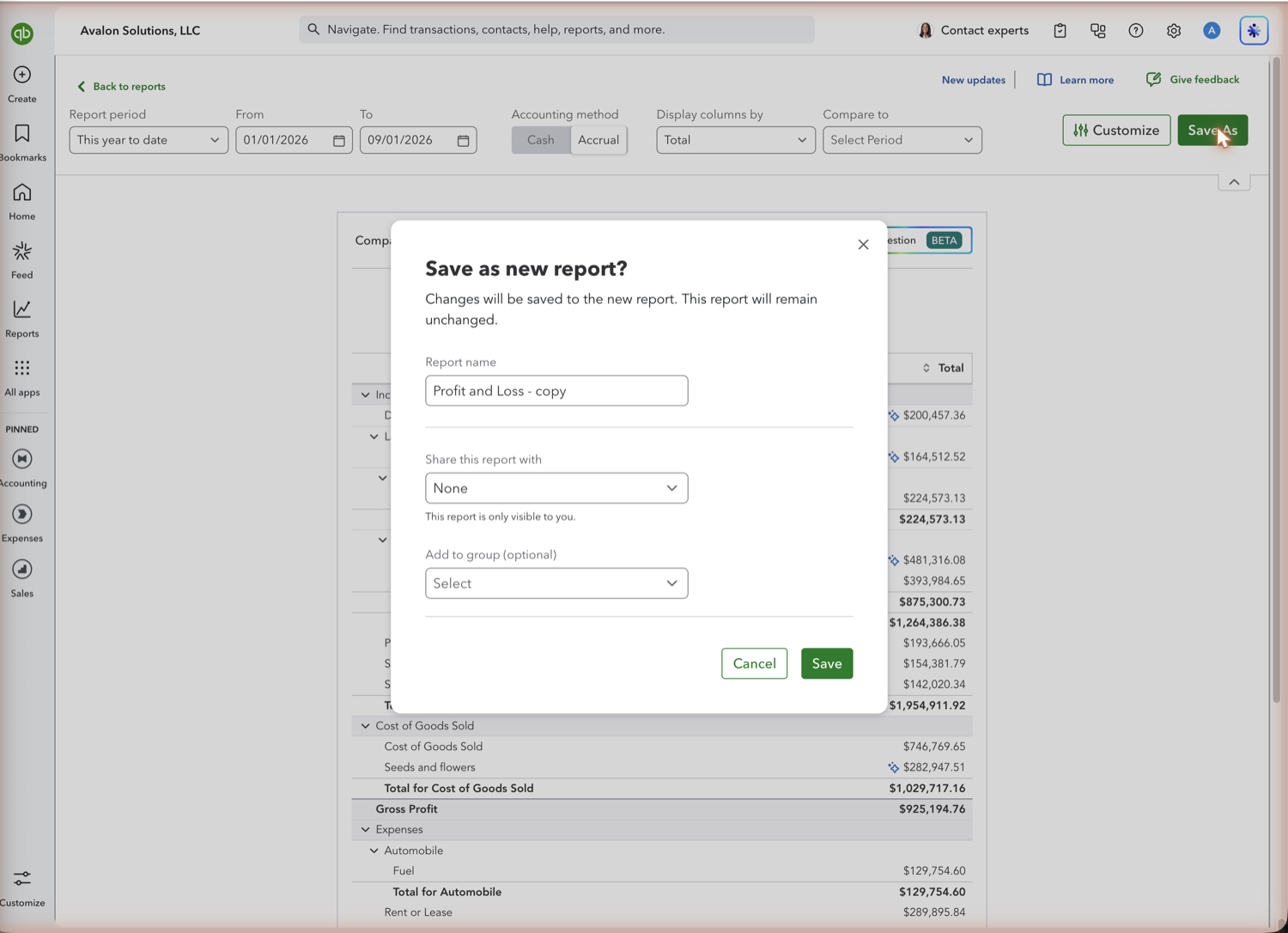
The report groups and what they cover
QuickBooks organizes the standard reports into these groups, in this order on the Reports page. Verified against a QuickBooks Online company on 1 September 2026; which groups you see depends on your plan and on whether payroll, inventory, and projects are switched on.
Favorites — Whatever you have starred, pinned to the top of the page. Most people keep their month-end set here.
Business overview — The financial statements, and the largest group. Profit and Loss plus its by-customer, by-location, by-class, by-month, by-tag-group, comparison, detail, percent-of-income, and year-to-date variants, the Balance Sheet with comparison, detail, and summary versions, Statement of Cash Flows, Budget Overview, Budget vs. Actuals, Business Snapshot, and the Audit Log.
Who owes you — Receivables. A/R aging summary and detail, Collections Report, Open Invoices, Invoice List, Invoices and Received Payments, Customer Balance summary and detail, Statement List, Terms List, and unbilled charges and time.
Projects — Project Profitability Summary and Estimates vs. actuals by project. Present when Projects is turned on, which needs Plus or Advanced.
Inventory — Inventory Valuation summary and detail, Open Purchase Order List and Detail, Physical Inventory Worksheet, and Inventory Status. Present when inventory tracking is on.
Sales and customers — Who and what is producing revenue. Sales by Customer, by Product/Service, by Class, and by Location, each in summary and detail, plus Income by Customer Summary, Sales by Customer Type Detail, Transaction List by Customer, Estimates by Customer, Deposit Detail, and the customer and product list reports.
What you owe — Payables, the mirror of the receivables group. A/P aging summary and detail, Unpaid Bills, Bill Payment List, Bills and Applied Payments, Vendor Balance summary and detail, and the 1099 contractor balance reports.
Expenses and vendors — Spending analysis. Check Detail, Purchases by Vendor, by Class, by Location, and by Product/Service, Purchase List, Expenses by Vendor Summary, Transaction List by Vendor, the 1099 Transaction Detail Report, and vendor contact and phone lists.
Sales tax — Sales Tax Liability Report, Taxable Sales Summary, and Taxable Sales Detail, used to prepare and file returns.
Employees — Employee Contact List, Recent/Edited Time Activities, and Time Activities by Employee Detail.
For my accountant — The close and review set, and where reviewers spend most of their time. General Ledger and General Ledger List, Journal, Trial Balance and Adjusted Trial Balance, Transaction Detail by Account, Transaction List by Date, Transaction List with Splits, Recent Transactions, Reconciliation Reports, Invalid Journal Entries, Recurring Template List, and its own copies of the Balance Sheet, Profit and Loss, and Statement of Cash Flows.
Payroll — Payroll summary and detail reports. Present when a payroll subscription is active.
Time — Timesheet Detail by Employee and Time Summary by Pay Type. A newer group, shown when time tracking is in use.
See also
Frequently asked questions
How many reports does QuickBooks Online have?
More than 150 standard reports. How many you can reach depends on your plan: Simple Start and Essentials carry the core set, Plus adds class, location, and budget reporting, and Advanced adds the custom report builder and additional analytics.
Where is the reports list in QuickBooks Online?
Select Reports in the left navigation. The page opens with your favorites at the top, followed by the standard reports grouped by subject, and a search box that matches on the report name as QuickBooks spells it.
Which QuickBooks reports should I run every month?
A common month-end set is Profit and Loss, Balance Sheet, A/R Aging Summary, A/P Aging Summary, and the Reconciliation Report for each bank account. Adding Budget vs. Actuals makes it a review pack rather than just a record.
Can I get several QuickBooks reports into one spreadsheet?
Not natively. QuickBooks exports one report at a time, and its batch download produces PDFs. Retriever pulls multiple reports into tabs of a single Google Sheet and refreshes them together on a schedule.
Tired of rebuilding reports? Need more customization?
Retriever pulls QuickBooks Online reports like this one into Google Sheets on a schedule. They refresh on their own, and once the data is in Sheets you can pivot, chart, and customize it far beyond QuickBooks' fixed report layouts.
See how Retriever worksRelated report guides
Questions about this report? Reach out at aubrey@retrieverhq.com.

© 2026 Avalon Innovation Corporation. All rights reserved.
🇺🇸 Built in Orange County, California