
How to Create Custom Reports in QuickBooks Online
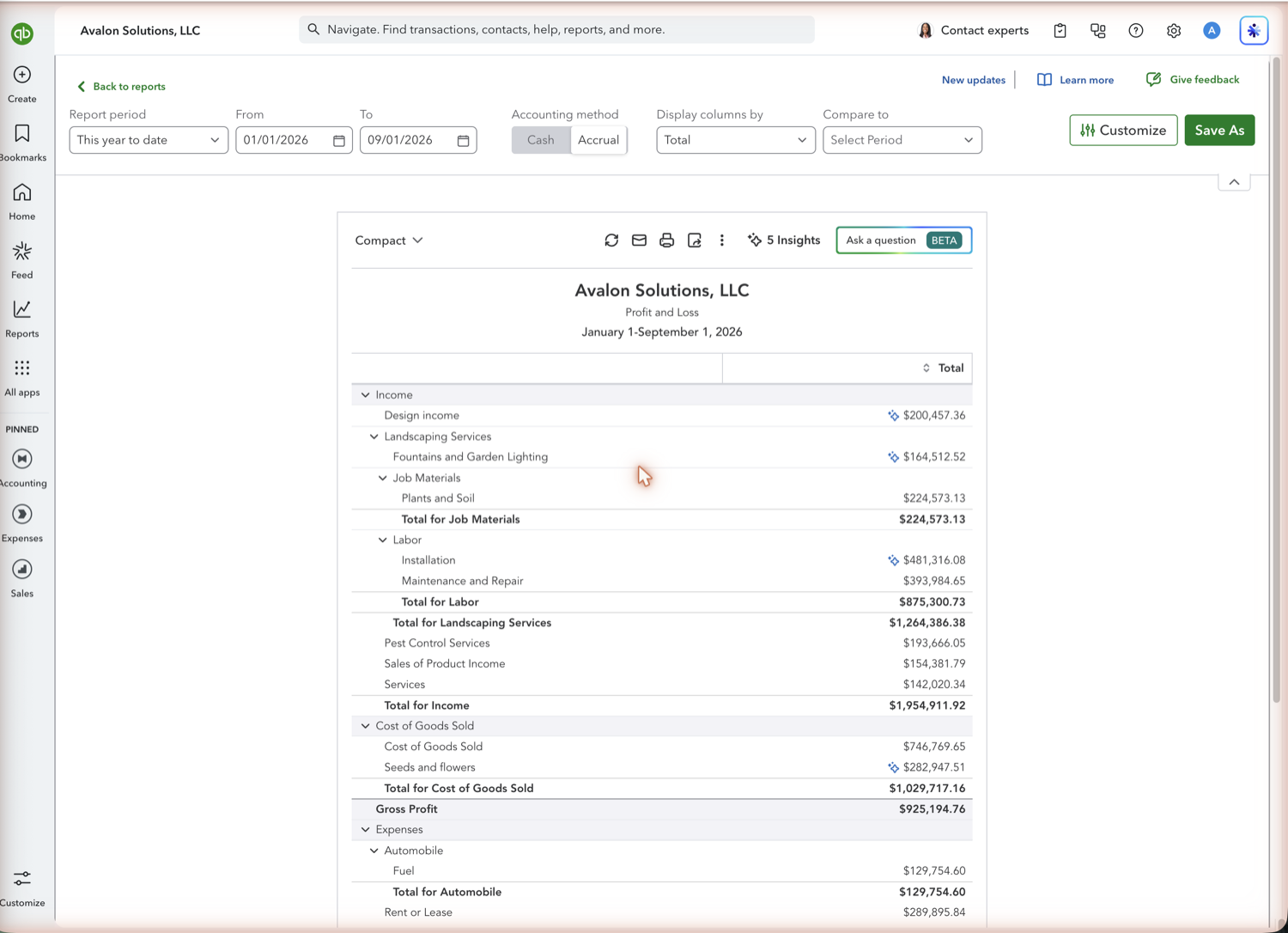
A custom report in QuickBooks Online is a standard report you have filtered, re-columned, and saved. You are not building a report from a blank page, you are starting from one of the 150-plus standard reports and narrowing it. Knowing that up front saves a lot of hunting for a report designer that does not exist on most plans.
Steps
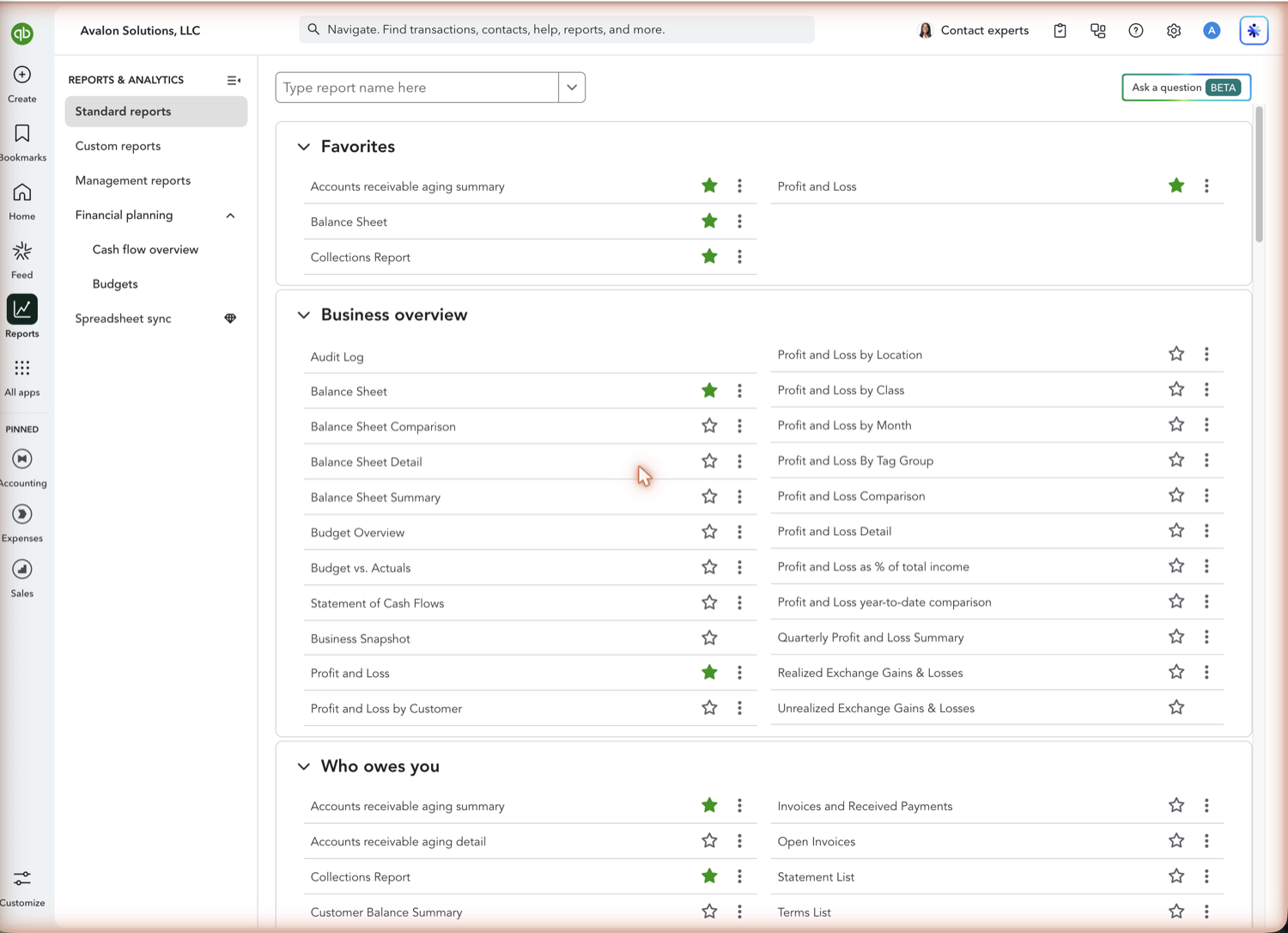
- Start from the closest standard report
Open Reports and pick the standard report nearest to what you need. Sales by Customer Summary is a better start for a revenue-by-client view than building from a transaction list. The closer the starting report, the less customization you have to hold in place.
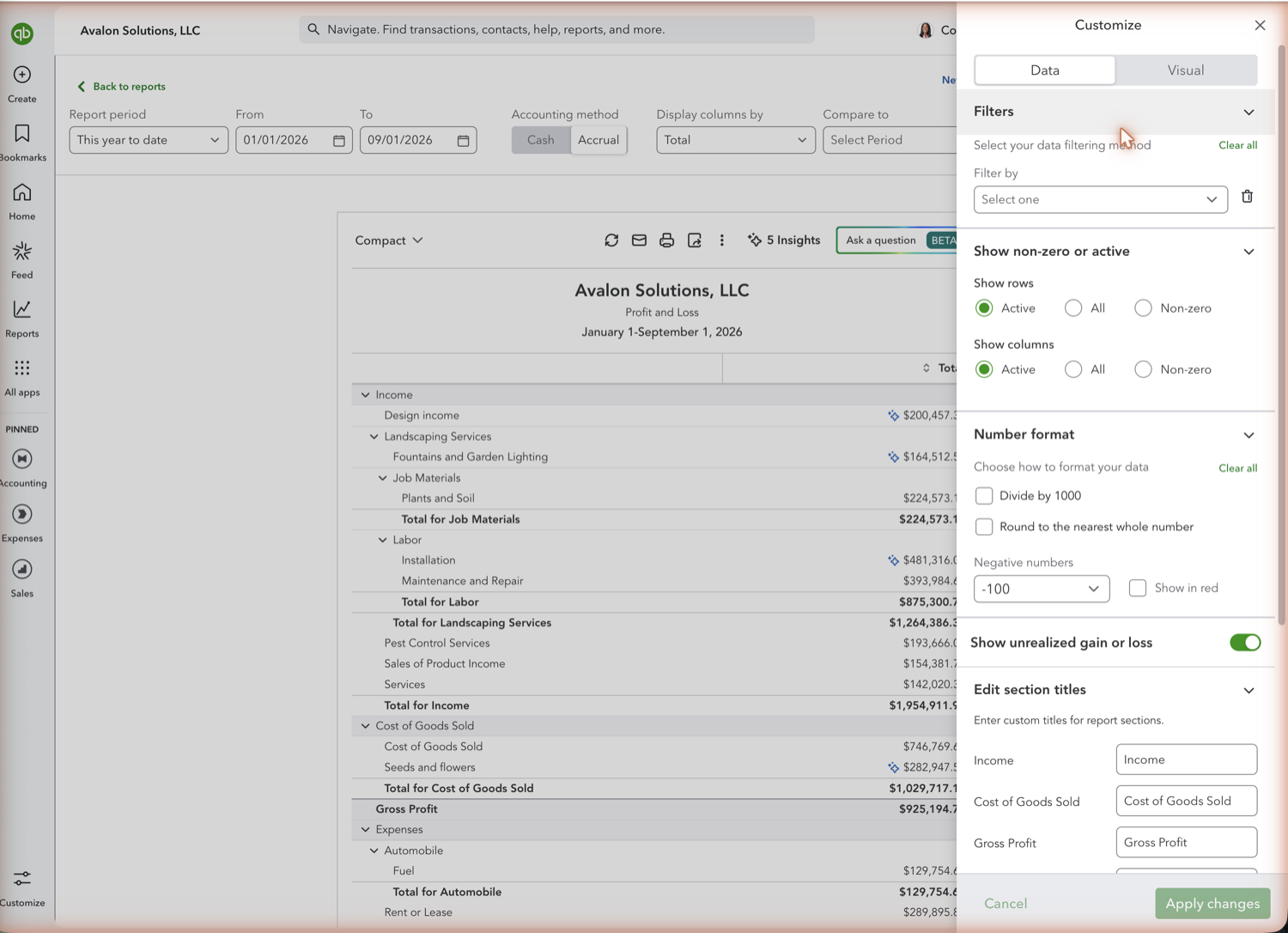
- Open Customize and set the filters
Select Customize and a panel opens on the right with Data and Visual tabs. Under Data you get Filters (filter by customer, vendor, class, location, or product), Show non-zero or active for which rows and columns appear, Number format including divide by 1000 and how negatives display, and Edit section titles for renaming Income, Cost of Goods Sold, and the other section headings. Changes stack up and apply together when you select Apply changes. Note that report period and accounting method are not in here: they live in the toolbar above the report.
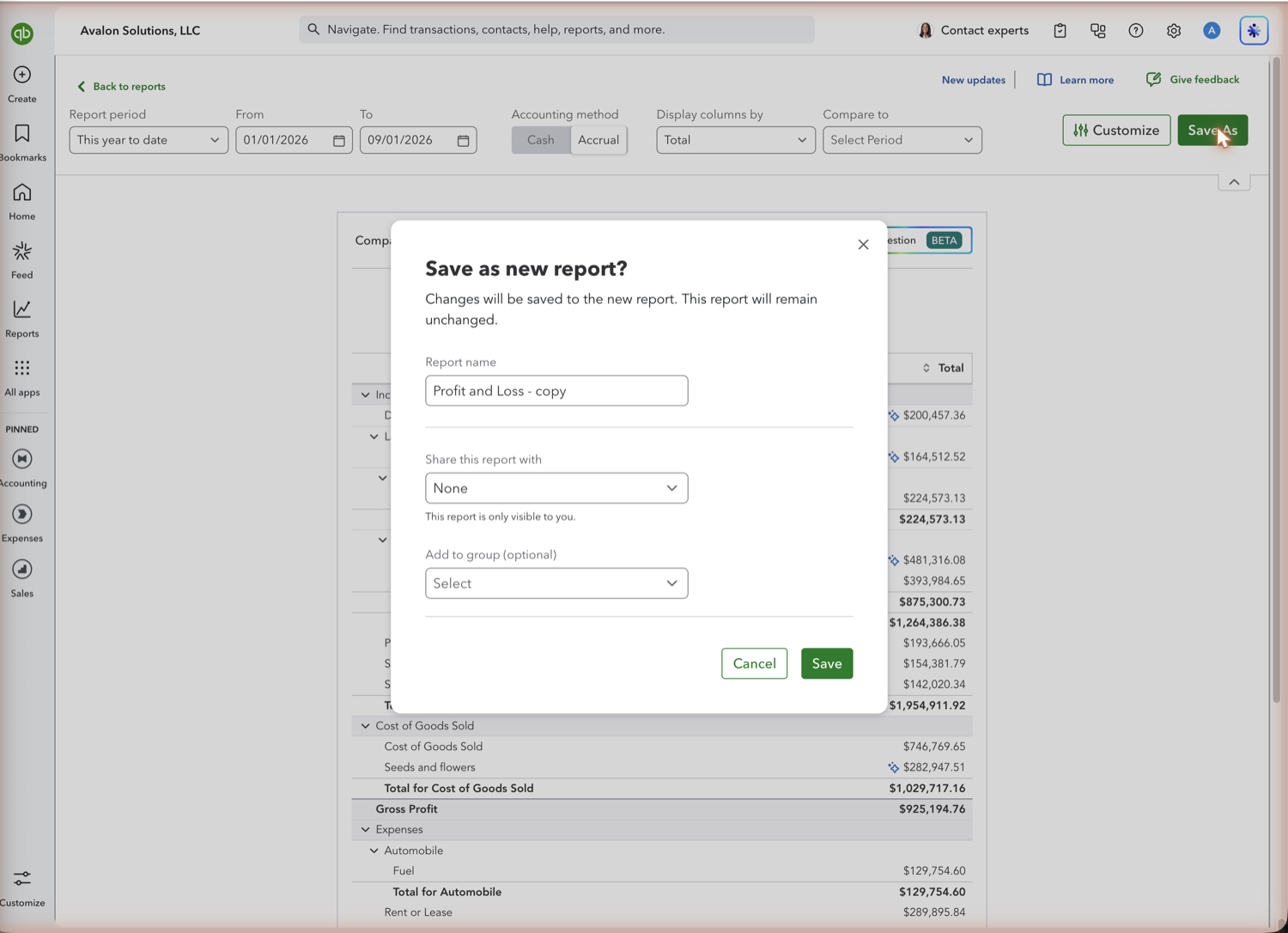
- Save it as a new report
Select Save As. In the "Save as new report?" dialog, name the report clearly enough that a colleague knows what it is, choose who to share it with, and optionally add it to a group. QuickBooks prefills the name as the original plus "- copy", which is worth replacing. Saved reports keep their filters, so the next run is a single click.
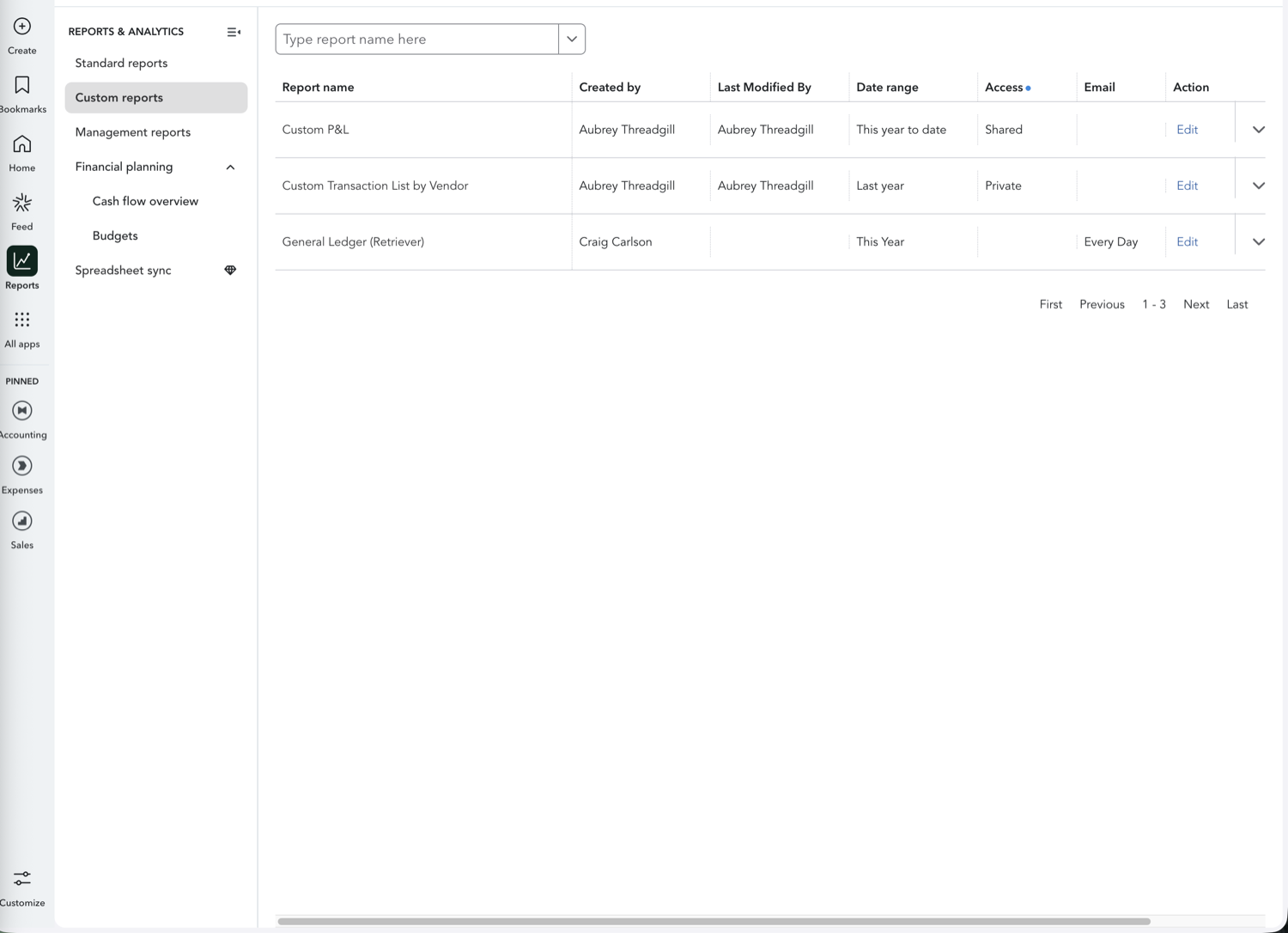
- Manage and schedule them from Custom reports
Custom reports in the left nav lists what you have saved, with columns for who created it, who last modified it, the date range, whether access is Private or Shared, and the email schedule. Use Edit on a row to set recipients and a frequency, and QuickBooks sends that report without you opening it. Reports added to a group go out together.
- Know where customization stops
You cannot add a calculated row, reorder accounts by hand, merge two reports into one view, or put a commentary column next to the numbers. Those all live outside QuickBooks. QuickBooks Advanced adds a drag-and-drop custom report builder with more field-level control, but it is limited to that plan.
See also
Frequently asked questions
Can you build a report from scratch in QuickBooks Online?
On most plans, no. You customize an existing standard report and save it. QuickBooks Advanced includes a custom report builder that gets closer to building from scratch, with drag-and-drop fields, but it is an Advanced-plan feature.
Where do saved custom reports go?
Into your custom reports list on the Reports page, alongside any report groups you have created. Saved custom reports migrated automatically when QuickBooks retired the classic reporting view in 2026.
Can I add a calculated column to a QuickBooks report?
Not on a standard report. Percent-of-income and comparison columns are available where the report supports them, but a formula of your own, such as margin per unit or a budget variance in your own layout, has to be built in a spreadsheet.
How do I share a custom report with someone who has no QuickBooks login?
Emailing it from a report group sends a PDF or Excel attachment. If you want them to open a live view instead, pull the report into Google Sheets with Retriever and share the sheet, which also lets them drill down without a QuickBooks seat.
Tired of rebuilding reports? Need more customization?
Retriever pulls QuickBooks Online reports like this one into Google Sheets on a schedule. They refresh on their own, and once the data is in Sheets you can pivot, chart, and customize it far beyond QuickBooks' fixed report layouts.
See how Retriever worksRelated report guides
Questions about this report? Reach out at aubrey@retrieverhq.com.

© 2026 Avalon Innovation Corporation. All rights reserved.
🇺🇸 Built in Orange County, California