
How to Run a Sales Report in QuickBooks Online
QuickBooks Online has several sales reports and they answer different questions. Picking the wrong one is the usual reason two people quote two different revenue numbers from the same books. This covers which report to run for which question, and why a sales report and the Profit and Loss can disagree.
Steps
- Open the sales reports group
Go to Reports and look under "Sales and customers." The summary reports give one row per customer or per item; the detail reports list the underlying transactions.
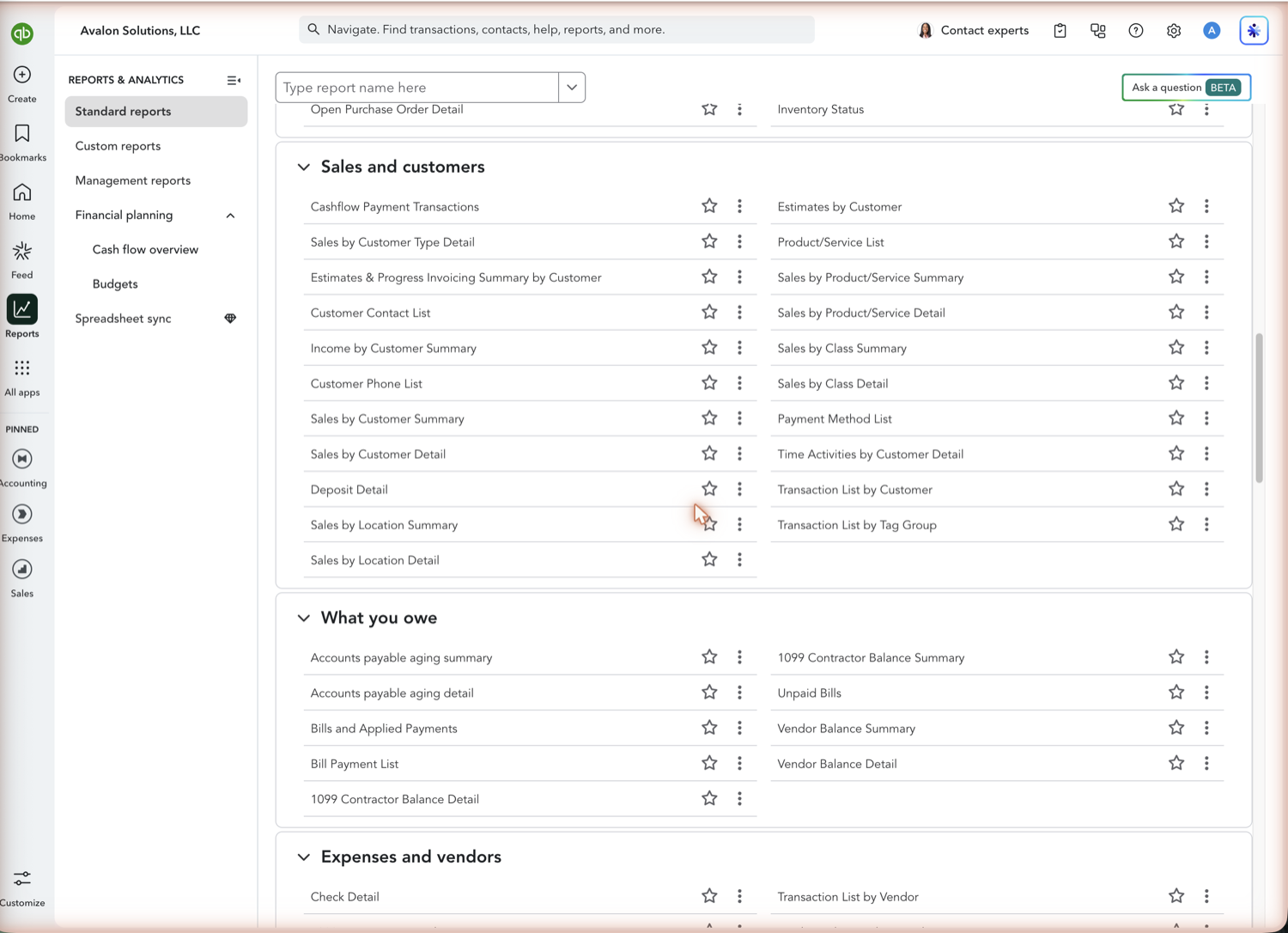
- Pick the report that matches the question
Sales by Customer Summary for who bought the most. Sales by Product/Service Summary for what sold. The matching Detail reports for the transactions behind either. Income by Customer Summary when you want profitability rather than revenue, since it nets out the costs assigned to each customer.
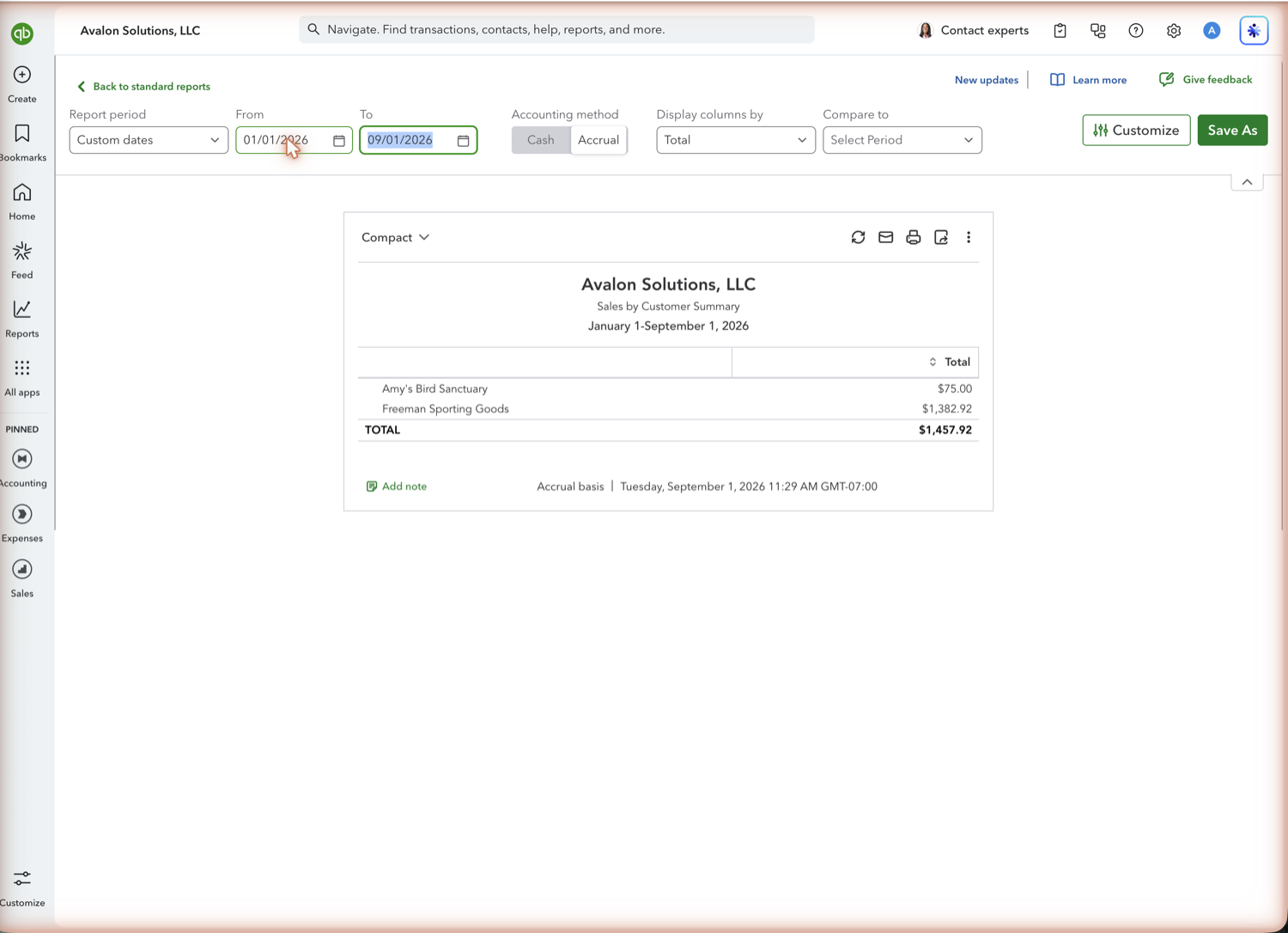
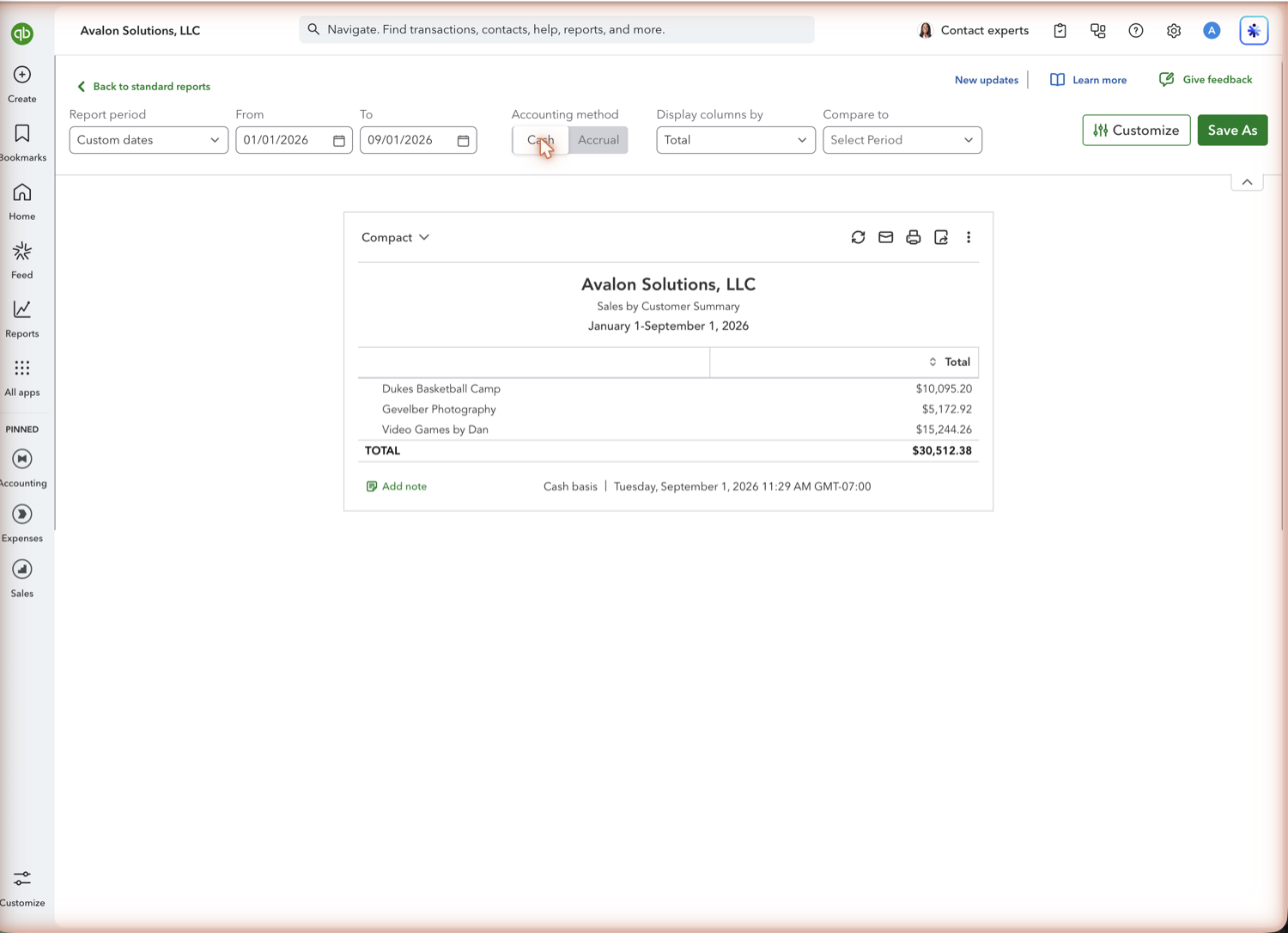
- Set the period and accounting method
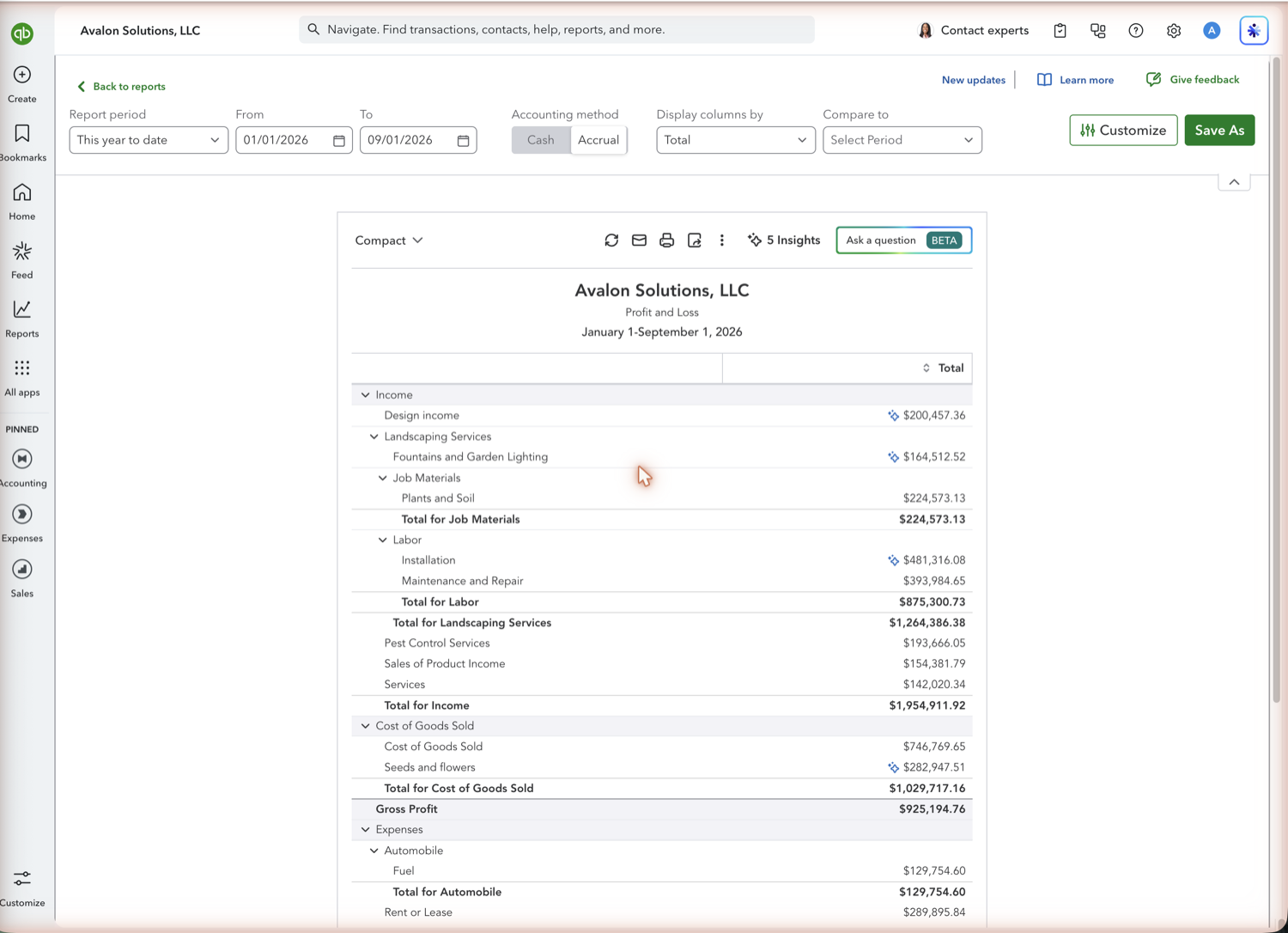
Use the Report period dropdown, then check the accounting method. On cash basis a sales report counts payments received; on accrual it counts invoices dated in the period. The difference is not cosmetic: the same Sales by Customer Summary over the same dates can return a different set of customers and a different total on each basis, which is the single most common reason a sales figure does not match what someone expected.
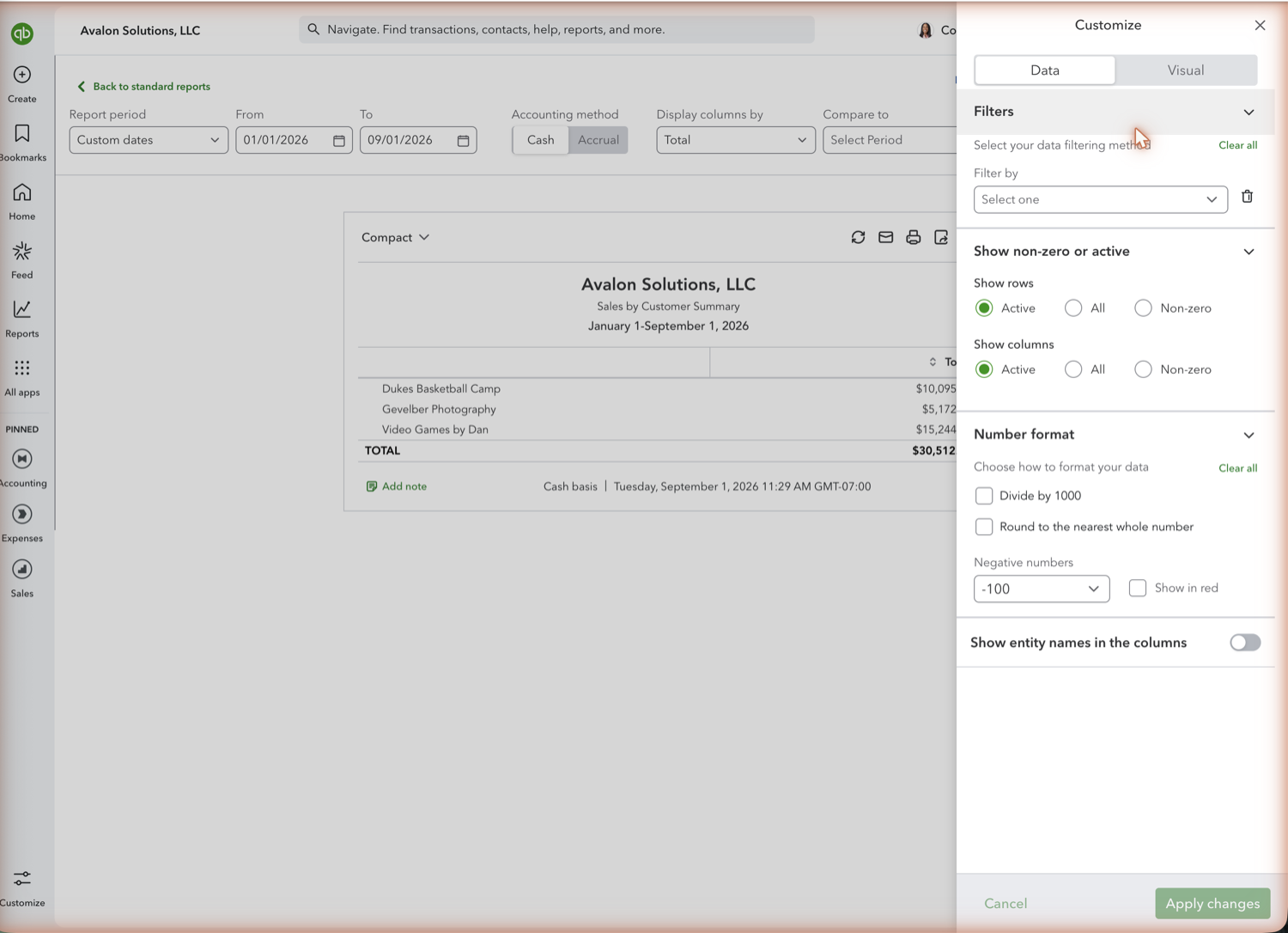
- Filter it, and pick the report that groups the way you need
Customize gives you Filters, row and column visibility, number format, and a toggle for showing entity names in the columns. What it does not give you is a group-by control: how the report is grouped is decided by which report you opened, so Sales by Class Summary and Sales by Customer Summary are separate reports rather than one report regrouped. Use Display columns by in the toolbar to split the existing grouping across columns.
- Reconcile it against the Profit and Loss
A sales report and the income section of the Profit and Loss can differ because of discounts, refunds, shipping, sales tax handling, and journal entries posted straight to an income account without an invoice. When the two disagree, the Profit and Loss is the statement of record and the difference is worth locating before anyone reports the number.
See also
Frequently asked questions
What is the best sales report in QuickBooks Online?
It depends on the question. Sales by Customer Summary ranks customers by revenue, Sales by Product/Service Summary ranks what you sell, and Income by Customer Summary shows profitability rather than top-line revenue.
Why does my sales report not match my Profit and Loss?
Usually discounts, refunds, shipping, or sales tax are treated differently between the two, or income was posted by journal entry without an invoice. Invoice lines also post to the income account on the product or service, and Reclassify cannot move those accounts, so a later journal can split the two reports. The accounting method matters too, since cash and accrual count a sale at different moments.
Can I see sales by sales rep in QuickBooks Online?
There is no built-in sales rep field. Firms usually track reps with a custom field or by tagging transactions with a class, then run the sales report grouped by that class.
Can I get a rolling monthly sales trend?
Sales reports run for one period at a time. For a rolling twelve-month trend, pull the report into Google Sheets with Retriever, set a column per month, and let a scheduled refresh extend it as each month closes.
Tired of rebuilding reports? Need more customization?
Retriever pulls QuickBooks Online reports like this one into Google Sheets on a schedule. They refresh on their own, and once the data is in Sheets you can pivot, chart, and customize it far beyond QuickBooks' fixed report layouts.
See how Retriever worksRelated report guides
Questions about this report? Reach out at aubrey@retrieverhq.com.

© 2026 Avalon Innovation Corporation. All rights reserved.
🇺🇸 Built in Orange County, California