
How to Set Up Class Tracking in QuickBooks Online
Class tracking tags each transaction with a category of your choosing, such as a program, service line, property, or department, so you can run a Profit and Loss for each one. It is the closest QuickBooks Online gets to segment reporting inside a single company file. Class tracking requires Plus or Advanced.
Steps
- Turn on "Track classes"
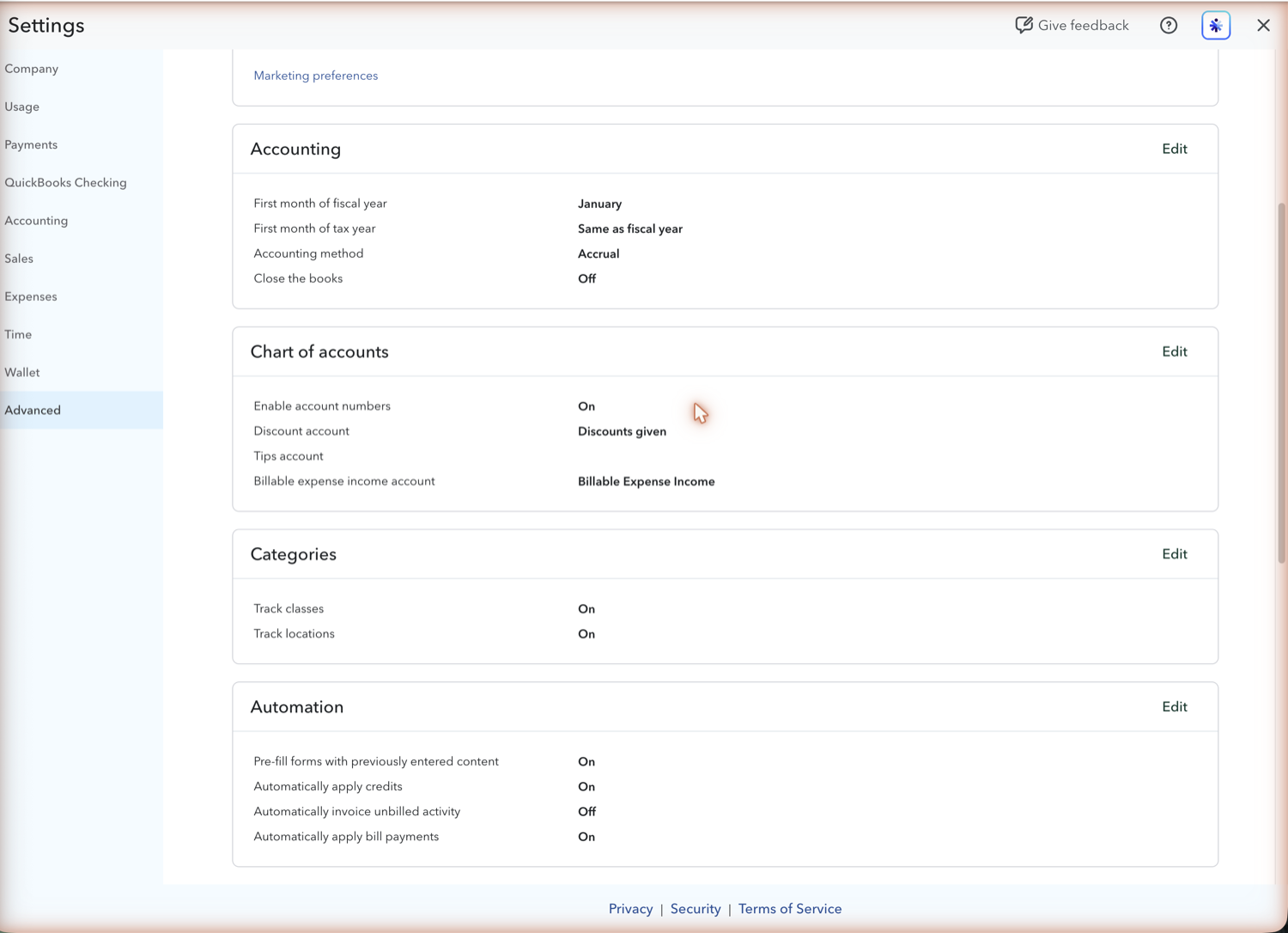
Select the Settings (gear) icon, then "Account and settings" under Your Company. Open the Advanced tab, find the Categories section, and select Edit. Toggle on "Track classes," then Save.
- Decide how classes get assigned
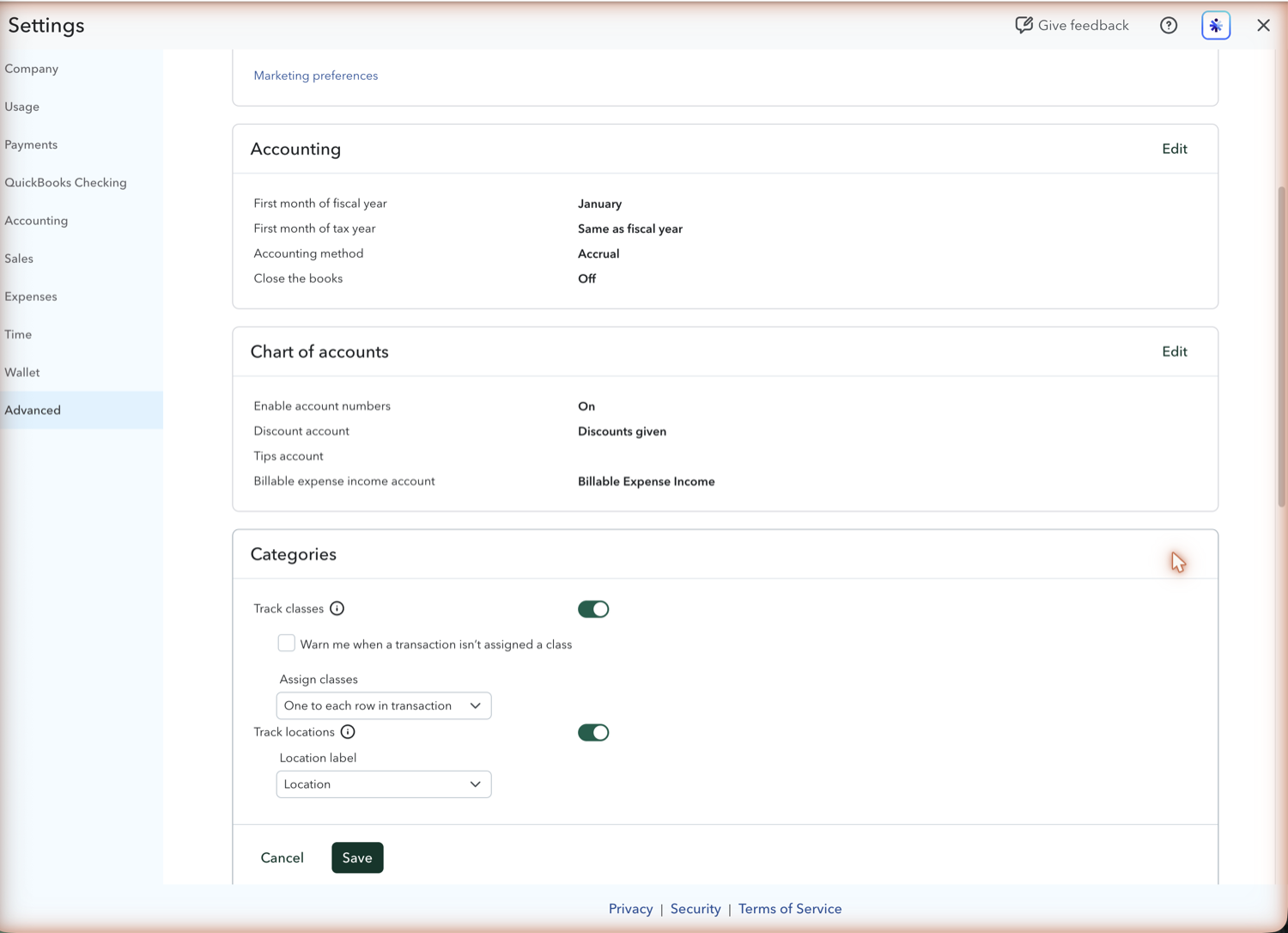
In the same section, choose whether to assign "One to each row in transaction" or "One to entire transaction." Row-level assignment lets a single invoice split across classes, which matters when one bill covers two programs. Turn on "Warn me when a transaction is not assigned a class" so gaps surface as you go rather than at month end.
- Build the class list
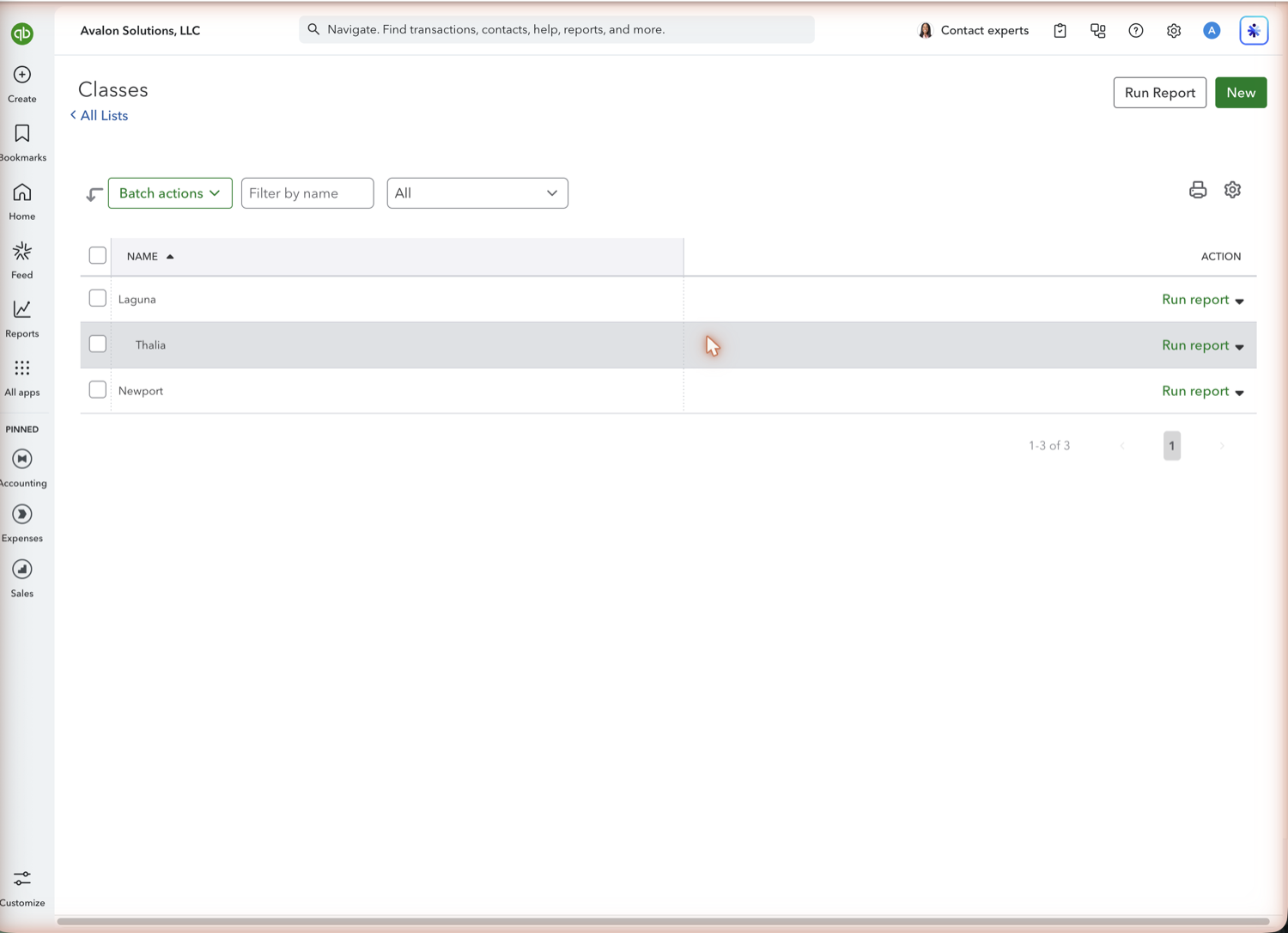
Go to Settings, then "All lists," then Classes, and add your classes. Keep the list short and mutually exclusive. Classes support sub-classes, which is useful for a program with several grants under it, but a deep hierarchy makes reports harder to read.
- Assign classes on transactions
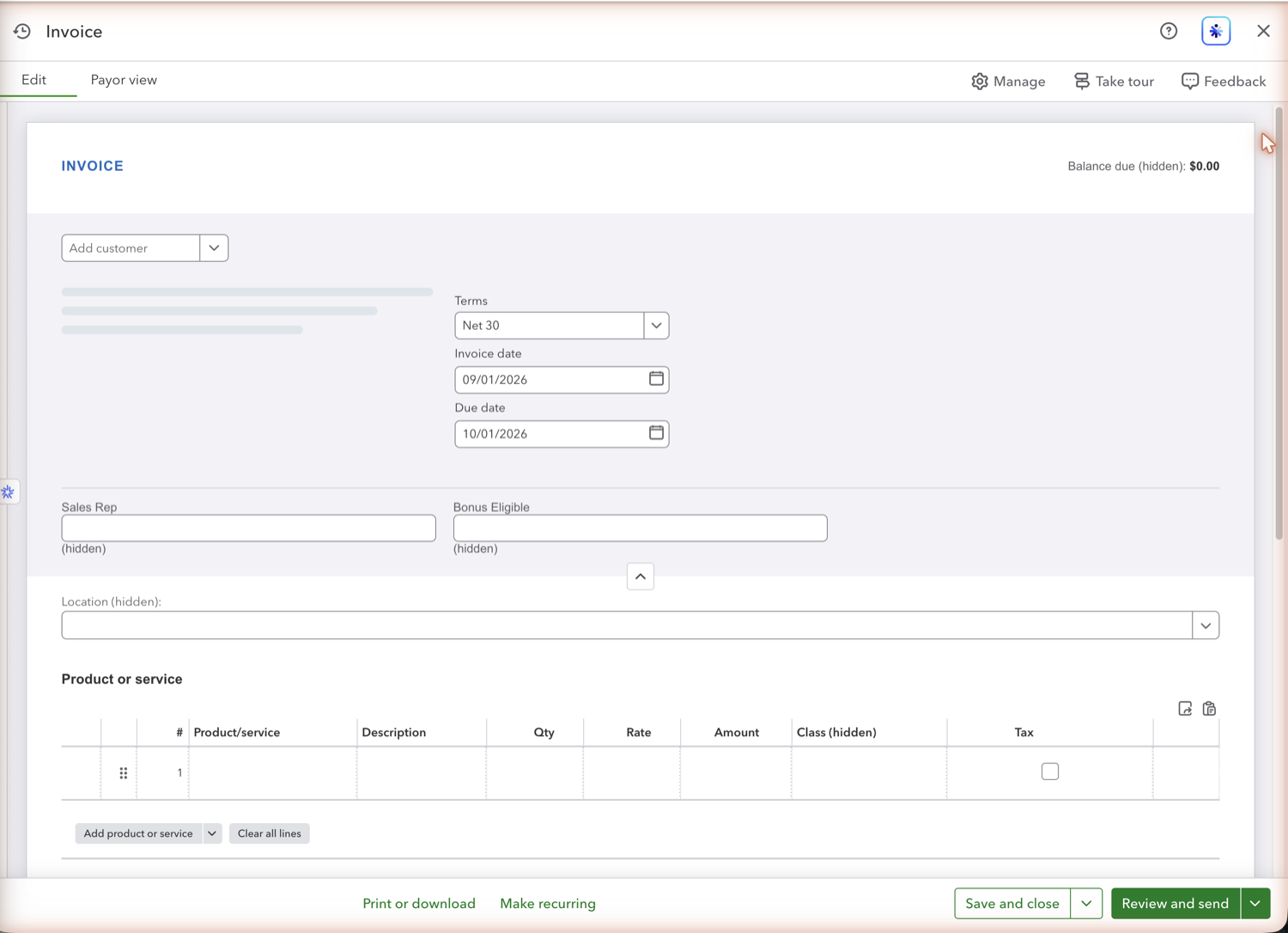
A Class field now appears on invoices, expenses, bills, and journal entries. Historic transactions are not tagged retroactively, so decide whether to backfill a period or start from a clean date, and note that decision somewhere your team can see it.
- Run the reports that use it
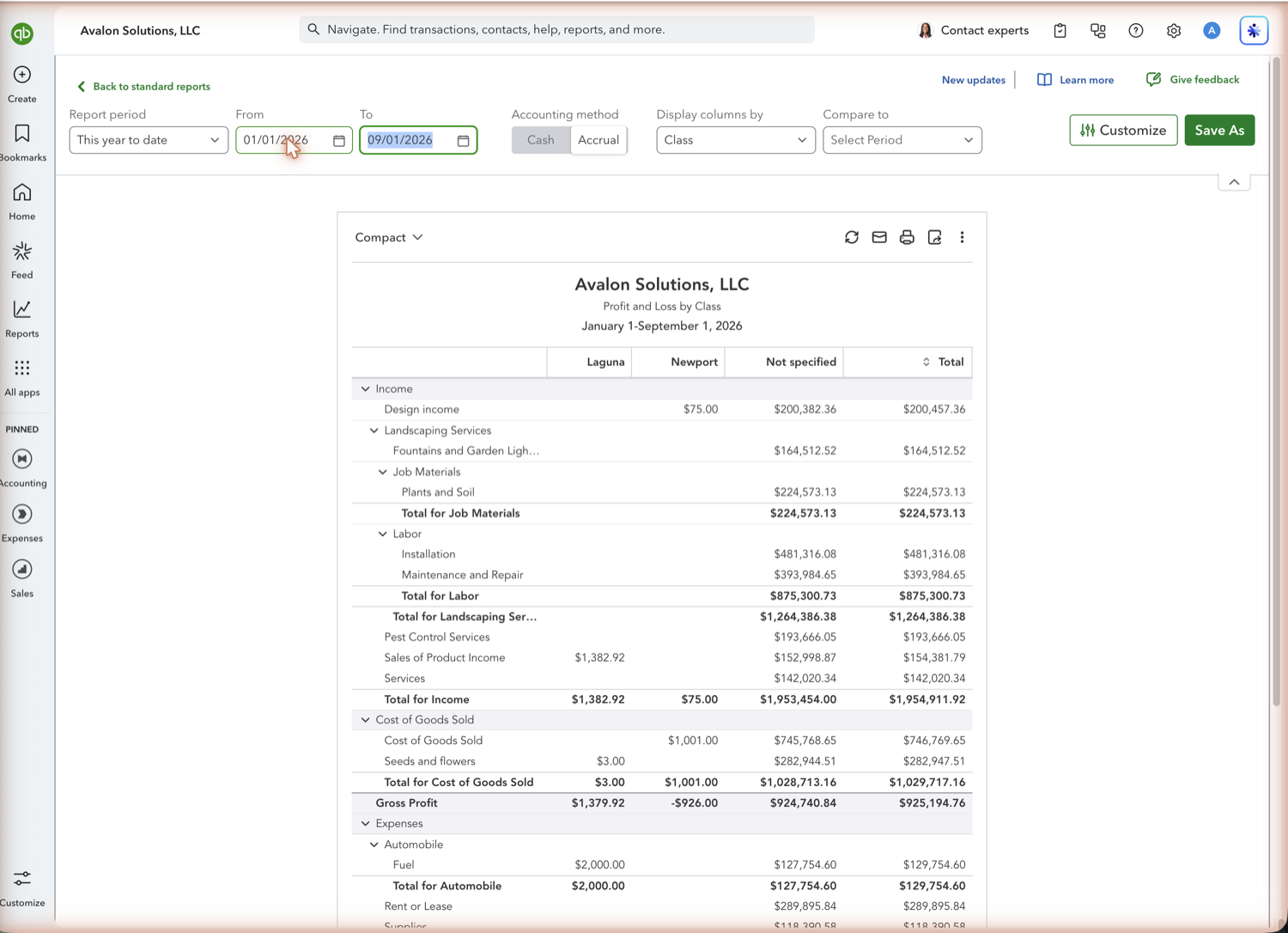
Profit and Loss by Class is the payoff report. Balance Sheet by Class also exists, though it needs classes on every balance-sheet-affecting transaction to balance per column, which is a stricter requirement than most files meet.
See also
Frequently asked questions
What is class tracking in QuickBooks Online?
A way to tag transactions with a category of your own so reports can be split by it. Firms use classes for programs, service lines, locations, properties, or departments, and then run a Profit and Loss with a column per class.
Which QuickBooks Online plan includes class tracking?
Plus and Advanced. Simple Start and Essentials do not include class tracking, so segment reporting on those plans means either separate company files or a spreadsheet built on top of the data. Plus caps classes and locations at 40 combined, per Intuit's plan comparison as of 1 September 2026, which is worth checking before you design a detailed class list.
What is the difference between classes and locations?
Both are tags, and you can use both at once. Locations are assigned to a whole transaction, while classes can be assigned per line, so classes handle a single invoice that spans two programs and locations do not.
Why does my Profit and Loss by Class have an unclassified column?
Because some transactions in the period have no class assigned. The "Not Specified" column collects them. Turning on the warning prompt reduces new gaps, and the column itself is the fastest way to find the transactions that still need tagging.
Can Reclassify Transactions change the income account on invoices?
No. On invoices that use products or services, Reclassify can change class. It cannot change the account. The income account lives on the product or service, so you edit the invoice and change the item.
Tired of rebuilding reports? Need more customization?
Retriever pulls QuickBooks Online reports like this one into Google Sheets on a schedule. They refresh on their own, and once the data is in Sheets you can pivot, chart, and customize it far beyond QuickBooks' fixed report layouts.
See how Retriever worksRelated report guides
Questions about this report? Reach out at aubrey@retrieverhq.com.

© 2026 Avalon Innovation Corporation. All rights reserved.
🇺🇸 Built in Orange County, California