
How to exclude a few accounts from a Profit and Loss
People asked for a Profit and Loss that includes almost every account, minus a couple. Until now that meant clicking every account you wanted to keep. You can now select a parent and get its children, select all and then deselect a few, or invert the filter with "is not" so accounts you add later in QuickBooks still show up.
Watch the walkthrough
This short video walks through both options on a Profit and Loss: select all then deselect, or filter with "is not".
When to use which
Both methods can produce a P&L with every account except a few. The difference shows up later, when you add an account in QuickBooks.
- Select all, then deselect. The report is a fixed list of accounts. A new account starts unchecked, so a refresh leaves it off until you go back and include it.
- "is not". The report includes every account except the ones you named. Refresh after the new account has activity, and that row appears.
Use Select all when you want a frozen set of accounts. Use "is not" when you want new accounts to keep showing up.
Option 1: Select all, then deselect
- Set up the report
On the Create tab, pick the company, report, period, and columns. The walkthrough uses Profit and Loss, This Fiscal Year, columns by Months, and Accrual.
- Open Choose Account(s)
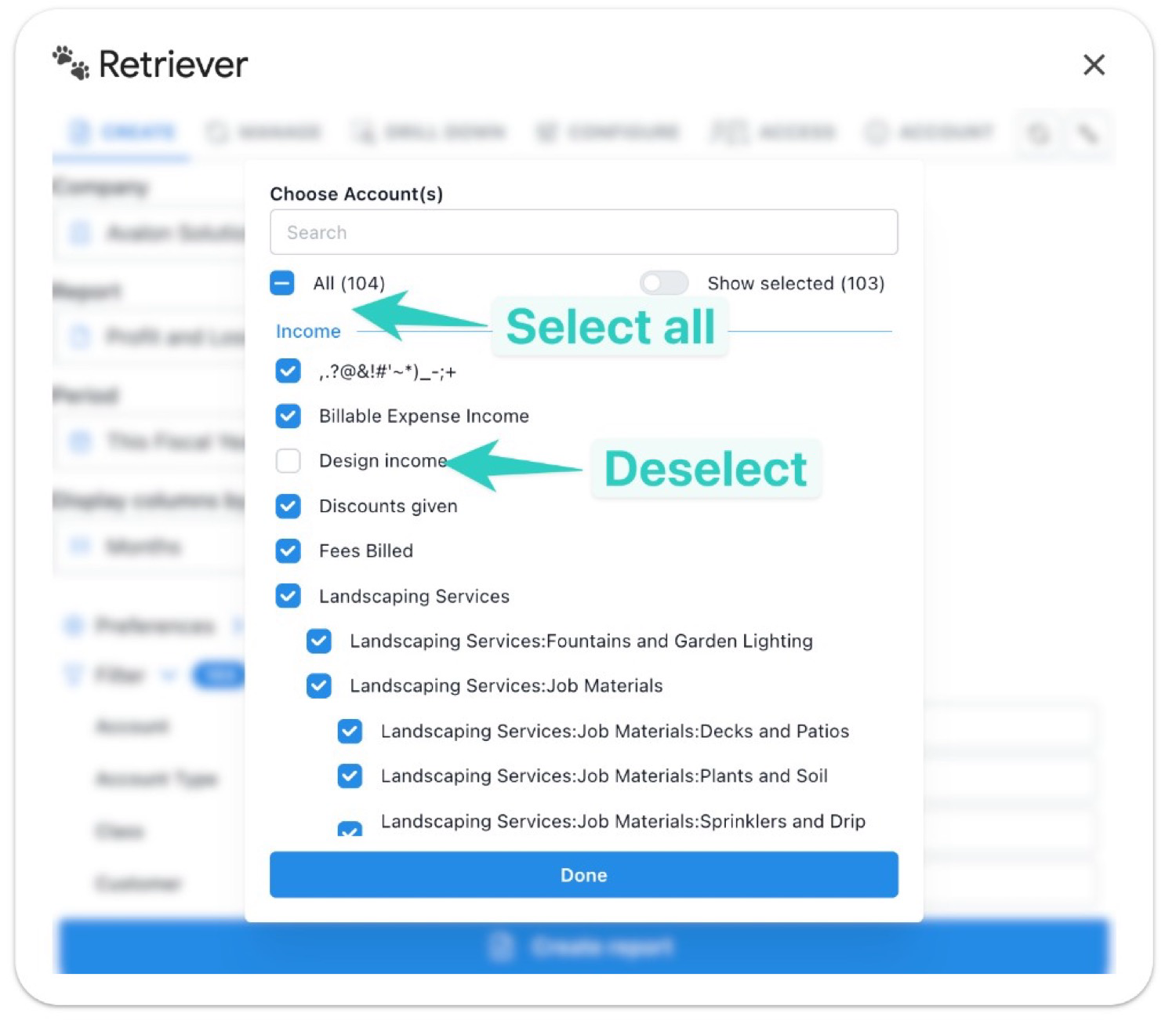
In Filter, click the Account field. You can search by name, check a parent account to select every child under it, or check All to select every account at once.
- Deselect the accounts to leave out
Uncheck the few accounts you don't want on the report. All shows a minus when the list is only partly selected, and Show selected tells you how many are still on.
- Click Done, then Create report
The P&L includes every account you left checked, and omits the ones you unchecked.
Option 2: Filter with "is not"
- Clear any existing account filter
Start with no accounts selected so you are not mixing an include list with an exclude list.
- Set Account to "is not"
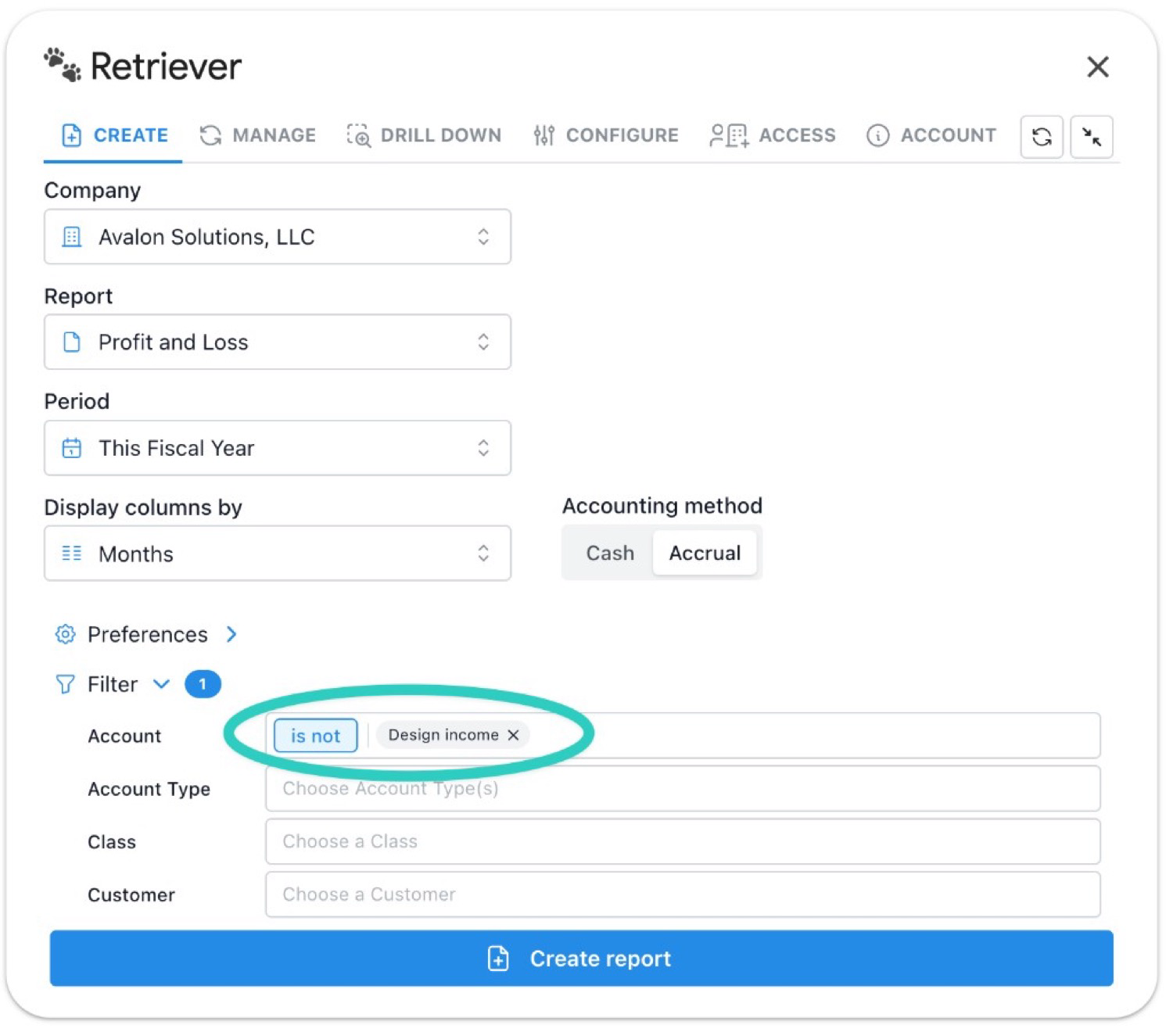
Open the Account filter, change the condition from the default to "is not", and pick the accounts to exclude.
- Create report
The P&L includes every account except the ones you named. Total Income, Gross Profit, and Net Income all move with the excluded amount.
The filtered report drops the excluded amount, and it flows through Total Income, Gross Profit, and Net Income.
Frequently asked questions
What is the difference between deselecting accounts and using "is not"?
Deselecting builds a fixed include list: every account you left checked, and nothing else. "is not" builds an exclude list: every account except the ones you named. They can look the same on day one. They diverge when you add an account in QuickBooks later.
Will a new QuickBooks account show up when I refresh?
On an "is not" report, yes, as long as the new account has activity. On a Select-all-then-deselect report, no. The new account starts unchecked, so it stays off the report until you go back and include it.
Can I exclude more than one account?
Yes. Uncheck as many as you want in Choose Account(s), or name more than one account on an "is not" filter.
Does checking a parent account select its sub-accounts?
Yes. Selecting a top-level parent selects the children under it, so you do not have to click each nested account.
Pull a filtered P&L into Google Sheets
Retriever writes QuickBooks Online reports into Google Sheets and refreshes them on a schedule. Set the account filter once, including an "is not" exclude, and the sheet keeps that shape.
See how Retriever worksSee also
Questions about account filters? Reach out at aubrey@retrieverhq.com.

© 2026 Avalon Innovation Corporation. All rights reserved.
🇺🇸 Built in Orange County, California