
How to Read the Cash Flow Overview in QuickBooks Online
Cash flow overview is the dashboard QuickBooks Online gives you for cash: what is in the accounts today, how the balance has moved, and what is due in and out this month. It is read-only, so it is a place to look rather than a place to plan. Here is what each panel is telling you.
Steps
- Open Cash flow overview
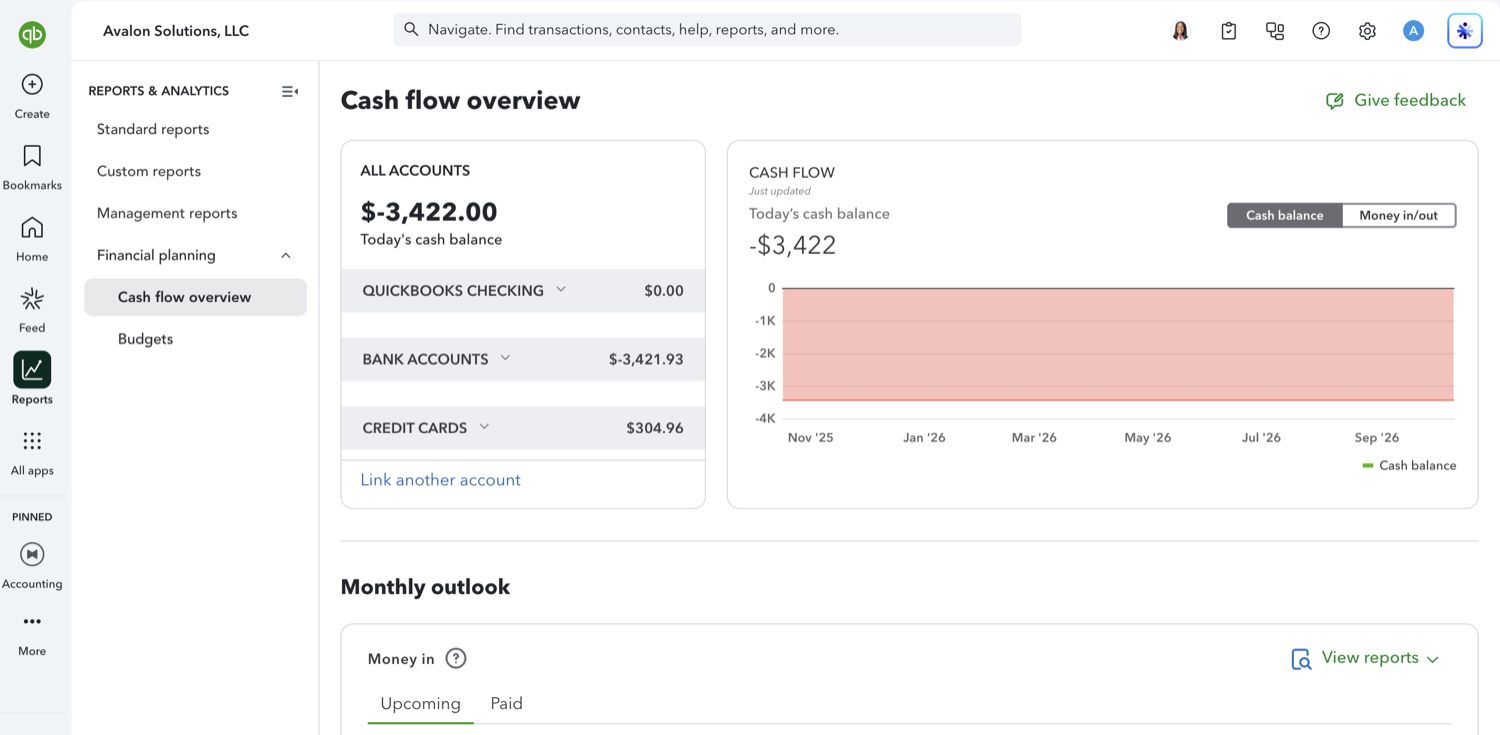
Go to Reports in the left navigation, open Financial planning, and select Cash flow overview. The home page cash flow card also has a View cash flow link that lands here. The top of the page holds two panels: All accounts, listing each bank and credit card balance with a running total, and a Cash flow chart with a Cash balance and Money in/out toggle.
- Read the monthly outlook
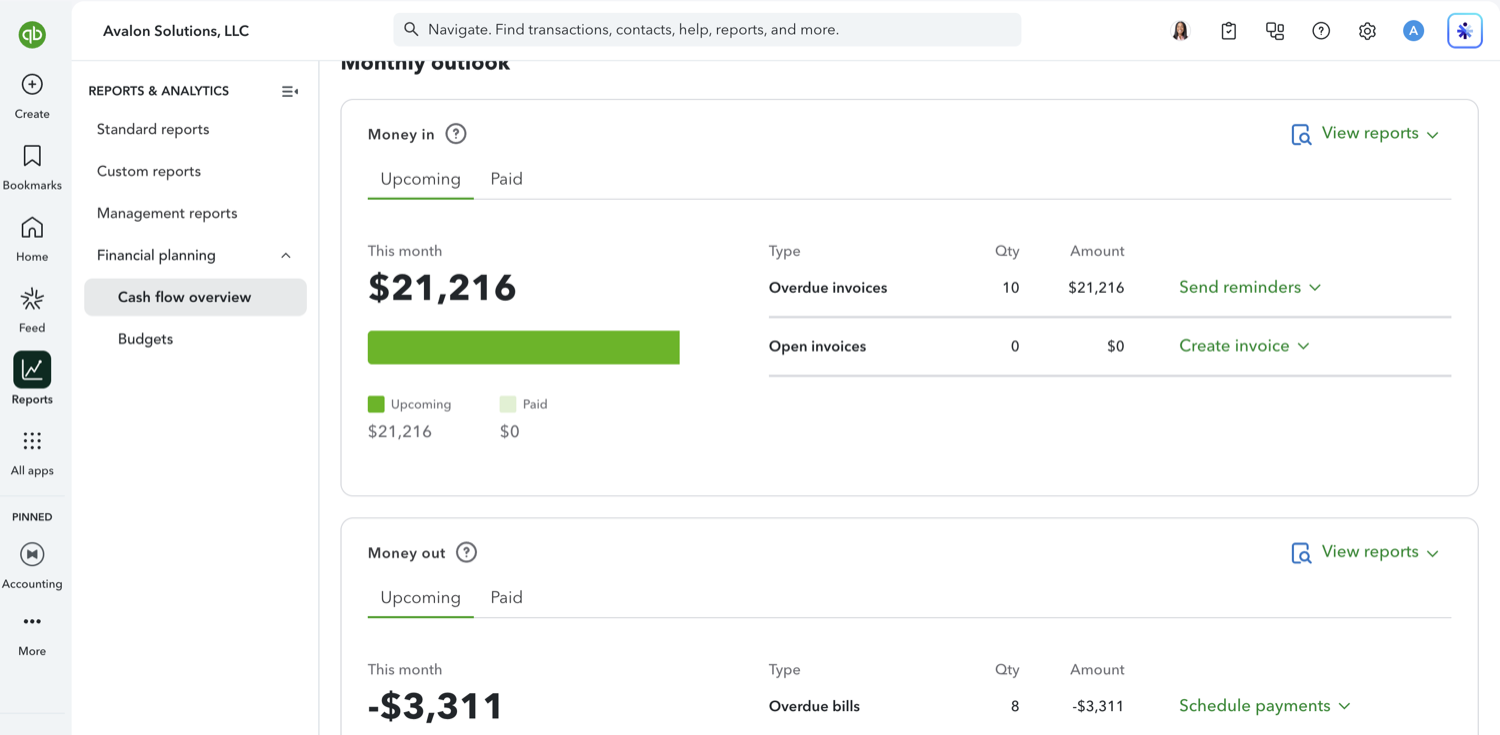
Below the chart, Money in and Money out each split into Upcoming and Paid tabs with a figure for this month and a breakdown beside it: overdue invoices and open invoices on the money in side, overdue bills and open bills on the money out side. Each row carries an action, such as Send reminders or Schedule payments, so the overview doubles as a worklist. Watch the overdue counts rather than the headline number, since a large overdue balance means the month figure is money you are owed, not money you have.
See also
Frequently asked questions
Can I change what the Cash flow overview shows?
Not much. It is a fixed dashboard rather than a report: there is no period picker, no Customize panel, and no column settings. For a view you control, use the Statement of Cash Flows, which has a full report toolbar.
Why does the chart look the same as the one on the Cash flow planner?
It is the same chart. The difference is everything around it: the planner lets you add expected items and edit the projection, while the overview is read-only and pairs the chart with balances and a monthly outlook.
Does Cash flow overview include accounts I have not connected?
Only what QuickBooks knows about. The All accounts panel lists your connected bank and credit card accounts, with a Link another account option for ones that are missing. Cash sitting in an unlinked account will not appear.
Tired of rebuilding reports? Need more customization?
Retriever pulls QuickBooks Online reports like this one into Google Sheets on a schedule. They refresh on their own, and once the data is in Sheets you can pivot, chart, and customize it far beyond QuickBooks' fixed report layouts.
See how Retriever worksRelated report guides
Questions about this report? Reach out at aubrey@retrieverhq.com.

© 2026 Avalon Innovation Corporation. All rights reserved.
🇺🇸 Built in Orange County, California