
Fixing the "Insufficient Permission" Error
Why Retriever sometimes gets stuck on a permissions error (and how to fix it in a couple of minutes).
The Problem
If you're seeing an "Insufficient Permission" error when using Retriever, it means that during the original installation flow, Google did not grant Retriever the full set of permissions it needs to run.
This usually happens when one or more of the permission checkboxes were left unchecked on the Google consent screen during install. Without those permissions, Retriever can authenticate, but it can't actually read or write to your spreadsheet, which causes the error.
How to Fix It
Step 1: Delete the existing connection
Open your Google account's connections page and remove Retriever's existing access so we can start with a clean slate.
- Click Delete all connections you have with Retriever (or the equivalent "Remove access" button).
- Confirm the removal when prompted.
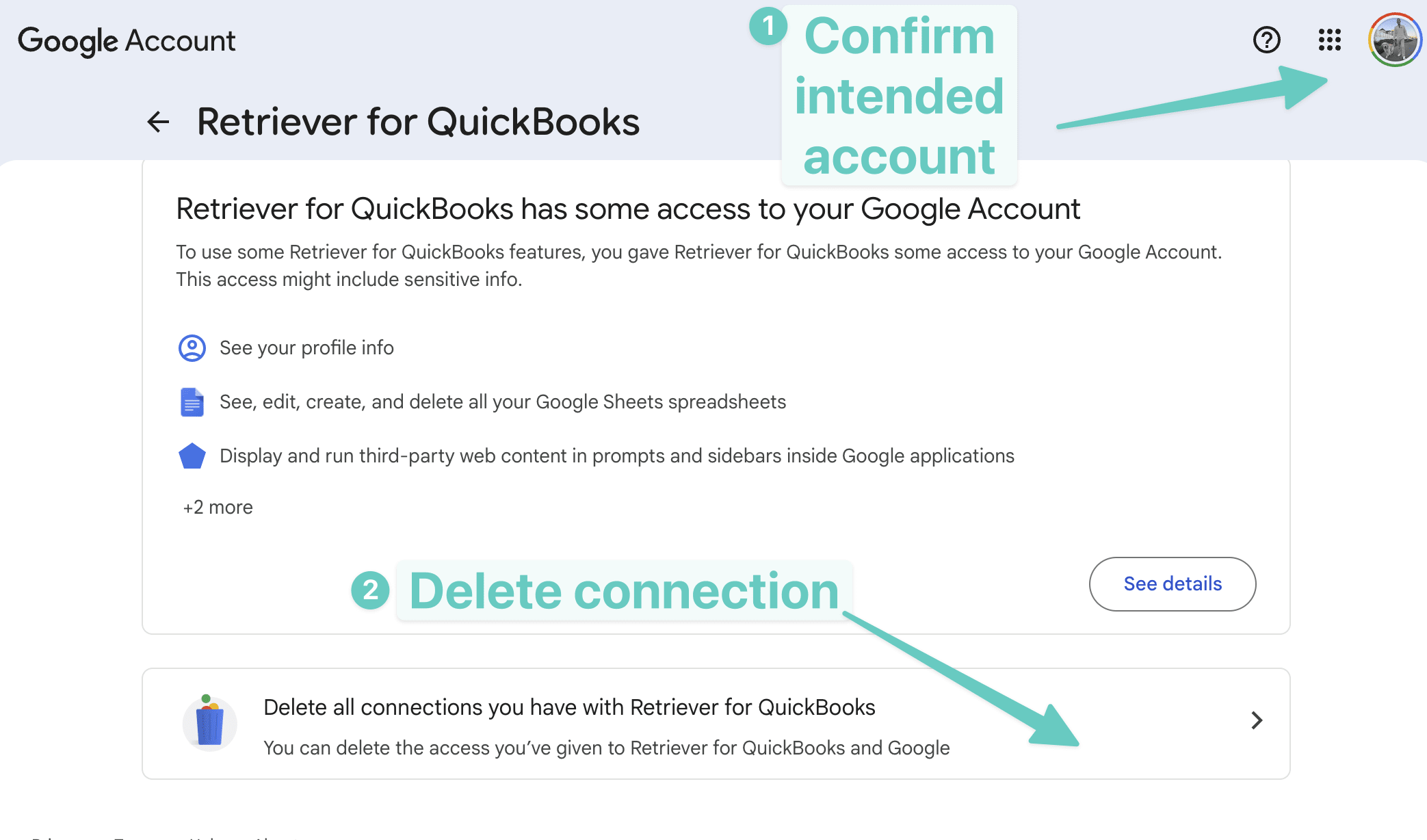
Step 2: Reinstall Retriever and grant all permissions
Now uninstall Retriever from the Google Workspace Marketplace and reinstall it. When the consent screen appears mid-install, grant every permission Retriever requests.
- Click Uninstall and confirm.
- Once uninstalled, click Install to reinstall the app.
- When the consent screen appears, check the Select all box at the top of the list so that every permission is checked.
- Click Continue to finish the installation.
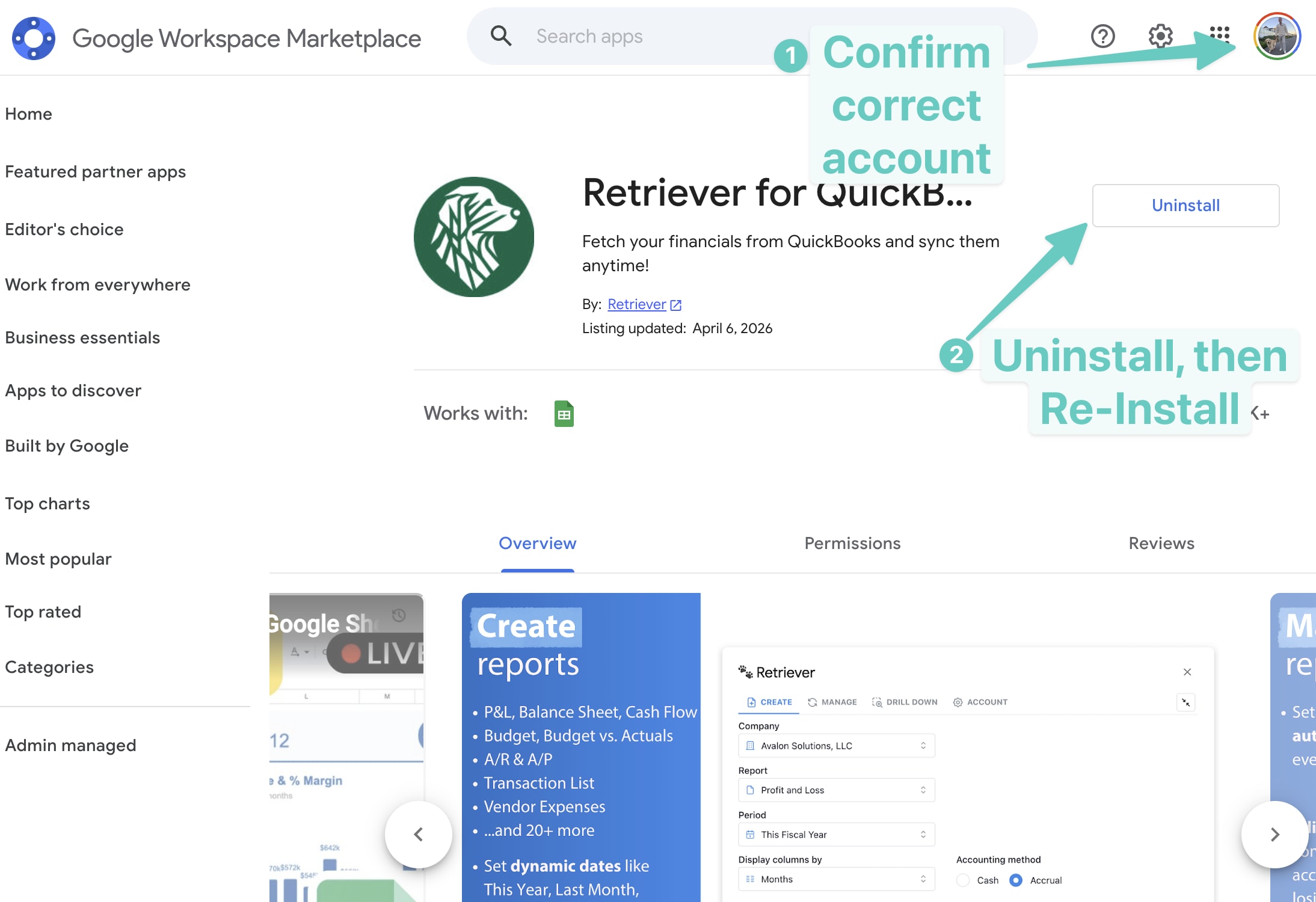
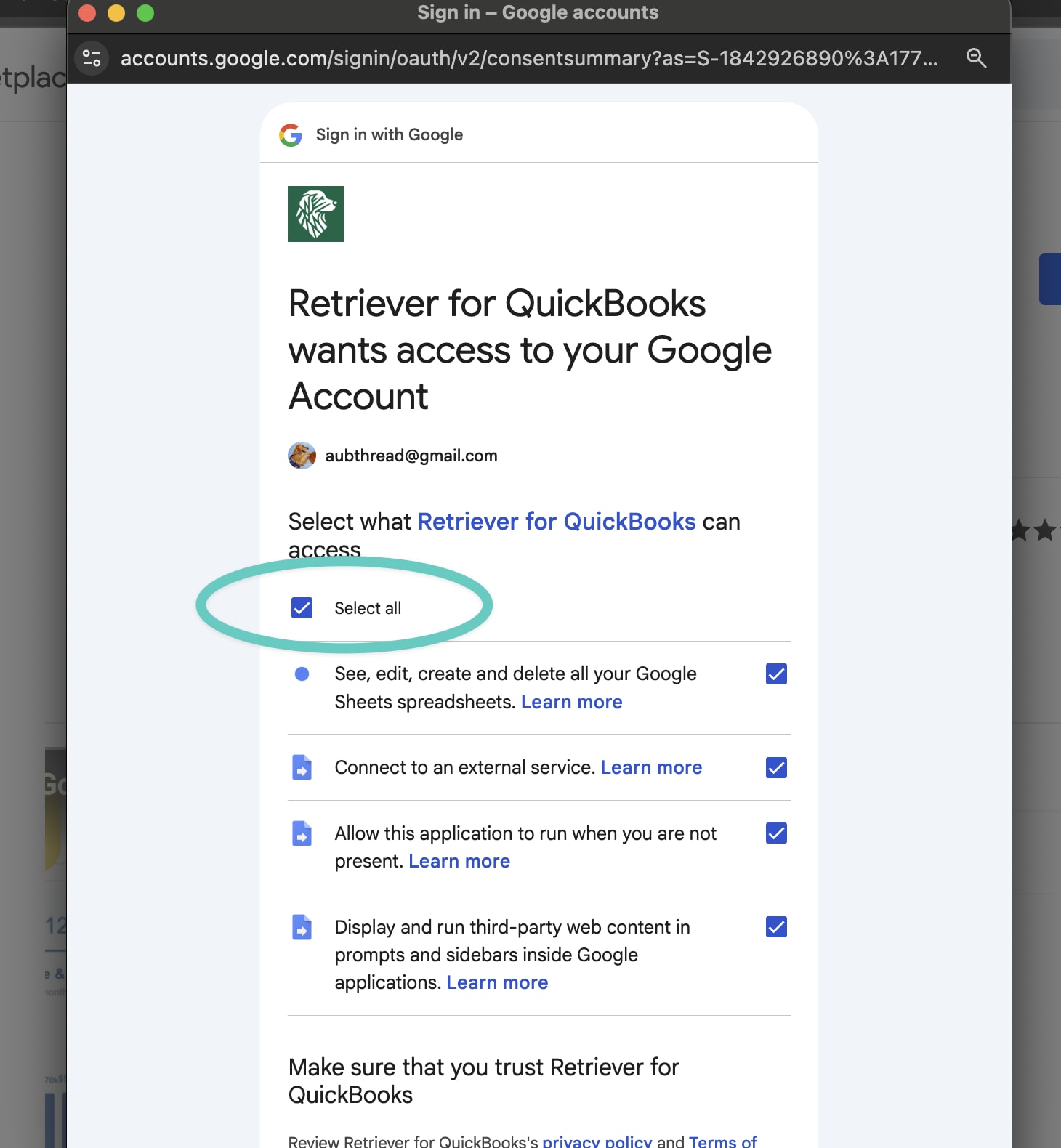
Step 3: Reopen Retriever from any Google Sheet
Open any Google Sheet, launch the Retriever extension from the Extensions menu, and the "Insufficient Permission" error should be gone.
Summary
- The "Insufficient Permission" error means Retriever wasn't granted the full set of permissions during installation.
- Delete Retriever's connection from your Google account connections page.
- Uninstall and then reinstall Retriever from the Google Workspace Marketplace, and most importantly, check Select all on the consent screen before clicking Continue. Skipping this is what causes the error in the first place.
- Reopen Retriever from any Google Sheet — the error should be resolved.
Have questions or still running into issues?
Reach out at aubrey@retrieverhq.com

© 2026 Avalon Innovation Corporation. All rights reserved.
🇺🇸 Built in Orange County, California